Introdução
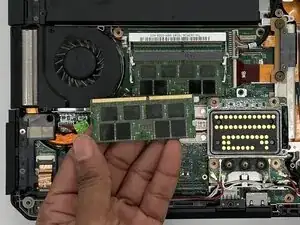
This guide provides clear, step-by-step instructions for replacing the RAM in your Dell Latitude 14 Rugged 5414. Upgrading or replacing your RAM is essential for maintaining smooth laptop performance, especially when running multiple programs or more demanding applications.
RAM functions as the system’s short-term memory, storing data your processor needs quick access to, and efficiently run the operating system and various tasks. Increasing your RAM can lead to faster performance, reduced lag, improved multitasking, and quicker loading of frequently used software.
Before beginning the replacement, verify the type and maximum supported RAM for your specific model to ensure compatibility. You should also back up any essential work and power down the device completely to avoid data loss or electrical hazards.
Working on a clean, static-free surface is recommended to protect sensitive internal components from electrostatic discharge.
Ferramentas


-
-
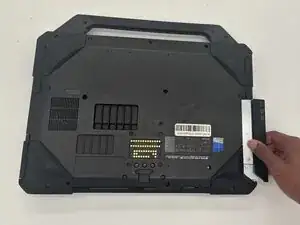
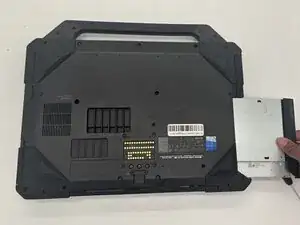
Flip the laptop over so the bottom side is facing up.
-
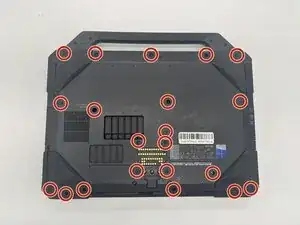
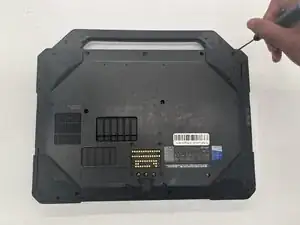
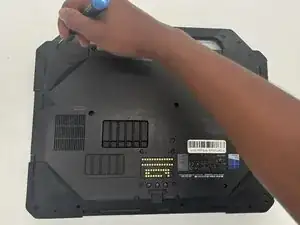
Use a JIS #1 screwdriver to remove all twenty-one 7 mm screws that secure the bottom cover.
-
-
-
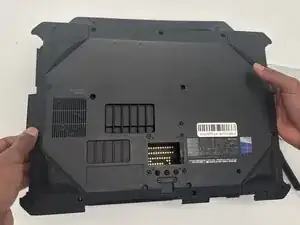
Lift the bottom cover of the laptop starting from the corner.
-
Insert an opening tool or heavy-duty nylon spudger into the seam between the top and bottom case and slide it around the perimeter to release the clips holding it together.
-
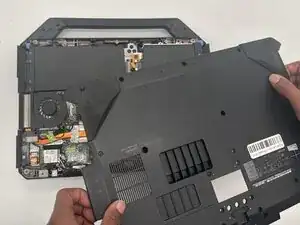
Remove the bottom cover.
-
-
-
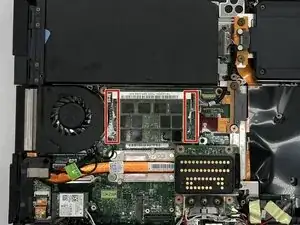
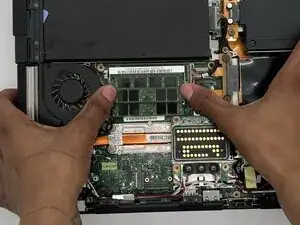
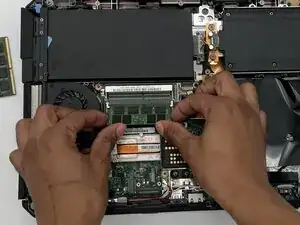
Using both hands, pull the metal clips on either side of the RAM away from the module to release it.
-
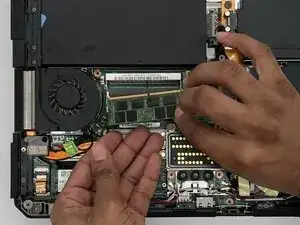
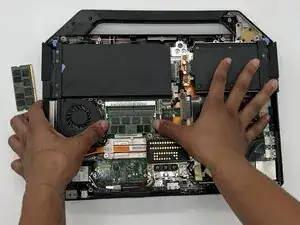
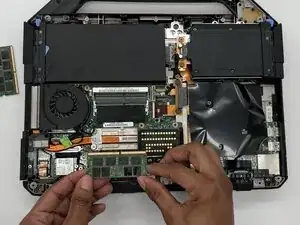
Slide the first RAM stick from the socket.
-
To reassemble your device, follow these instructions in reverse order.
Take your e-waste to an R2 or e-Stewards certified recycler.
Repair didn’t go as planned? Try some basic troubleshooting or ask our Answers community for help.