Introdução
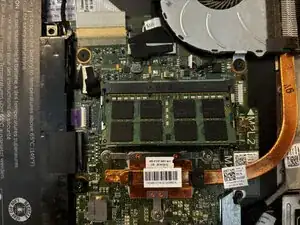
If you find your applications are running slowly or frequently crashing, your RAM module may be outdated or faulty. This guide demonstrates how to replace the RAM module in your Dell Inspiron 7348.
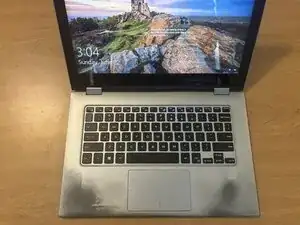
Before you begin, make sure to power off and disconnect your computer from the charging adapter. Also, make sure that you clear your working space of any liquids nearby.


Peças
-
-
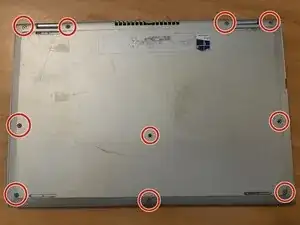
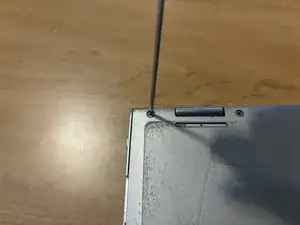
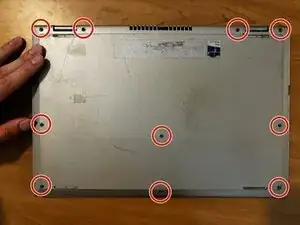
Use a Philips #0 iFixit screwdriver, or any other screwdriver that fits the screws, to unscrew all ten screws.
-
-
-
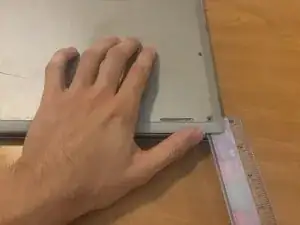
Insert a plastic prying tool, such as a ruler, into the gap between the back cover and the base of the laptop.
-
Gently pry open the back cover by pushing the tool upwards. If all the screws are properly removed, the cover will pop off easily.
-
-
-
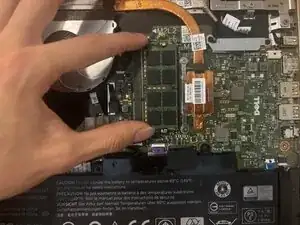
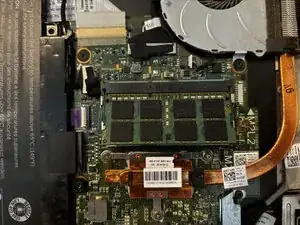
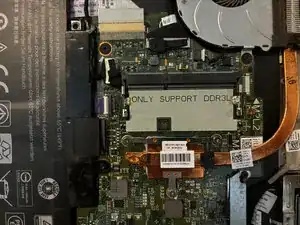
Locate the module with eight square black chips on the top.
-
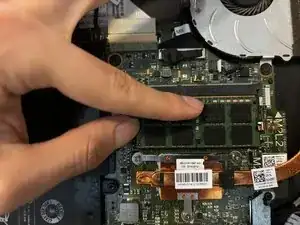
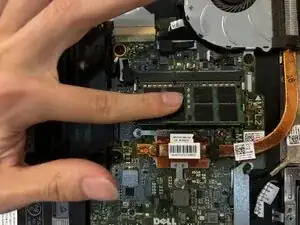
Locate the metal prongs of the module. The fingers in the image are resting on the prongs.
-
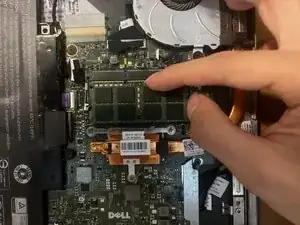
Pinch and pry the metal prong outwards. Do the same to metal prong on the other side.
-
-
-
The module will stick up at a 45-degree angle, meaning it is loose.
-
Remove the module from the socket.
-
-
-
Insert the replacement module in the same position as the old module.
-
Push down on the module gently until the metal prongs audibly pop into place. The sound means that the module is secure.
-
-
-
Place the back cover back onto the latop.
-
Press down on the edges to make sure the back cover is secure. If the back cover is not fully sealed, objects can enter the gap and damage the hardware.
-
Reinstall the screws into the same locations as before.
-
-
-
Boot up your laptop and voila! Your computer should be back up and running with renewed vigor in the RAM performance.
-
To reassemble your device, follow these instructions in reverse order. Take your e-waste to an R2 or e-Stewards certified recycler.