Introdução
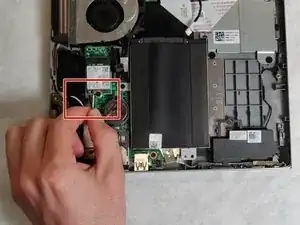
Use this guide to replace your WLAN adaptor. You will need a Phillips #0 screwdriver and a plastic opening tool to complete this guide.
Ferramentas


-
-
First flip over the laptop to expose the back panel
-
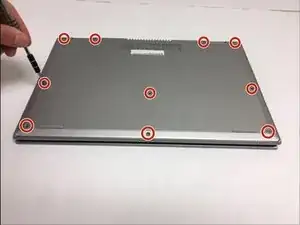
Use a Phillips #0 screwdriver to unscrew all ten 7mm Phillips head screws holding the back panel in place.
-
-
-
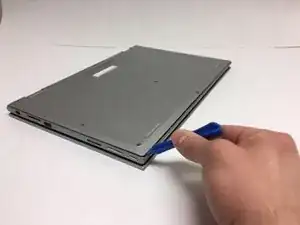
With a plastic spudger, carefully remove the back panel by prying each corner off individually
-
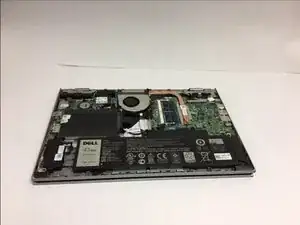
Slowly pick up the panel and set it aside
-
-
-
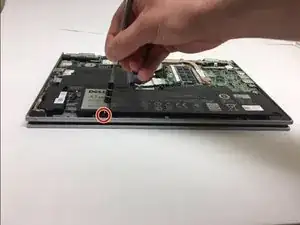
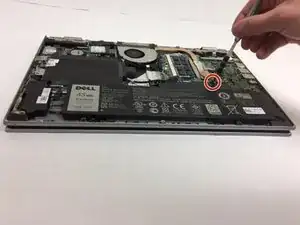
The battery will be the largest black component in the device located near the bottom edge. Using a Phillips #0 screwdriver, unscrew the two 3mm Phillips head screws holding in the battery.
-
-
-
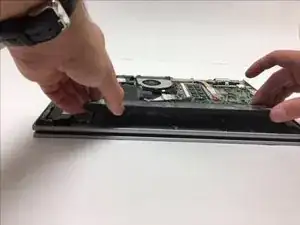
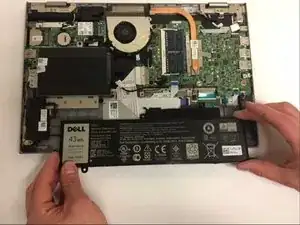
To remove the old battery, slightly lift the bottom edge of the battery with your hands
-
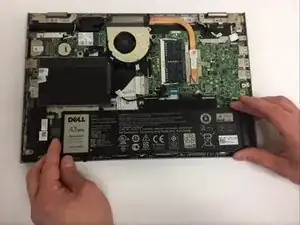
Now slowly pull the battery towards you to fully detach the battery
-
-
-
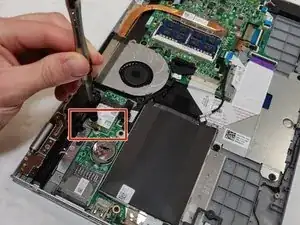
Remove the 3.9mm Phillips screw using Phillips #0 screwdriver.
-
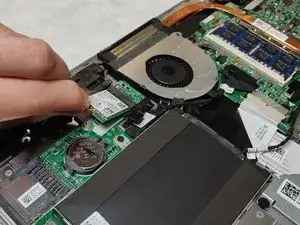
Once the screw is removed, one end of the WLAN adaptor will raise up.
-
To reassemble your device, follow these instructions in reverse order.