Introdução
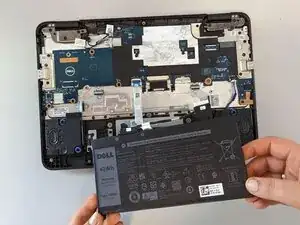
If your Dell Chromebook 3110 won’t hold a charge, drains quickly, or only works when plugged in, you likely need a battery replacement.
This step-by-step guide will show you how to safely remove and replace the battery in a Dell Chromebook 3110.
For safety:
- Discharge the battery below 25% before starting the repair. This lowers the risk of fire if the battery is damaged.
- If your old battery looks swollen, puffy, or smells unusual, use caution—swollen lithium-ion batteries can be hazardous. See our wiki: What to Do With a Swollen Battery.
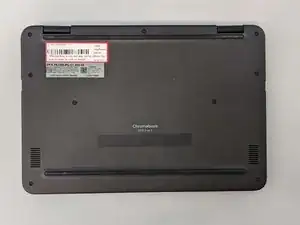
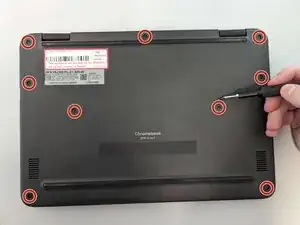
Before beginning your Dell Chromebook 3110 battery replacement, unplug the charger and completely power off your device.


-
-
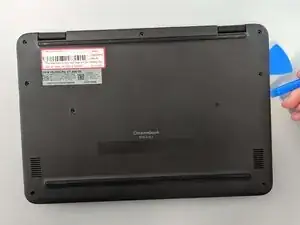
Using an opening pick and a plastic opening tool, begin to separate the back cover from the laptop.
-
Using your hands, fully remove the back cover.
-
-
-
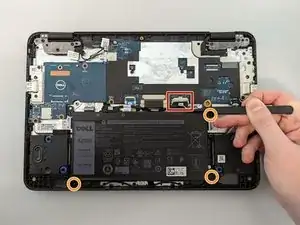
Unplug the battery from the motherboard by gently pulling on the cable header from the motherboard toward the battery.
-
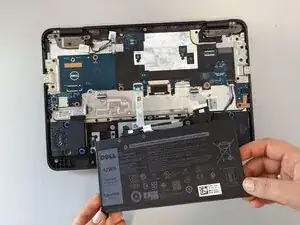
Using the Phillips #0 screwdriver, remove the three screws from the battery.
-
To reassemble your device, follow these instructions in reverse order. For optimal performance, calibrate your newly installed battery after completing this guide.
Take your e-waste to an R2 or e-Stewards certified recycler.