Introdução

This is a guide on how to easily replace the power button on your CAT S48c.

This guide will go through the steps to replace the power button if your CAT S48c is not turning on and your power button is damaged.

Common symptoms/indicators:

  • Button not clicking and or stuck.
  • Phone not turning on.

The replacement can be found on Ebay: OEM SPRINT CATERPILLAR CAT S48C ORIGINAL ORANGE PROGRAMMABLE BUTTON ROCKER KEY.

  1. wrxhgTS5dnvWClvw
    wrxhgTS5dnvWClvw
    CY2xyptJqQLIdHpS
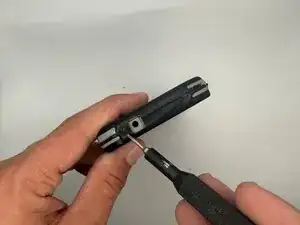
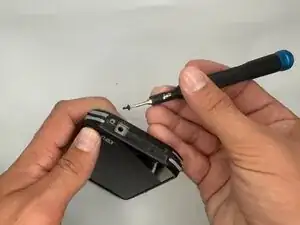
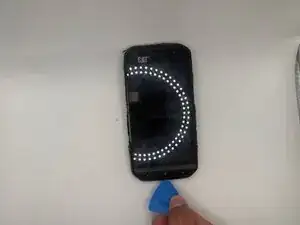
    • Remove the ten T5 Torx 4 mm-long screws on the sides of the case.

  2. rdjg2CMDdjWtqMA1
    rdjg2CMDdjWtqMA1
    Ve5seGTJDboskk5l
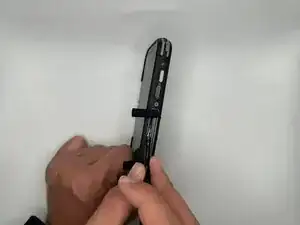
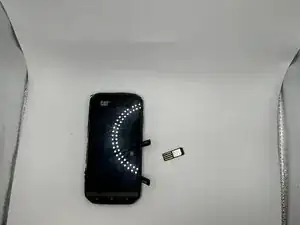
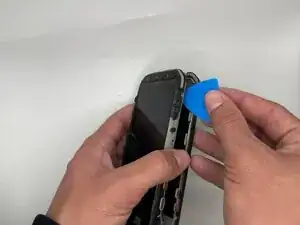
    • Open the side covers and remove the SIM card with tweezers or a pick.

    • If there is an SD card remove that as well.

  3. FMFaHPeXu5wiVphF
    FMFaHPeXu5wiVphF
    DTsHK4mws4FSLrD2
    tBiqttwENflrmbKt
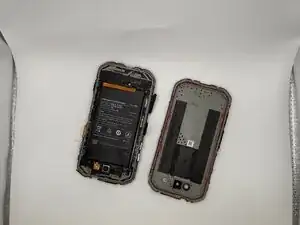
    • Use an opening pick to pry off the rear cover.

  4. VMpTeQuRl5mDboik
    VMpTeQuRl5mDboik
    VVJRAiP1DSwwLD4Z
    I1OFwFAIsTiZcWdv
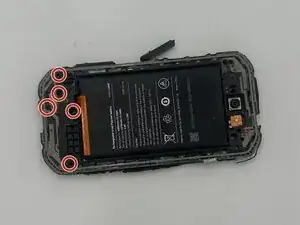
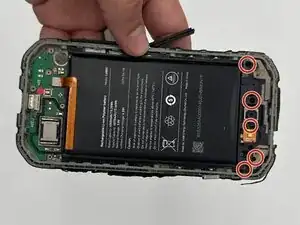
    • Remove the five 3 mm-long Phillips #000 screws that secure the lower midframe.

  5. BSljuZEheocw1Joj
    BSljuZEheocw1Joj
    fSkYUEByLmhGqpBl
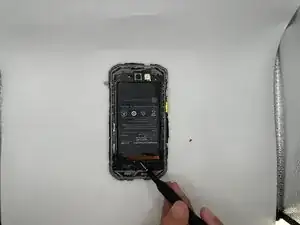
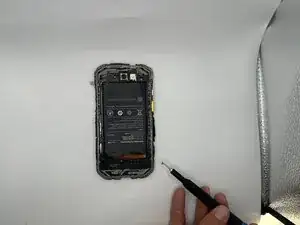
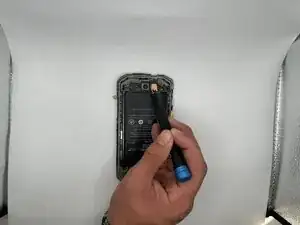
    • Use the tip of a spudger to pry up and disconnect the battery press connector.

  6. RJFyvJSApyjCHSpl
    RJFyvJSApyjCHSpl
    hMDMmMEmMQIKMjkL
    UpBnvT2YCpabLGxZ
    • Remove the five 3 mm-long Phillips #000 screws from the top section of the midframe.

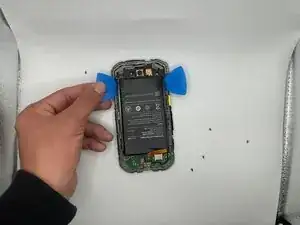
    • Gently pry the section along with the battery off of the case.

  7. 4w2uRjqTAOvXUhby
    4w2uRjqTAOvXUhby
    xZDabJbyEWh3VAUe
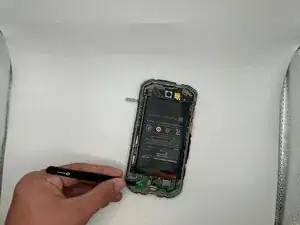
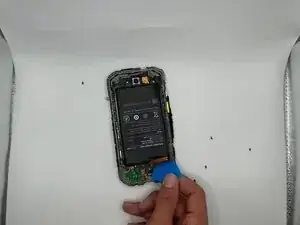
    • Gently pry the battery from the case, making sure not to bend the battery.

    • Replace the battery with your replacement, popping it in the frame and insert the flex cable.

    • Keep in mind that if it has lumps or damages it could be dangerous to handle as it can catch on fire.

  8. Pn5d6jAfwsqhgvH2
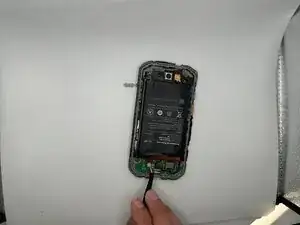
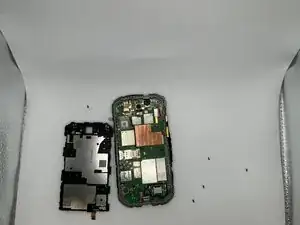
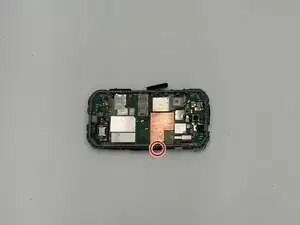
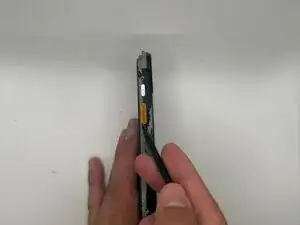
    • Once the battery has been removed look for the bright orange power button on the side of your phone.

  9. XjfNXLxNAdNivFiX
    XjfNXLxNAdNivFiX
    FbArWPaDTNxc5lEd
    • You can test the button on the motherboard itself to see if it's the motherboard and not the button, if so you may need to replace the motherboard.

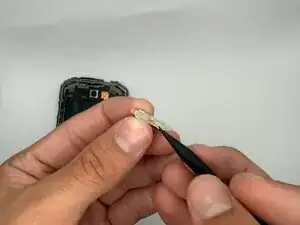
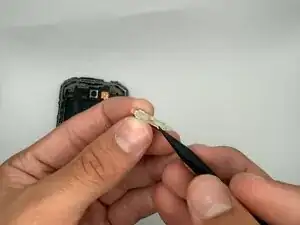
    • Use tweezers to remove the button.

    • Once the button is taken out replace it with your new button. You may notice rubber-like holders on the sides, make sure they line up with the frame.

Conclusão

To reassemble your device, follow these instructions in reverse order.

RYAN RAMIREZ

Membro desde: 10/09/25

302 Reputação

0 comentários