Introdução
This guide will go over replacing the CAT 22 Flip touch screen. The touch screen is one of the major components used to interface with the system. All major applications are displayed through the CAT S22 Flip.
A faulty touch screen may not properly display apps, images, and videos. It may also not react to inputs through the touch screen.
To be sure the touchscreen is the issue, check the CAT S22 Flip troubleshooting guides
Ferramentas


-
-
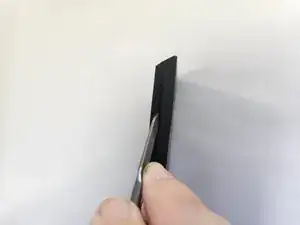
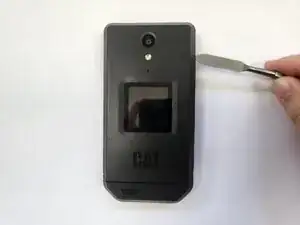
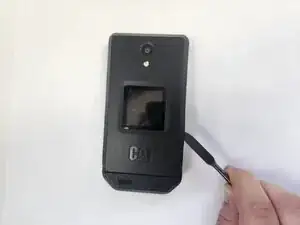
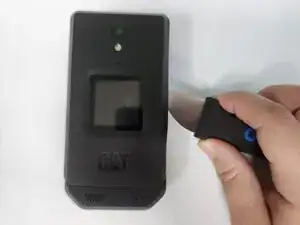
Insert a metal spudger into the seam of the phone frame.
-
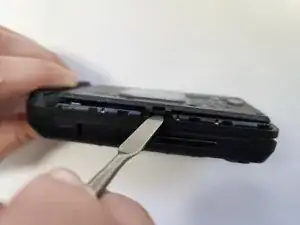
Apply a downward force on the metal spudger to create a gap.
-
-
-
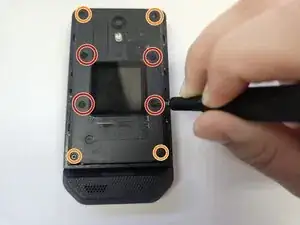
Use a J00 JIS screwdriver to remove the four wide 3.3 mm-long screws.
-
Use a J00 JIS screwdriver to remove the four narrow 3.3 mm-long screws.
-
-
-
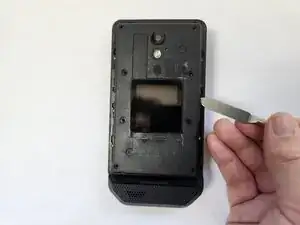
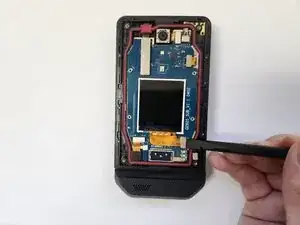
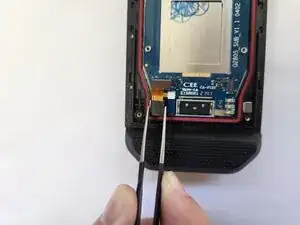
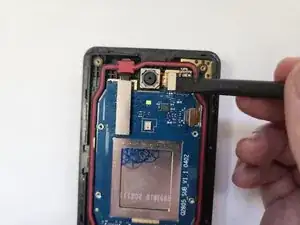
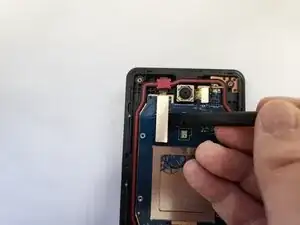
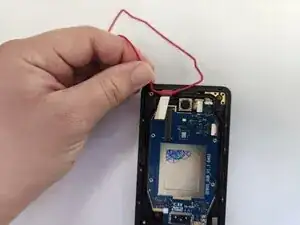
Place the spudger at one side of the metallic connector of the motherboard ribbon and apply a light upward force.
-
Repeat the previous action across the sides of the connector.
-
-
-
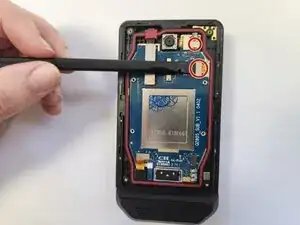
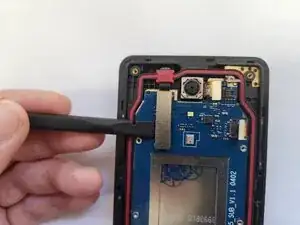
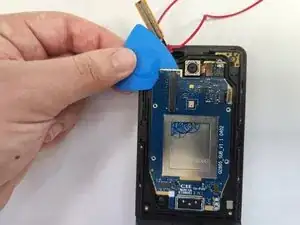
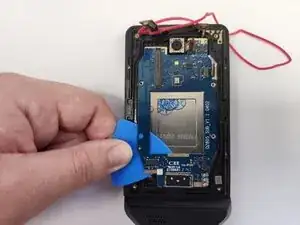
Insert an opening pick between the frame and the top of the daughterboard. This spot should be where you removed the motherboard ribbon cable and should have the least amount of adhesive.
-
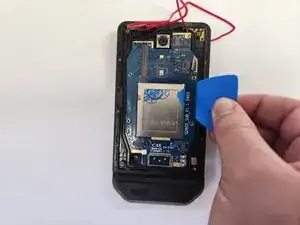
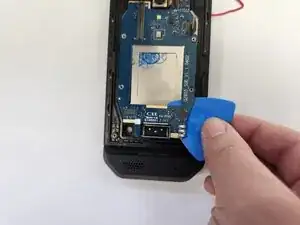
Move the opening pick down, slicing through the adhesive.
-
While moving the pick down, apply a ligh upward pressure to fully seperate the the daughterboard from the frame.
-
-
-
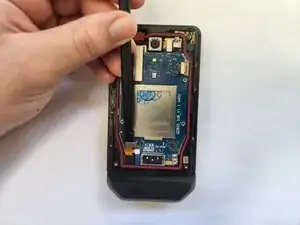
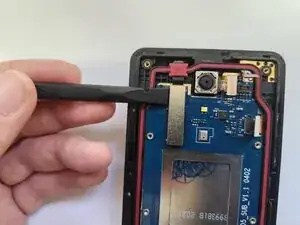
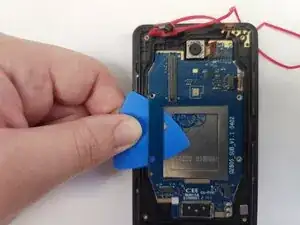
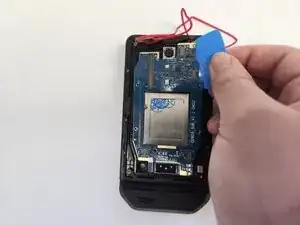
Insert the opening pick between the frame and the top right of the daughterboard. There may be some resistence inserting the pick.
-
Move the opening pick down, slicing through the adhesive.
-
While moving the pick down, apply a ligh upward pressure to fully seperate the the daughterboard from the frame.
-
-
-
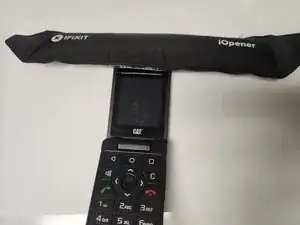
Warm up the iFixit iOpener.
-
Place the iFixit iOpener at the top of the screen to soften the adhesive.
-
-
-
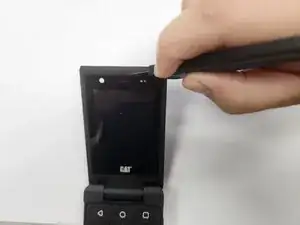
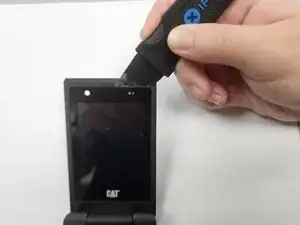
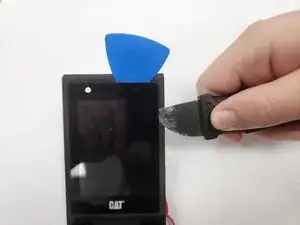
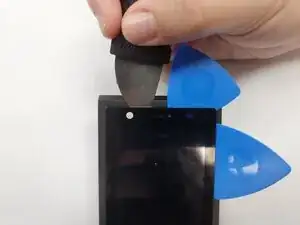
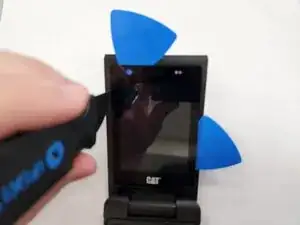
Insert the Jimmy into the crease between the touch screen and the top of the frame.
-
Turn the Jimmy by 90 degrees to insert it under the screen.
-
-
-
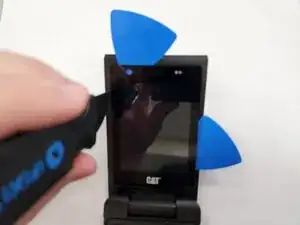
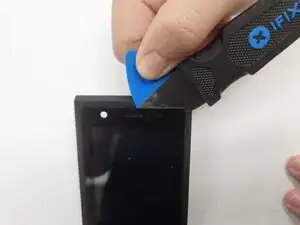
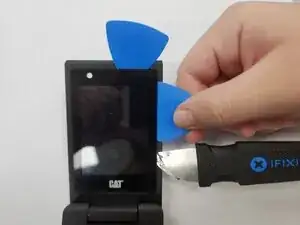
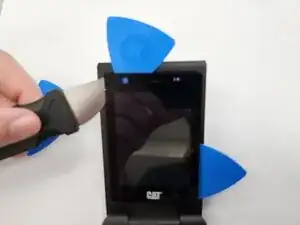
Place a opening pick under the inserted Jimmy. There should now be two opening picks at the top of the frame.
-
-
-
Move the Jimmy to the opposite side of the touch screen.
-
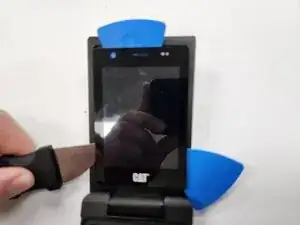
Create a new incision between the leftside of the screen and the the frame.
-
Turn the Jimmy by 90 degrees to insert it under the screen.
-
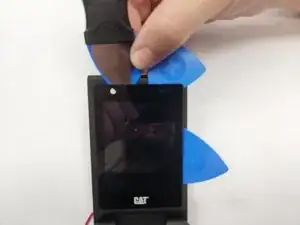
Use the Jimmy to slice with a downwards motion. The screen should full seperate from the frame with the exception of the bottom.
-
-
-
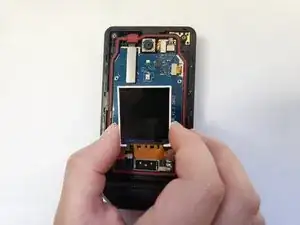
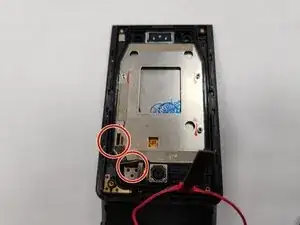
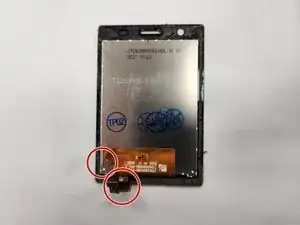
As the touch screen is falls out, make sure to guide the two touch screen ribbon cables through the frame.
-
To reassemble your device, follow these instructions in reverse order. You may want to reapply adhesive to where the daughterboard and screen meet the frame.

The hinge is too loose how to get tighten
channveer shankad -