Introdução
Prerequisite-only guide! This guide is part of another procedure and is not meant to be used alone.
Use this guide to safely disconnect the battery before beginning repairs on a Late 2020 MacBook Air (M1).


-
-
If your MacBook is running Big Sur v11.1 or later, disabling Auto Boot may not work. You can proceed normally, but make sure to disconnect the battery as soon as you're inside.
-
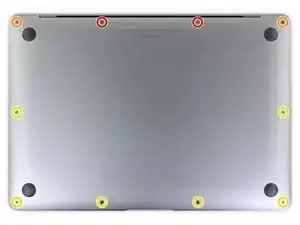
Use a P5 driver to remove the following screws:
-
Two 7.9 mm screws
-
Two 7.3 mm screws
-
Six 2.6 mm screws
-
-
-
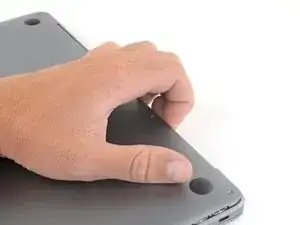
Wedge your fingers between the display and the lower case and pull upward to pop off the lower case.
-
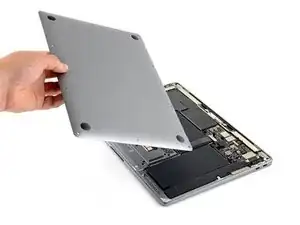
Remove the lower case.
-
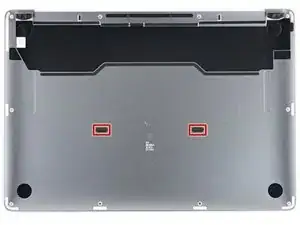
Set it in place and press firmly to engage the two hidden clips underneath. You should feel and hear them snap into place.
-
-
-
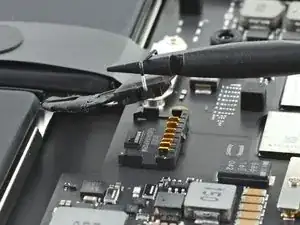
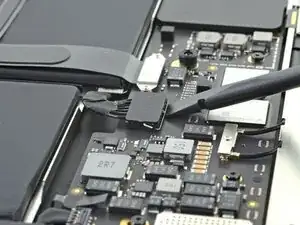
Use the flat end of a spudger to pry up and unlatch the metal locking arm on the battery connector.
-
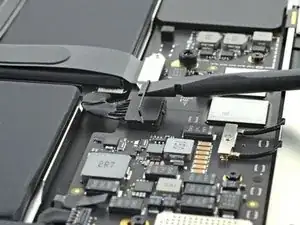
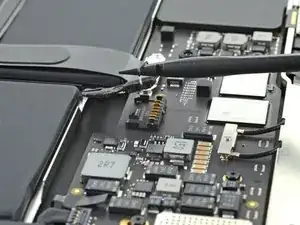
Lift straight up on the metal locking arm to pull the battery connector out of its socket on the logic board.
-
If necessary, push the rear, wire side of the connector into place first, then rock the front of the connector into place.
-
To reassemble your device, follow these instructions in reverse order.

ESD safe mat, plugged into ground, with a wrist strap, also grounded, are the best best to protect the logic board.
Robin Ray -
Re-Assembly Tip: Before putting the screws back in, snap the lower case on and test to make sure the MacBook powers up. When I first re-assembled, I became very nervous I did something wrong because it would not power on. It turns out I just needed to plug the laptop into a power source for it to power up (despite having a good charge before disassembly). It was the perfect way to test the new USB-C ports!
Austin -
Big points to this one, especially for mentioning needing to plug the laptop in. The bottom case needs to be screwed in and laptop needs to be plugged in before it will boot.
Bayden Yazalina -
Thanks for posting this! The same thing happened to me (got scared that I broke something or forgot a step), but connected it to USB-C and it started right up.
Matthew Straub -
Wiha 4PL driver for these screws.
Greg Worrel -
Printing out all the images from this Ifixit guide prior to starting and using duct tape help me keep track of screws.
raju midjdeya -
This Guide has a high chance of not working if an aftermarket display is used as MAC serialization was introduced post ~2023. Likely you will need an original MAC screen replacement and to serialize the display for it to work.
Tron Computers -
Just to chime in on how I managed the screw situation (and I am sure someone else has done this - or maybe everyone has). The replacement screen I got came packaged between two sheets of cardboard. I punched holes with a smaller Torx driver than the one used to remove each screw in the cardboard sheet in a 'map' of where they came from...
Two things accomplished:
1) no screws can roll of the table (they are tricky little buggers)
2) you remember which goes where (well actually, this way you don't need to remember... )
I'd upload photo, but can't...
Cheers to a great guide
Eric Van Moll -
Bought the screen replacement assembly on amazon for $165 brand new. Installed and working great.
The Doctor -