Introdução

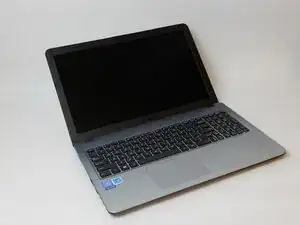
In this guide you will learn how to replace your Asus Vivobook X540SA-BPD0602V's Hard Drive. Replacing your laptop's Hard Drive is a necessary step in upgrading the devices memory.

  1. E3iuiAt4O5EKgVox
    • Power down the laptop using the device's power button in top right corner of the keyboard. Ensure that the device's power cord is disconnected.

  2. Ccg5uYZp6prhXEHp
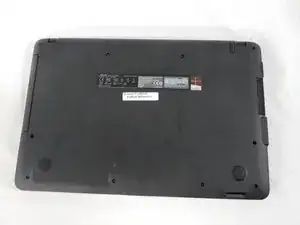
    • Flip the laptop over so the back panel is displayed.

  3. CdHjEFidCUCEQDZM
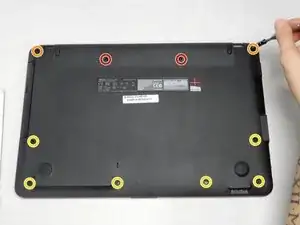
    • Using a Phillips #1 screwdriver, remove the ten screws from the back panel.

    • Remove the two battery screws (15.6 mm)

    • Two top corner screws (12.5 mm)

    • Six case screws (9.7mm)

  4. NBm4tVPgVFTKYvbU
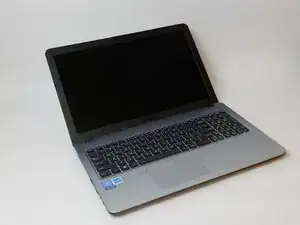
    • Flip the laptop back over and open it, revealing the screen and keyboard.

  5. nqVieglwdWwJclN4
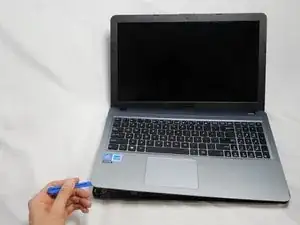
    • Using the blue plastic opening tool, wedge and loosen the seal all the way around the edges. Carefully lift up the keyboard panel.

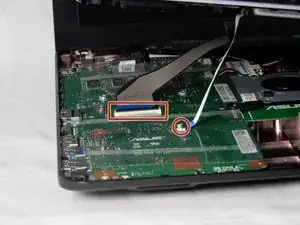
    • When lifting the keyboard panel, do not lift it all the way as the two connection ribbons to the motherboard must be disconnected.

    • It is recommended to break the seal of the case starting at the upper corners closest to the display monitor .

  6. QvvLGdeKjYsL5ZUZ
    • Observe where the ribbons connect to the motherboard, there are two connections. Each connection has a black clamp. To remove the ribbon, lift the black clamp up to disconnect it.

  7. aswnMWnfdeRccZ6t
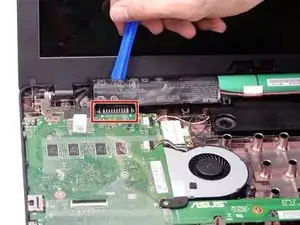
    • Very carefully, remove the batteries with the blue plastic iFixit opening tool. Focus removing the battery near the highlighted area.

    • The batteries should all be connected to one another and come out of the device as a single unit.

    • Be careful not to rip any of the black plastic covering the batteries. Exposed battery parts can lead to explosions. If the case is ripped, re-wrap them, or properly dispose of them. Do not reuse them.

    The battery doesn't need to come out if you're just replacing the hard drive.

    Brian -

  8. OQWFOvVlSZmFUbXO
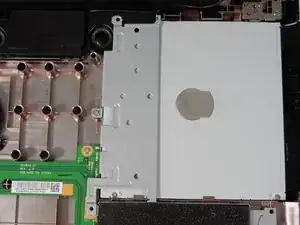
    • The Disk Drive is located within the upper right hand corner of the laptop.

    The optical drive also doesn't need to come out if you're just replacing the hard drive. The optical drive doesn't block any of the screws holding the hard drive caddy in place.

    Brian -

  9. cAXwgwUGolSQrW2C
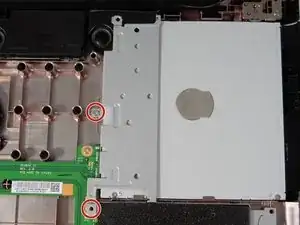
    • Using a Phillips #0 screwdriver, remove the two screws (5.6 mm) around the disc drive.

    • Note which screws go where. The two smaller screws fasten onto the disc drive, while the three larger screws secure the drive on the outside.

  10. et1qDiXquoj2haxF
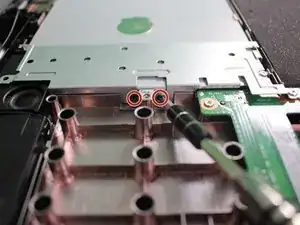
    • Use the Phillips #00 screwdriver to remove the two screws (2.7 mm) on the side of the disc drive fastener.

  11. wwbATFpvrZwCOYkO
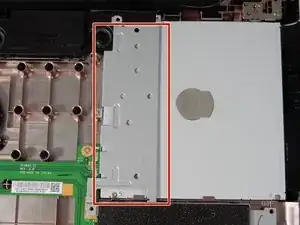
    • After removing the seven screws, lift the metal fastener from the disc drive with the plastic opening tool.

  12. kAumQPaEhhxU64HM
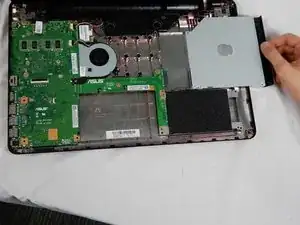
    • Slide the disc drive to the right, removing it from the laptop case.

  13. oMYS12v6GhBCOSHx
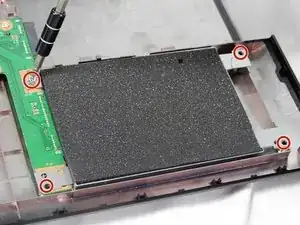
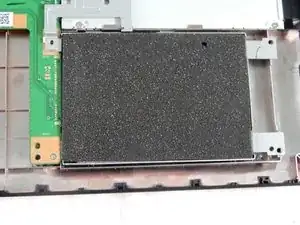
    • The Hard Drive is located in the bottom right hand corner. It should be the device covered in black foam.

    • Do not remove the foam. It's anti-static foam and protects the hard drive from static and any bumps as you move around your device.

  14. cAOG6WFZ5eWEPRev
    • Using the Phillips #0 screwdriver, unscrew the four (5.7cm) screws around the hard drive.

  15. RbyUM1l1JAkAZv61
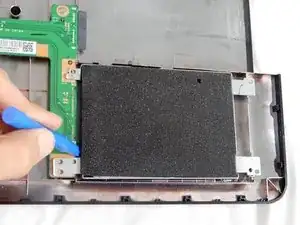
    • Using the blue plastic opening tool in the iFixit tool kit, slide the hard drive to the right to remove it from the case.

    • Some models don't come with a foam insert. This will cause a bit of a rattle if you're replacing the old hard drive with an SSD drive.

    Looks like the author neglected to describe removing the hard disk from the hard drive caddy. I assume I assume there are 4 screws, 2 on each side. If the reader never replaced a laptop hard drive, they may think the laptop has a special hard drive, not a standard hard drive. Thank you for the well-done Jessica.

    Johnny -

Conclusão

To reassemble your device, follow these instructions in reverse order.

Jessica Browne

Membro desde: 18/10/17

1083 Reputação

0 comentários