Introdução

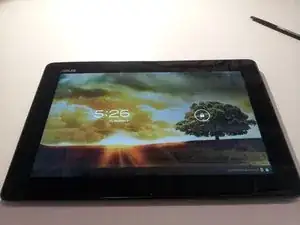
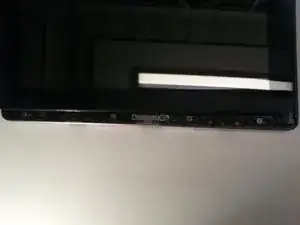
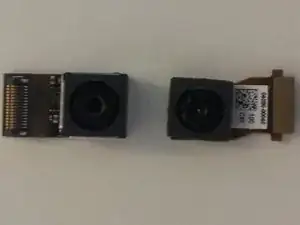
Is the camera on your Asus Transformer Pad Infinity broken? Follow this guide for instructions on how to replace the camera in your Asus Transformer Pad tablet.

  1. 3PxDKpNFVEZCqDOi
    • First, turn the power off

  2. g41MMX3dhkZXCxRy
    g41MMX3dhkZXCxRy
    ZvRASNCW4Qav5CQp
    knv2NMtVvTRyDMoa
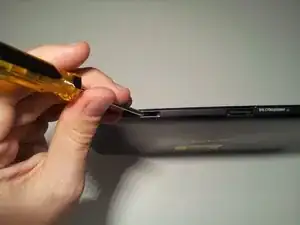
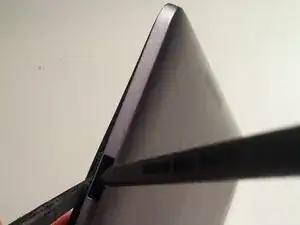
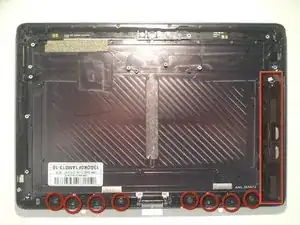
    • Insert a small flat head screwdriver into the 2 docking station guide ports on the bottom of the tablet.

    • Unlock screen casing tabs

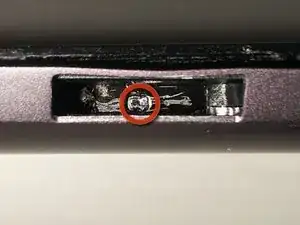
    • Push tab with screwdriver to the right until it clicks

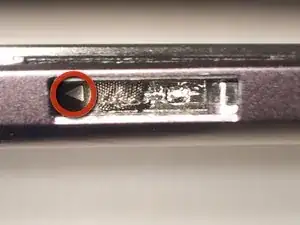
    • You should see a small arrow in the bottom of the port

    • Unlock the tabs in both docking station guide ports.

    Put the head of your small screwdriver into the small, almost circular hole in the tab, and push hard to the right.

    christopher -
  3. JCBGEDuFvSuZ2RUl
    JCBGEDuFvSuZ2RUl
    cVFW45IKOsaLNvi4
    PLMrI5LSEJDD5HMB
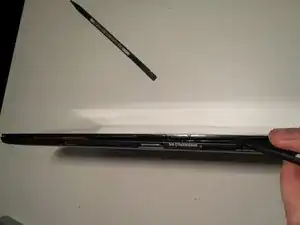
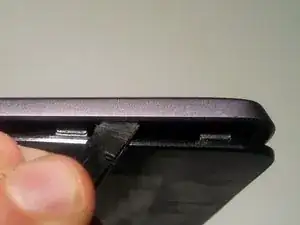
    • Use spudger to push upward on the small plastic tabs on top of the docking station guide ports.

    • Insert the flat side of another spudger to start freeing the bottom of the screen from the case.

    Great write up.

    On step 3.2 - I found a credit card to work effectively without damaging the locking tabs. Starting from the bottom near docking ports, slide card under screen and work your way around. No scratches, no damages tabs
    BAD -

    Great recommendation! I would like to add that you should angle your credit card (or used-up gift card) to be as normal to the screen (90 degrees) as possible when sliding the card around the sides. You are trying to push the aluminum case away from the screen edge for a smooth release.

    Skroob -

    Hi Did any one tear down the keyboard?

    Peter Lye -

  4. 2tMpDFX55WBrxARE
    2tMpDFX55WBrxARE
    MYKh6lKRlP5ESYrT
    XGMPu3pLd2YLh4GR
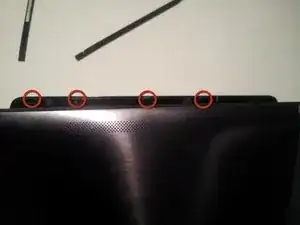
    • Use your spudger to open the four plastic tabs located on either side of the tablet.

    • These tabs are very fragile.

    • Remove the screen from the body

    Thank you for the great guide. I was able to preserve all 8 tabs. My recommendation : start with the bottom part starting from the keyboard ports (as indicated in the guide). Then go FIRST TO THE RIGHT SIDE of the screen (no ports there means it's easer to insert the spudgers), starting from the bottom obviously. Then finish with the left side.

    The glass is impressively resistant, so you can apply preassure to the case, you won't damage any of the two.

    Edouard Rossignol -

  5. iknUEN1VqGOCvOfe
    iknUEN1VqGOCvOfe
    AjWCVOSSsVYHe3FH
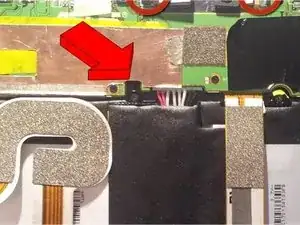
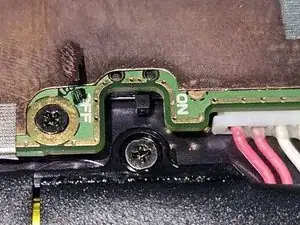
    • There is an internal power switch next to the battery connector, that will kill power to the entire device while you're working on it.

    • Don't forget to switch it back on when you're reassembling!

  6. iZcpifDfwHMcyhZw
    iZcpifDfwHMcyhZw
    dZKTIXVocS6IihNy
    L5ZIoJyreTbJZ4MI
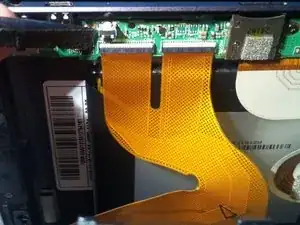
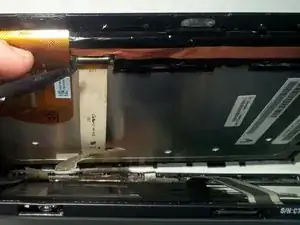
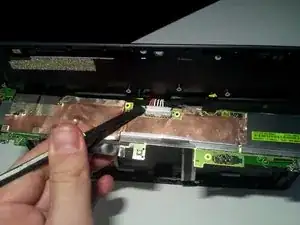
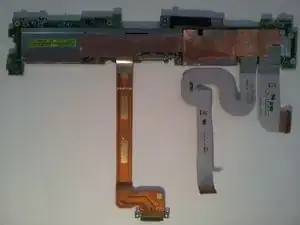
    • Use your spudger to release the two digitizer ribbon cables from the mainboard.

    • Located on the left side of the tablet between the micro-HDMI and the microSD slot.

    • Use your spudger to release the LCD cable from the back of the LCD.

    • Set aside for later dissection.

  7. ypnJtj1jwtSfifx2
    ypnJtj1jwtSfifx2
    mtk2XtmADMKIj5Xn
    KBdAAOW2cPHbX4wI
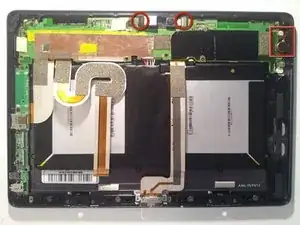
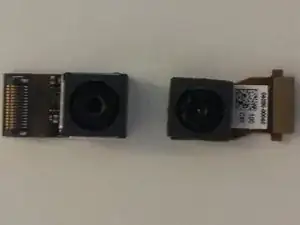
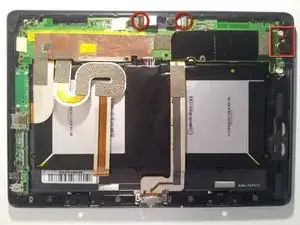
    • To remove the front facing camera (right):

    • Use your spudger to unlock the ribbon cable

    • Slide the camera out

    • To remove the rear facing camera (top):

    • Apply light lifting pressure to unplug it from it's socket

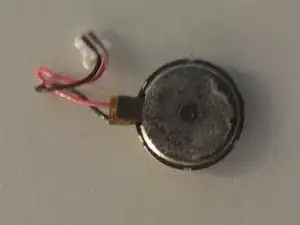
    • Remove the backup battery on the right side:

    • Unplug the cable from the motherboard with your spudger

    This thing is not a backup battery, it is the vibration motor / crystal, my TF700 was "vibrating" for long periods of time, I teared it down, removed it, turned it on again and the all the vibration was gone (even those that were ok, like moving from sound to vibration).

    Emerson Jr -

  8. 5XcQiYSAWtWkhhGZ
    5XcQiYSAWtWkhhGZ
    wRBkVPpkCWV53nKr
    VSsBsROJPSbIYKkv
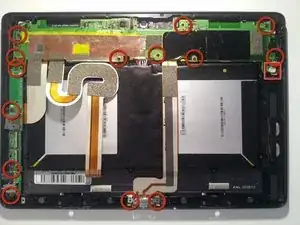
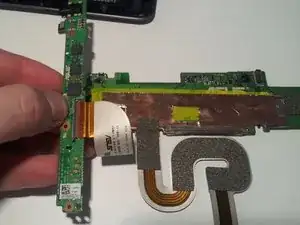
    • Remove the motherboard, daughterboard, and dock connector

    • Unscrew 14 points

    • Unplug the speaker from the motherboard before removing it

    • Reveal the battery connector:

    • Flip the motherboard from the top edge of the tablet down (towards the battery).

    • Unplug with light pressure from your spudger.

    • Disconnect the motherboard from the daughterboard:

    • Unlock the ribbon cable on the back side of the daughterboard

  9. bxTNKsahiRrkyjbI
    bxTNKsahiRrkyjbI
    sQJC4bEvL6vHuYgJ
    cTesCKLW5TRa5Gtj
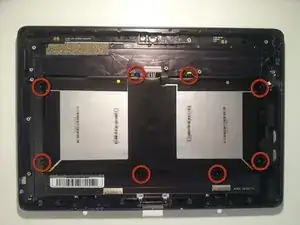
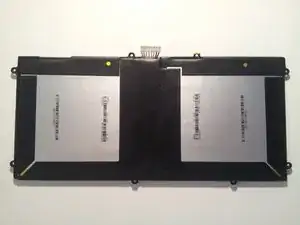
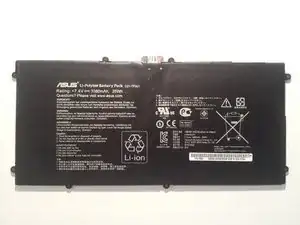
    • Remove the battery:

    • Remove screws (eight)

    • Use your spudger underneath the battery between the 2 cells to work it free

  10. xXbv6SWv24Gtn6fX
    xXbv6SWv24Gtn6fX
    iLWjV2C66LgSWAnI
    sw3LWekARBOBa3RC
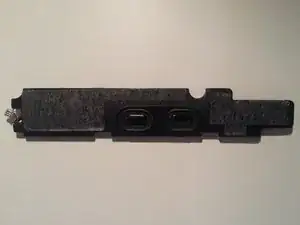
    • Remove the speaker:

    • Use your spudger underneath, and work it free

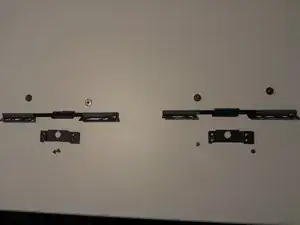
    • Remove the bottom screen locking mechanism:

    • Remove screws (eight)

    • Lift pieces out

  11. 2gCsSUOISfJyFOqP
    2gCsSUOISfJyFOqP
    iTTNiSdrdOHj6MK5
    b1TYiFUlJXdFbACx
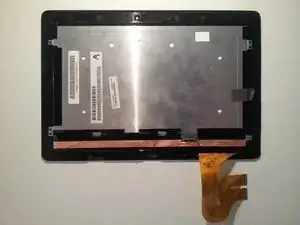
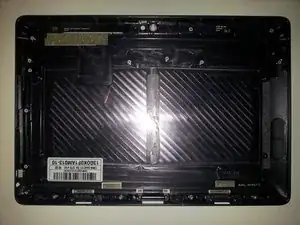
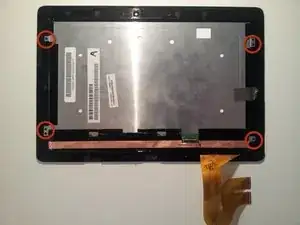
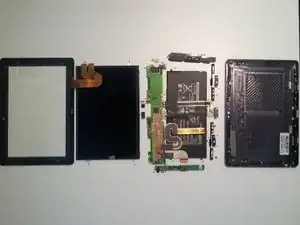
    • Now that we're left with a boring empty shell, let's return to the LCD assembly that we set aside in Step 5.

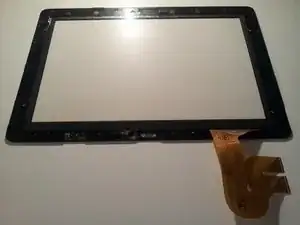
    • Remove the 4 screws. Then work your spudger underneath the edges of the LCD to separate it from the Gorilla Glass front. It has a light adhesive around all edges.

  12. wBfYDZOgZgvCRgDx
    wBfYDZOgZgvCRgDx
    UYaiea3WexVQGd3Q
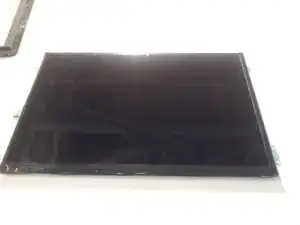
    • With the LCD free, you should now be able to lay it out in a big pile of parts and the teardown is complete. Now let's see what's under all those heatsinks and tape.

  13. M3PUZx1P2NLGerjK
    M3PUZx1P2NLGerjK
    HcNLmmW2VnboWnfx
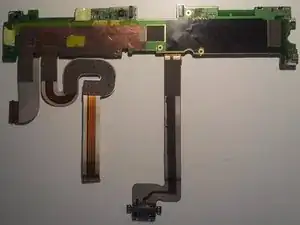
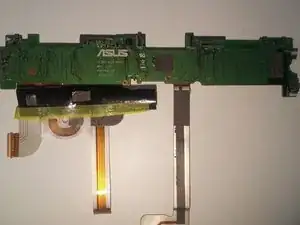
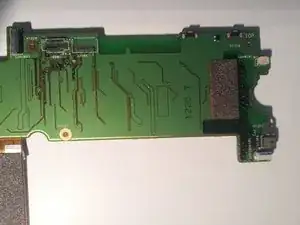
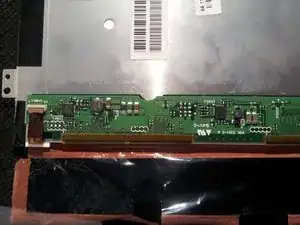
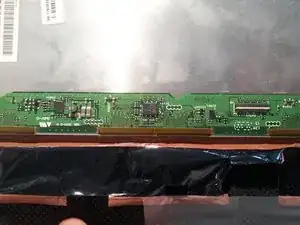
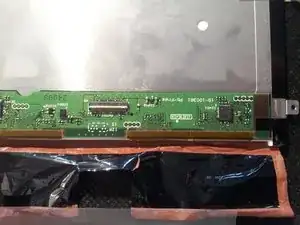
    • The back side of the motherboard

  14. GlEQkS4D2wdQCe44
    GlEQkS4D2wdQCe44
    lymwUqeM5sUm3ttZ
    1ZcUFYgSWJeHPlwM
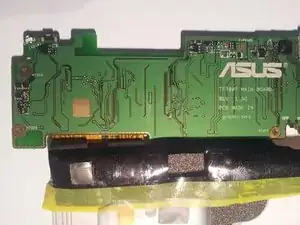
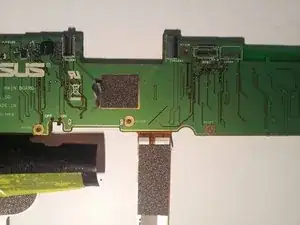
    • Motherboard backside closeups

  15. qUWjZoQSZfVI3aDg
    qUWjZoQSZfVI3aDg
    uSRNgEagurimVpGh
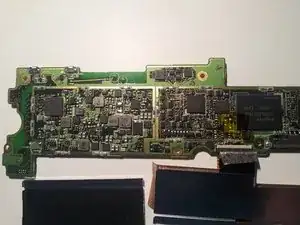
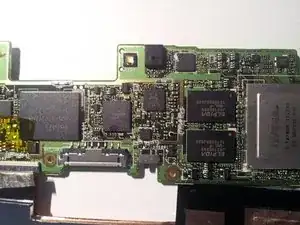
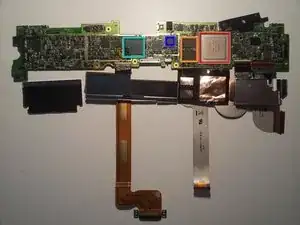
    • The front side of the motherboard is where all the action is.

    • Tegra 3 quad core processor T33-P-A3

    • 2x Elpida memory J4216EBBG-GNL-F

    • Realtek? ALCS631

    • Hynix H26M64002BNR e-NAND

  16. BAoCaINODOW3amnh
    BAoCaINODOW3amnh
    MHZKnMyJmRCfQwPn
    GqMVkJkYQGAmIWSr
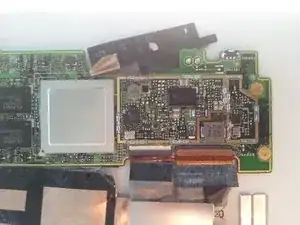
    • Front side motherboard closeups

  17. c4Q4SUJHmC1XQ2n3
    c4Q4SUJHmC1XQ2n3
    TvUaV6MhNwAAbCf2
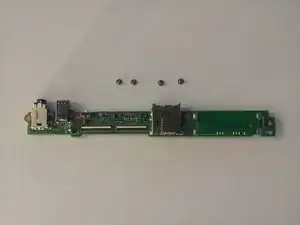
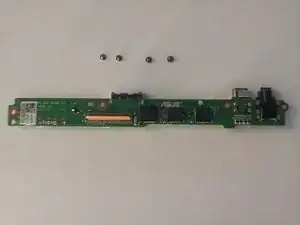
    • Front and back of the daughterboard.

  18. QLcGgVsaE2wFGuVh
    QLcGgVsaE2wFGuVh
    X3FZefVvlXesfpB4
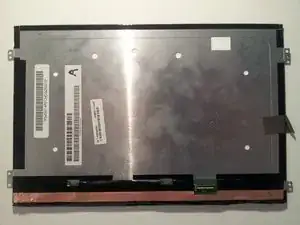
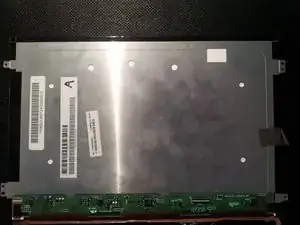
    • The back of the LCD.

  19. 4Zt12OhEvkfOiE6j
    4Zt12OhEvkfOiE6j
    UuXZqs4tMUORcdJm
    SjKbVxHjujSVtMih
    • Close-ups.

    • That's all I've got. I apologize for any blurry pics as all I had on hand was my cell phone ( <3 Samsung Galaxy Note.) I hope your teardowns are far less destructive than mine was. Good Luck.

    • ...and yes, it still works after reassembly. Thanks for asking.

  20. kTmBFICXwdTAdGxV
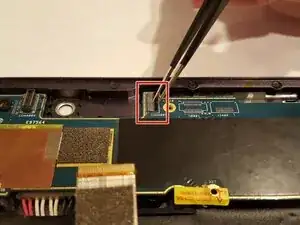
    • Disconnect the camera connectors from the board.

  21. hLYqXeYZwXfflk2B
    hLYqXeYZwXfflk2B
    hAcbf2GKIT44IkK5
    LkIOQ5I6aiO6p4HK
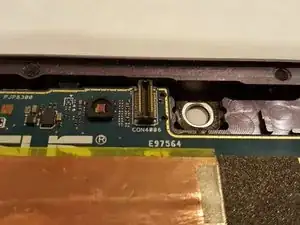
    • Flip the pieces that secure the ribbons to the motherboard up. This is for the front facing camera.

    • Before removing the ribbon connectors, check for a release mechanism. Also make sure it is not a ZIF connector. Doing so can help prevent permanet damage.

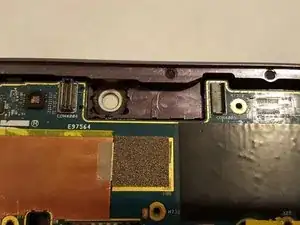
    • Take out the ribbon connected to the motherboard. Pull the ribbon cable straight out of the soket to disconnect them.

    • Only follow what is needed for the camera you are replacing. If both cameras need replacement, do both steps. Otherwise, follow the one designated for the camera you need to replace.

    • The first photo shows the overall image. The second photo shows the step for the front-facing camera. The third photo shows the step for the rear camera.

  22. tgrIKkRRYXHCOBEe
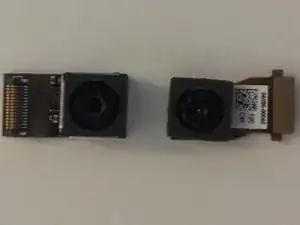
    • Take the both cameras out of tablet.

Conclusão

To reassemble your device, follow these instructions in reverse order. Take your e-waste to an R2 or e-Stewards certified recycler.

Allison Poh

Membro desde: 21/10/15

549 Reputação

0 comentários