Introdução

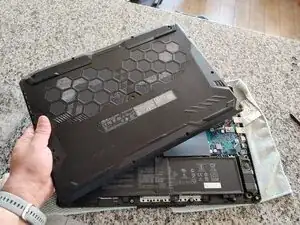
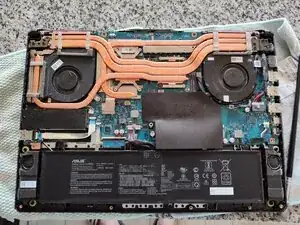
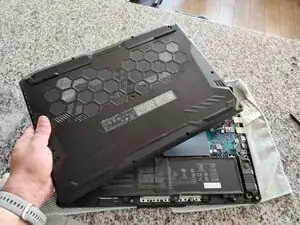
Remove the lower case to access the internal components of your laptop.

  1. nuGLgN4VhHPdLVjI
    nuGLgN4VhHPdLVjI
    ThpNPFQowe3knh5E
    BxGOlyNpWJeYAyFo
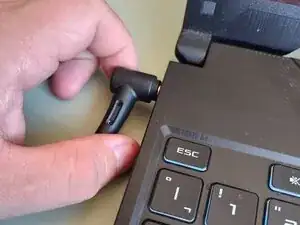
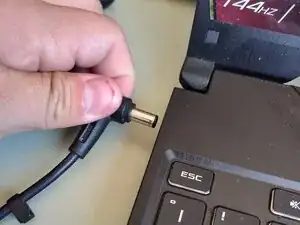
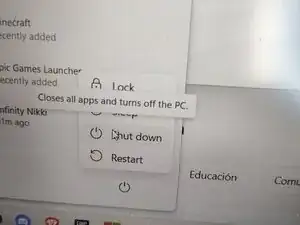
    • Disconnect the charger and turn off the device.

  2. MArVPPSU6fuCVqHv
    MArVPPSU6fuCVqHv
    YAFhv6N6uqABYBJQ
    kqUxqnPErEteXwLi
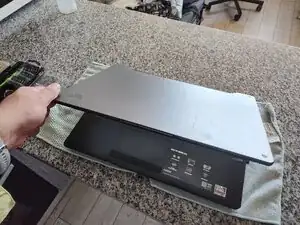
    • Close the lid.

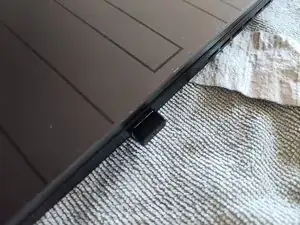
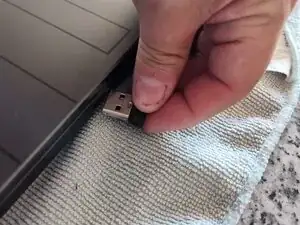
    • Make sure to take out any USB peripherals before continuing.

  3. M1ZURNFX6NcIGjMT
    M1ZURNFX6NcIGjMT
    IvfO6OFsIXPRPwWX
    SlEwGKXHSNRA6VJ1
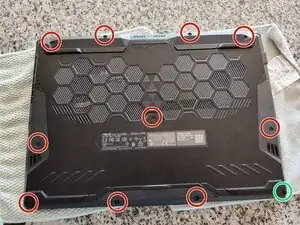
    • The bottom-right screw (pictured in green) is captive. Don't force it out.

    • Remove the 11 screws. Make sure to keep them organized.

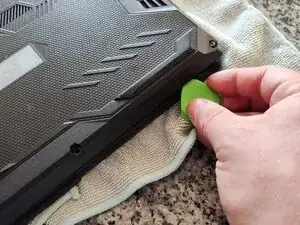
    • Using a plastic spudger, undo the clips until the casing start to loosen.

    • Remove the casing and set it aside.

  4. DJLkGsOmEPc6nOQF
    DJLkGsOmEPc6nOQF
    XfFFWAFuryWNhxXK
    P31oRFuUZHn6ehn1
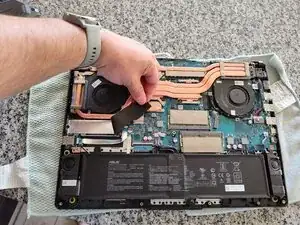
    • The first picture shows how it looks as you open it. It has a couple of thin black plastic covers.

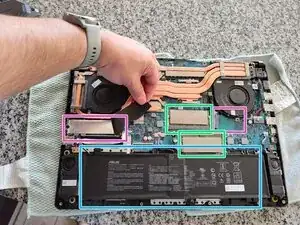
    • You can remove these plasic covers to gain access to:

    • 2 PCIe 3.0 NVMe M.2 SSD Slots (Pictured in Purple). It uses a 2280 format size.

    • 2 SO-DIMM DDR4 Slots (Pictured in Green)

    • 90 Wh Battery (Pictured in Blue)

Conclusão

Congratulations! You gained access to your laptop internals. Now, you can reassemble by following the steps in reverse! Good Luck.

Franco Iván Bello Rojas

Membro desde: 01/03/22

1004 Reputação

0 comentários