Introdução
This is a comprehensive guide on replacing the battery in your Asus ROG Zephyrus G14 laptop. If your laptop can no longer retain a charge, it is probable that your dealing with a malfunctioning battery that needs to be replaced.
A properly functioning battery is responsible for supplying power to your laptop. As time passes and your laptop's battery undergoes numerous charge cycles, it may exhibit a quicker discharge rate. If you observe that your fully charged battery is depleting more rapidly than usual, it's advisable to perform a battery calibration to ascertain its true charging capacity. However, if you consistently experience substantial reductions in battery percentage, it's a clear indicator that it's time to replace your battery.
If you notice that your battery is swollen, take proper precautions. A punctured battery can cause a dangerous fire.
Before beginning, make sure that you power down your device.
Ferramentas


Peças
-
-
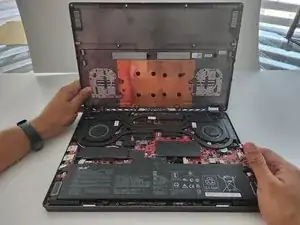
Flip laptop so the back cover faces up.
-
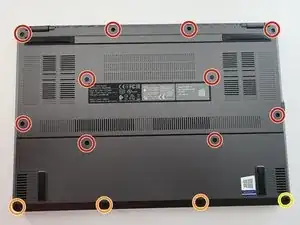
Remove the ten (M2x10) screws.
-
Remove the three (M2x5) screw.
-
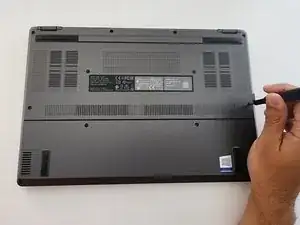
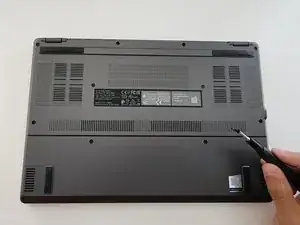
Loosen (M2.5x6) pop-open screw without removing screw from the cover.
-
-
-
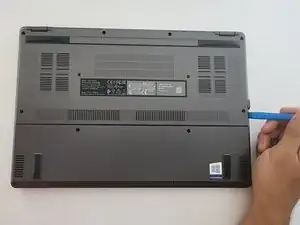
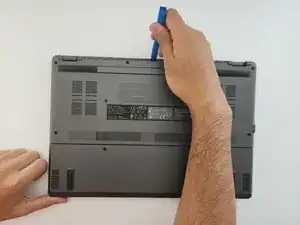
Place iFixit opening tool at the pop-open screw (bottom right screw), there will be a gap there to place your tool.
-
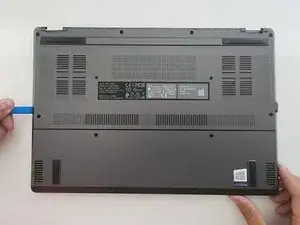
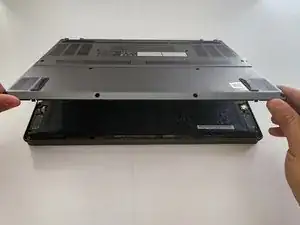
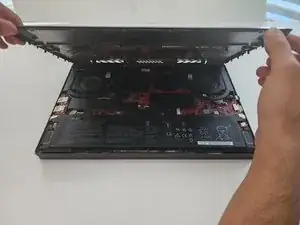
Pry your way around the perimeter of the laptop.
-
-
-
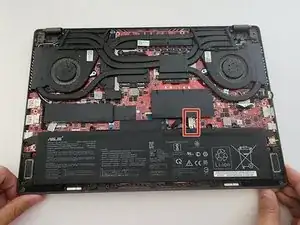
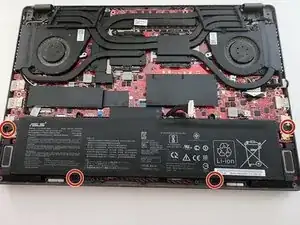
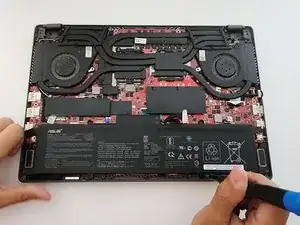
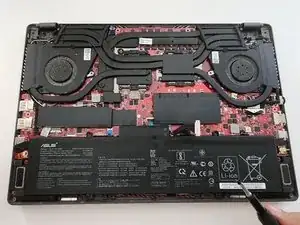
Use the plastic spudger to gently slide back the metal retaining clasp from the connector.
-
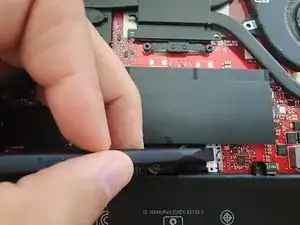
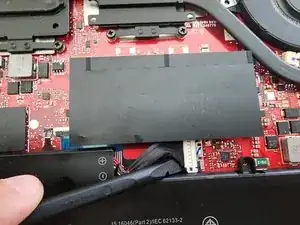
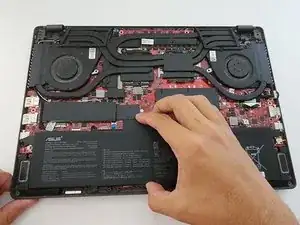
Place your spudger under the connector and carefully pry each side up.
-
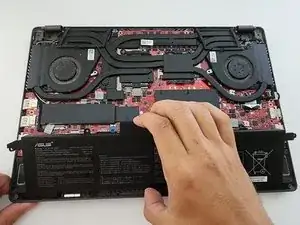
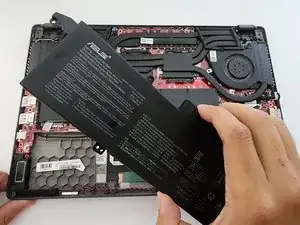
To reassemble your device, follow these instructions in reverse order. Take your e-waste to an R2 or e-Stewards certified recycler.

Um comentário
Replaced battery in 2025 but now it's dead. Clearly a bad battery. Can anyone suggest a good source for a reliable battery for this laptop?
Important thing about the screws!!!
Official Asus documentation shows some weird sizes for the screws, and so because of that so does Ifixit, but all screws are actually normal sized.
I know because I measured the actual screws using a caliper.
So for the red ten screws: M2x10
For the three orange screws:M2x5
(For the yellow one: You shouldn't unscrew it fully, so I didn't measure this one)
I used AliExpress to buy the replacement screws, honestly surprisingly cheap(no #ad or sum lol.)
Have a nice day!
-Stripe
Mike Joling -