Introdução

Is your ASUS Chromebook Flip screen cracked, flickering, or completely unresponsive? Whether it’s physical damage or display issues that are slowing you down, this guide will walk you through the process of replacing the screen on your ASUS Chromebook Flip CX1400FKA-AS88F.

Before you begin this repair, make sure to power off your Chromebook and disconnect it from the charging adapter.

  1. ojaXUUBfRfHwCbWV
    ojaXUUBfRfHwCbWV
    cOYOQKg2BCn3ZMUl
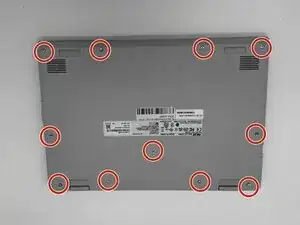
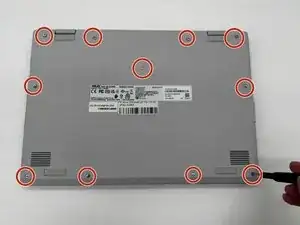
    • Using a Phillips #0 screwdriver, remove the eleven screws securing the bottom cover of the device.

    • Remove the screws carefully. Applying too much force or working too quickly can strip the screw heads or damage the bottom casing.

    • Keep the screws organized in a safe and clearly labeled area to ensure an easy reinstallation later.

  2. pfTGRJXDGZfWKMTr
    pfTGRJXDGZfWKMTr
    PvoOYNxNMAyY5w1E
    1RjTGebQVMIGfKaA
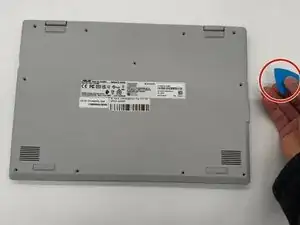
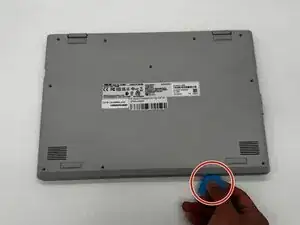
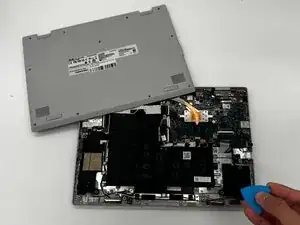
    • Use an iFixit opening tool or nylon spudger to gently separate the bottom cover from the Chromebook.

    • Only use plastic or nylon tools when prying open the case. Metal tools can easily scratch or damage the internal components.

    • Insert the tip of the opening tool into the seam between the top and bottom covers, then slide it along the perimeter to release the internal clips securing the case.

    • Insert opening picks around the edges as you go to prevent the clips from reattaching.

    • Once all clips are released, carefully lift and remove the bottom cover from the device.

  3. khxnVBFKAAEqABPI
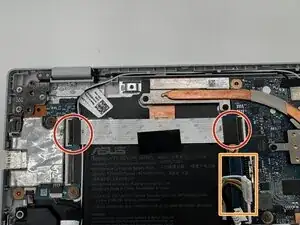
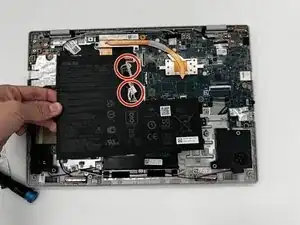
    • Carefully disconnect ribbon cables attached to the motherboard.

    • Also carefully disconnect the fan cables that are connected to the motherboard.

    • For helpful tips on disconnecting cable connectors, refer to the Recognizing and Disconnecting Cable Connectors guide.

    • Do not pull on the cables directly. Always disconnect by gripping the connector to prevent tearing the ribbon or damaging the socket.

  4. wyShRhW1s2GDHkKs
    wyShRhW1s2GDHkKs
    ndRtAIPl1dwZiYYV
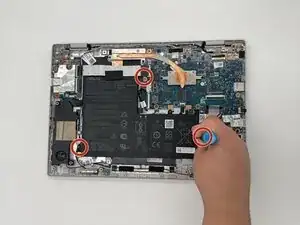
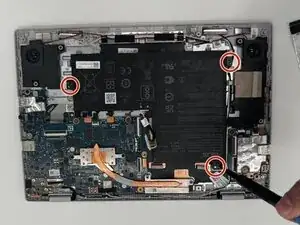
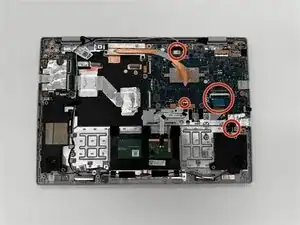
    • Using a Phillips #0 screwdriver, remove the three 6.4 mm screws securing the metal brackets to the motherboard assembly.

    • Apply gentle, steady pressure when loosening the screws to avoid stripping the heads or damaging the surrounding components.

    • Once the screws are removed, lift and remove the brackets from the device. Keep them in a safe place for reinstallation.

  5. m2YFQDnygJHjc2dR
    m2YFQDnygJHjc2dR
    AMxSFv6mriCn4owZ
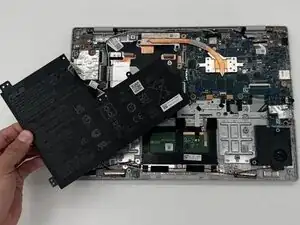
    • Disconnect the speaker wire connector from the motherboard by gently pulling it straight out of its socket using tweezers or your fingers.

    • Avoid pulling on the wires themselves—grip the plastic connector to prevent damage to the speaker cable or motherboard port.

  6. NPZpCLeviWpBZMYM
    NPZpCLeviWpBZMYM
    aNdJAHTEcMDanb1A
    Qj1In6mL1tCBoAAI
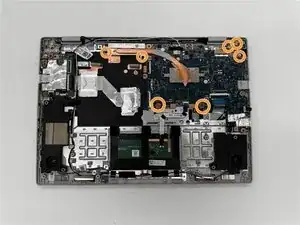
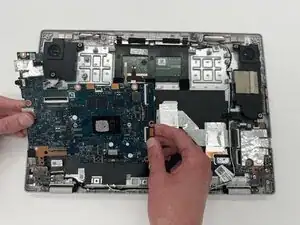
    • Remove all tabs connecting the motherboard to other devices.

    • Unscrew all mounting screws securing the motherboard.

    • Carefully remove the motherboard from the base.

  7. UjRiX1daQU5LTLsN
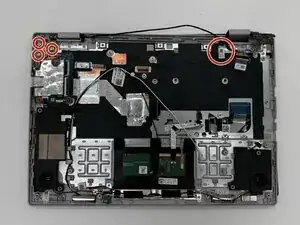
    • Remove the piece underneath the motherboard.

    • Unscrew the screws that attach the screen to the base.

  8. VJmTrwN4ZDx1dsD1
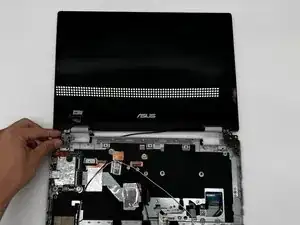
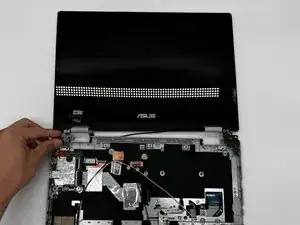
    • Adjust the screen to easily lift from the case.

Conclusão

To reassemble your device, follow these instructions in reverse order. Take your e-waste to an R2 or e-Stewards certified recycler.

Bea King

Membro desde: 10/02/25

318 Reputação

0 comentários