Introdução
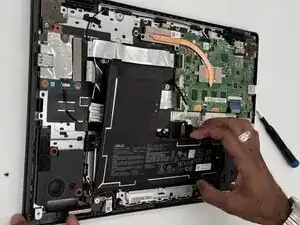
If your Chromebook won’t hold a charge or shuts down unexpectedly, this guide will show you how to quickly and safely replace the battery of your Asus Chromebook CX-1500 CN.
The battery is a very crucial part, as without it, your Chromebook wouldn’t power on or respond to any of the actions you may input. Replacing the battery could restore your device’s normal performance and extend its lifespan. You will need a #1 Phillips screwdriver and, optionally, an iFixit opening tool.
Ferramentas


-
-
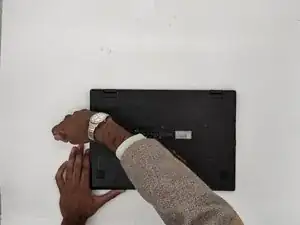
Orient the laptop so that the bottom of the laptop faces towards you.
-
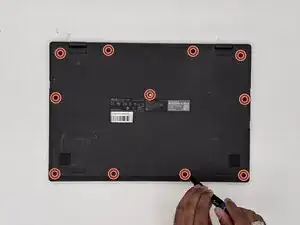
Use a Phillips #1 screwdriver to remove the eleven 8 mm-long screws that secure the lower case.
-
-
-
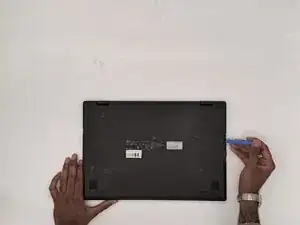
Insert an opening tool into the seam between the lower case and chassis.
-
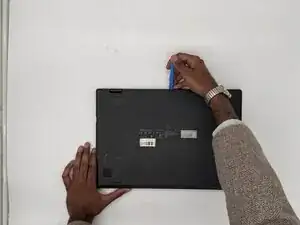
Pry around the entire perimeter until the lower case fully releases.
-
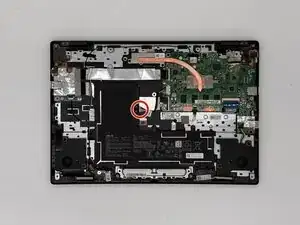
Remove the lower case.
-
-
-
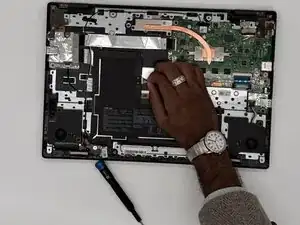
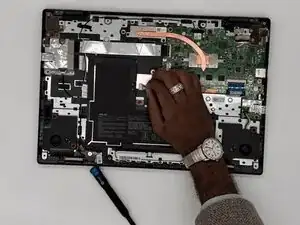
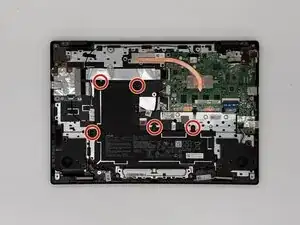
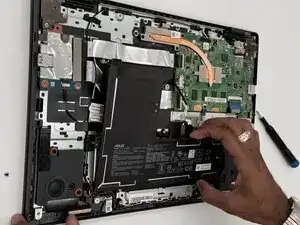
Pull the battery out by lifting the shorter side up first, and then sliding the longer bottom side of the battery out of the brackets holding it.
-
To reassemble your device, follow the above steps in reverse order.
For optimal performance, after completing this guide, calibrate your newly installed battery.
Take your e-waste to an R2 or e-Stewards certified recycler.
Repair didn’t go as planned? Try some basic troubleshooting or ask our Answers community for help.c