Introdução
After years of usage, water or any other liquid spills, your cats jumping on it, or whatever the cause may be. You may notice that your keyboard is beginning to be unresponsive. Without a keyboard, your laptop becomes difficult to navigate.
In this guide, we'll show you how to disassemble the laptops keyboard, so you can be able to repair. Repair made easy, with good visuals, and accessible tools.


-
-
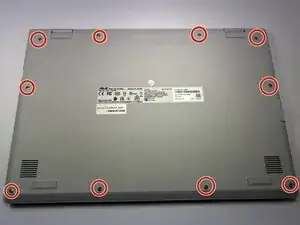
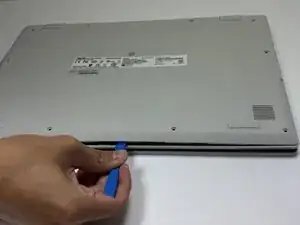
Remove the ten 7 mm JIS #00 screws from the bottom edge of the Chromebook.
-
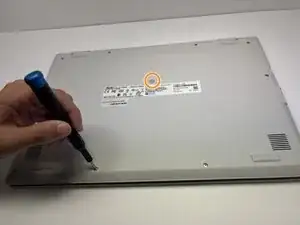
Remove the one 7 mm JIS #00 screw in the middle, above the tag.
-
-
-
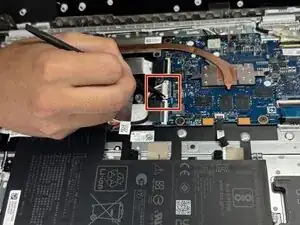
To disconnect the cable, use a spudger or your fingernail to lift the locking tab.
-
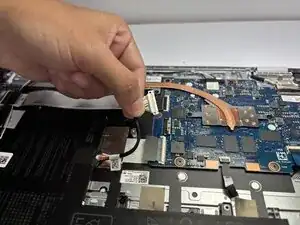
Use your hand to carefully unplug the battery cable from the motherboard.
-
-
-
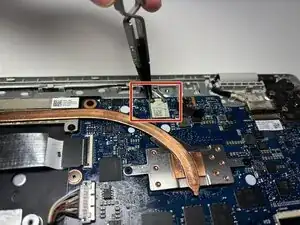
Use tweezers to carefully disconnect the black and white antenna wires from the wireless card, then lift them away.
-
-
-
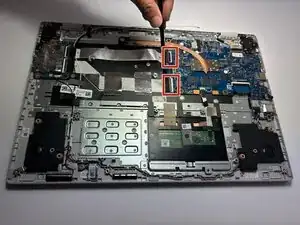
Using a spudger, gently push the two side-by-side ribbon cables to the left to disconnect them.
-
-
-
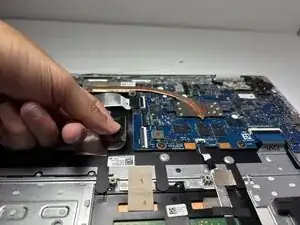
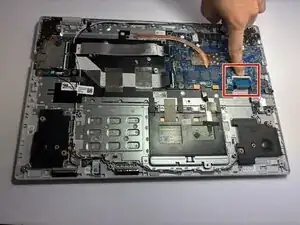
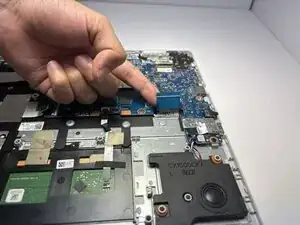
Pull the thick blue ribbon cable straight out of its connector to disconnect it from the motherboard.
-
-
-
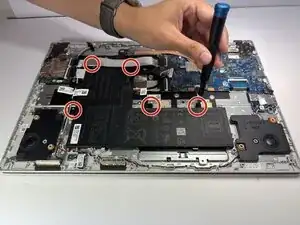
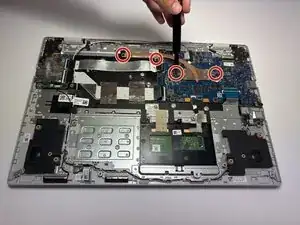
Remove the four 2mm JIS #0 screws from the heat sink in the center of the motherboard.
-
Lift and remove the heat sink.
-
-
-
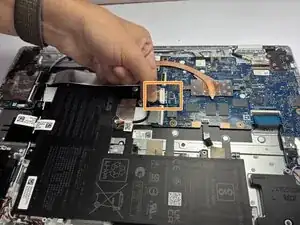
Gently pull the thin white ribbon cable straight out of its connector to disconnect it from the motherboard.
-
-
-
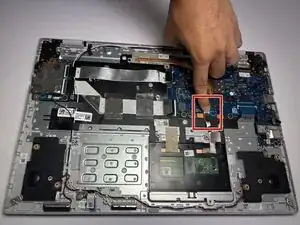
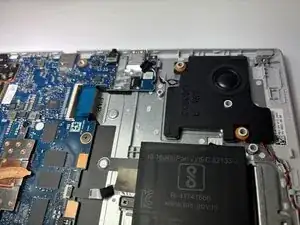
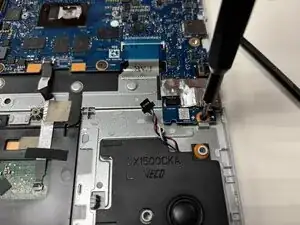
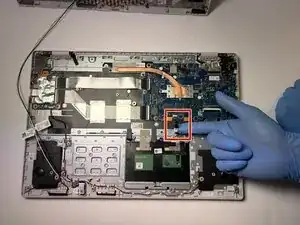
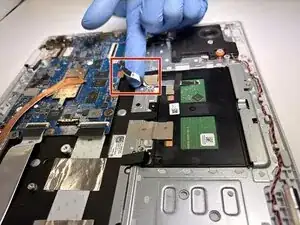
Use a spudger to pry the small tangle of black, red, white, and blue wires from the audio connector, pushing the wires back toward the speaker.
-
-
-
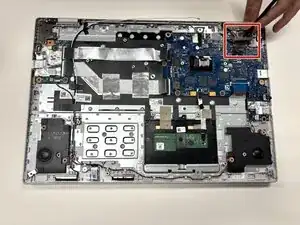
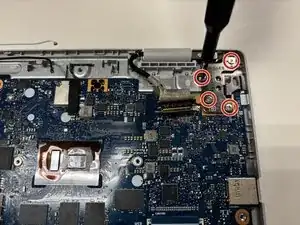
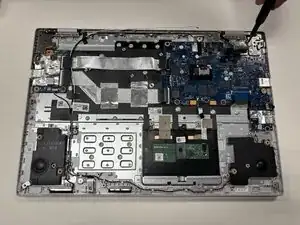
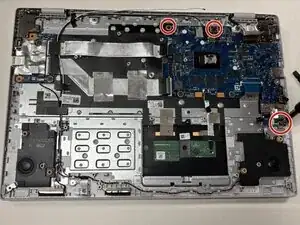
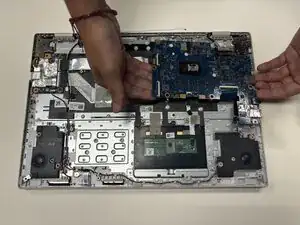
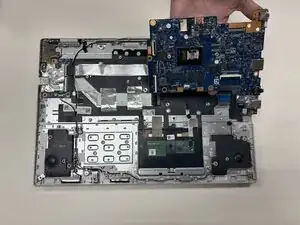
Remove the three 2 mm JIS #00 screws from the motherboard.
-
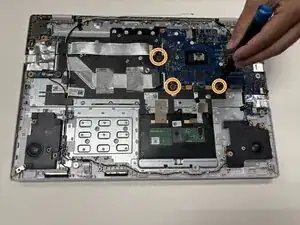
Remove the three 1 mm JIS #00 screws from the motherboard.
-
-
-
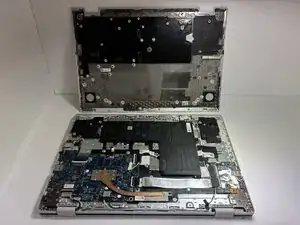
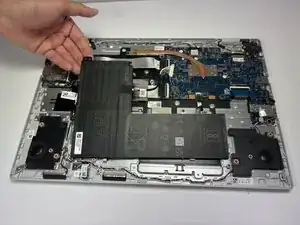
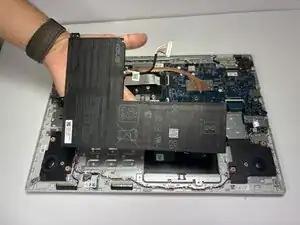
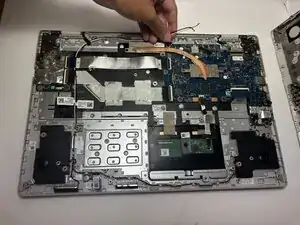
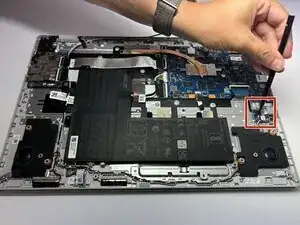
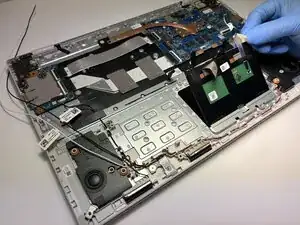
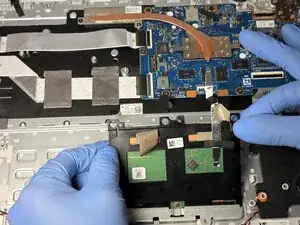
After removing all components from the frame, remove any last screws and pieces that may remain.
-
-
-
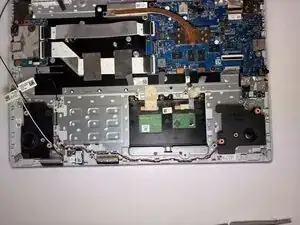
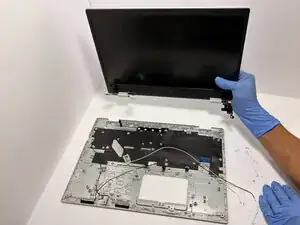
Once everything is removed and disconnected. You now can remove the keyboard off the laptop and replace it.
-
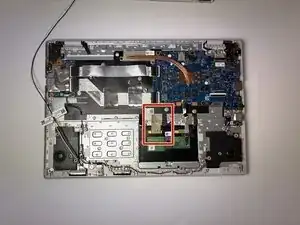
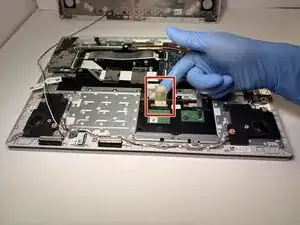
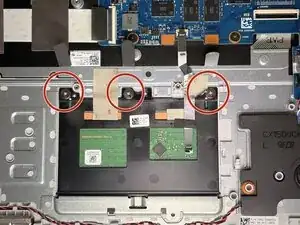
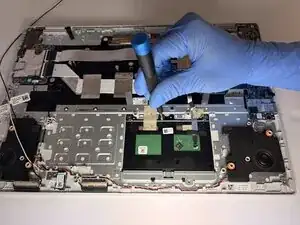
To reassemble your device, follow these instructions in reverse order.