Introdução
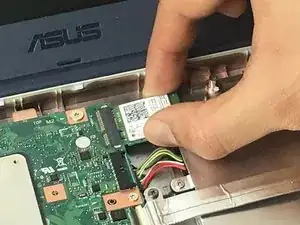
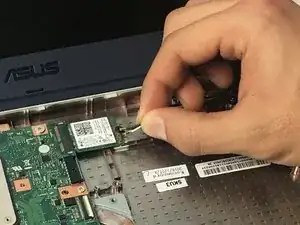
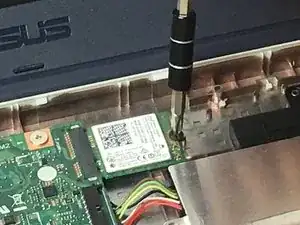
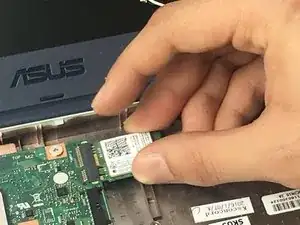
Is the wireless connection to your Chromebook not working? Did you rule out any software-related solutions? If so, then you should replace your wireless card.
Ferramentas


-
-
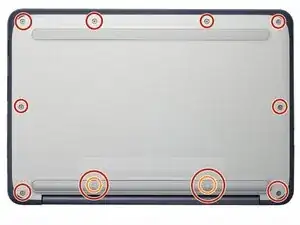
What you need: 10 8mm screws, Tweezers, and a Phillips #1 Screwdriver
-
Remove Phillips #1 screws from the bottom of the Chromebook using a Phillips #1 screwdriver.
-
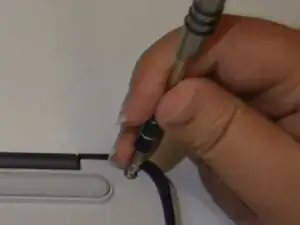
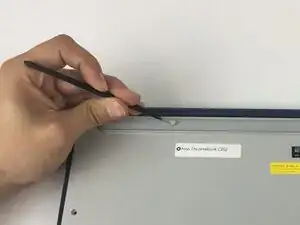
Use tweezers to get two of the screws are hidden by rubber caps along the rubber rest of the device out.
-
-
-
What you need: plastic opening tool, Chromebook
-
Open the top portion of the Chromebook
-
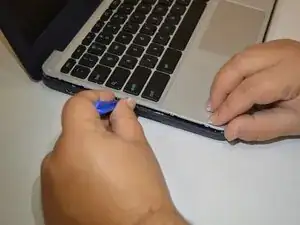
To unhinge the top portion of the Chromebook, push down on the plastic opening tool.
-
Place the plastic opening tool facing upward using the upper scoop, into the edges between the front and back of the Chromebook.
-
In order to avoid damaging ribbon cables, gently lift the top portion of the Chromebook from the bottom portion.
-
-
-
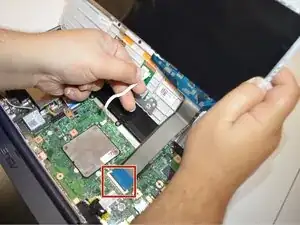
Gently disconnect the ribbon cable connecting the trackpad and the keyboard to the motherboard.
-
To reassemble your device, follow these instructions in reverse order.
