Introdução
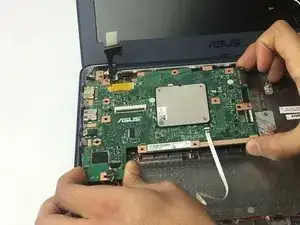
This guide will provide step-by-step instructions on how to replace the motherboard on an Asus Chromebook C202.
The motherboard is the central hub of the computer on which all other system functions are dependent. There are many different functions that could be impacted by malfunctions in the motherboard. Do the ports on the left side of the Chromebook not work? Is the computer not working at all while the battery is still functional and filled? Then you may need to replace the motherboard.
Before using this guide to replace the motherboard, be sure to visit the troubleshooting page for this computer to determine if this is the best solution for your system issues.
Ferramentas


-
-
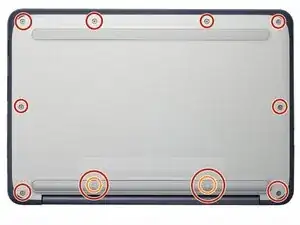
What you need: 10 8mm screws, Tweezers, and a Phillips #1 Screwdriver
-
Remove Phillips #1 screws from the bottom of the Chromebook using a Phillips #1 screwdriver.
-
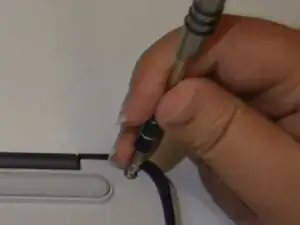
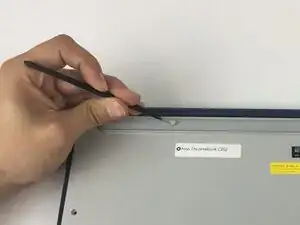
Use tweezers to get two of the screws are hidden by rubber caps along the rubber rest of the device out.
-
-
-
What you need: plastic opening tool, Chromebook
-
Open the top portion of the Chromebook
-
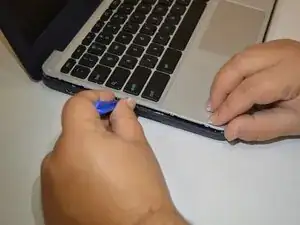
To unhinge the top portion of the Chromebook, push down on the plastic opening tool.
-
Place the plastic opening tool facing upward using the upper scoop, into the edges between the front and back of the Chromebook.
-
In order to avoid damaging ribbon cables, gently lift the top portion of the Chromebook from the bottom portion.
-
-
-
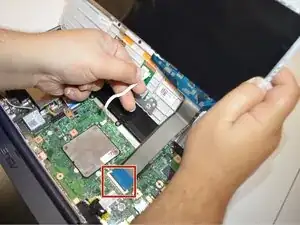
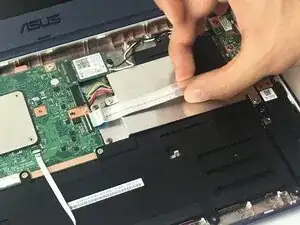
Gently disconnect the ribbon cable connecting the trackpad and the keyboard to the motherboard.
-
-
-
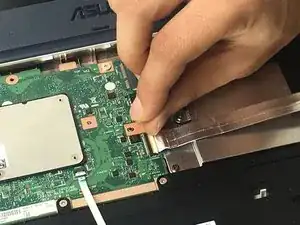
Use a spudger or a clean fingernail to flip up the locking flap on each end of the cable—this is the unlocked position.
-
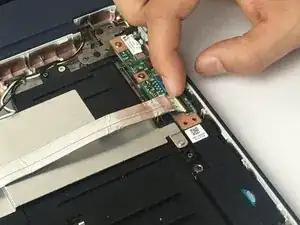
Gently remove the ribbon cable connecting the I/O board to the motherboard.
-
-
-
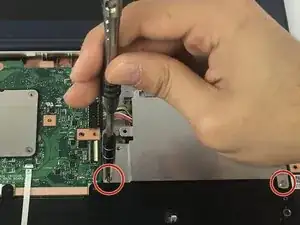
Remove two 4 mm Phillips #1 screws from the metal grate connected to the battery.
-
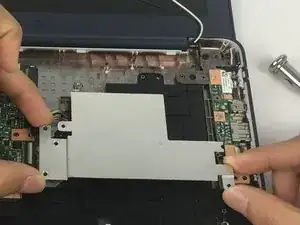
Remove metal grate from battery.
-
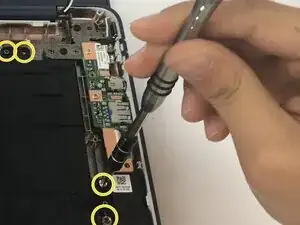
Remove six 4 mm Phillips #1 screws from the battery.
-
-
-
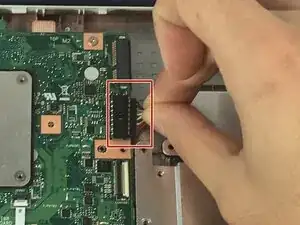
Use the point of a spudger to push on alternating sides of the connector to "walk" it out of its socket and disconnect the battery from the motherboard.
-
If that doesn't work, grip all the cables at once as close to the connector as possible and pull the connector slowly and steadily out of its socket.
-
Lift the battery from the bottom edge to to remove it from the Chromebook.
-
-
-
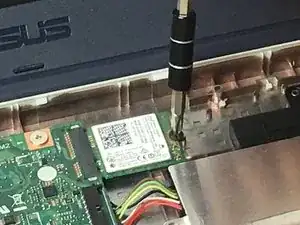
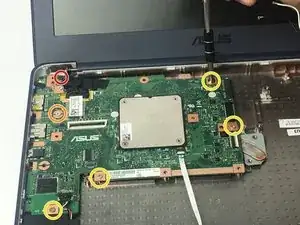
Unscrew one 3 mm Phillips #1 screw.
-
Unscrew one 2.5 mm Phillips #1 screw.
-
Unscrew four 4 mm Phillips #1 screws.
-
-
-
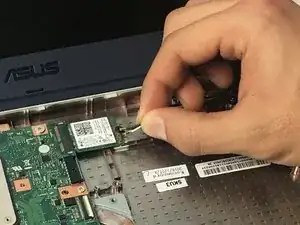
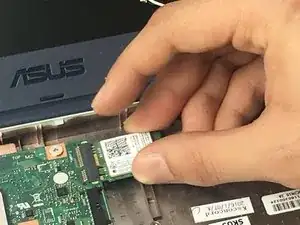
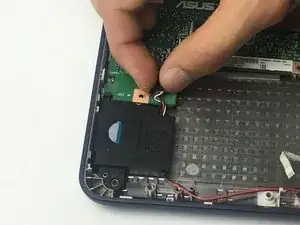
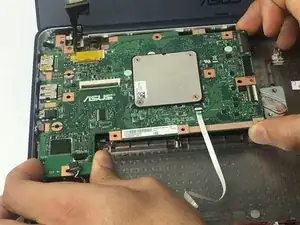
Disconnect the wires that connect the motherboard to the speakers.
-
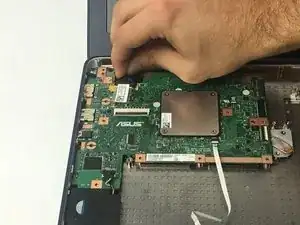
Disconnect the motherboard from the display.
-
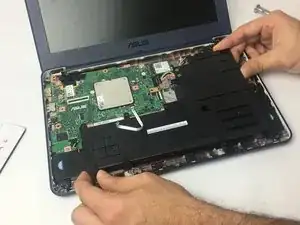
To reassemble your device, follow these instructions in reverse order.
