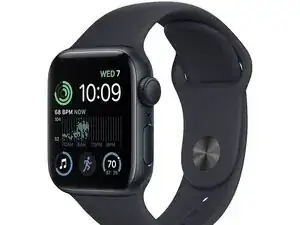
Introdução
The Apple Watch SE may occasionally feel slow, lag when opening apps, or show delayed touch response. These issues often come from cached data, background processes, or settings that place unnecessary load on the system. This technique guide walks through safe and easy steps to reset system behavior and restore responsiveness. For button layouts or additional model details, see the Apple Watch SE user manual available on ManualsLibraryy.
Tools Required
- None
Difficulty
- Easy
Time Required
- 5–15 minutes
Step 1 — Restart the Watch
- Hold the Side Button.
- Slide Power Off.
- Hold the Side Button again to restart.
- This clears temporary system processes that slow the watch down.
Step 2 — Close Background Apps
- Press the Side Button once to open the app switcher.
- Swipe left on any open apps.
- Tap the X to close them.
- Closing unused apps frees up system memory and improves touch accuracy.
Step 3 — Adjust Display Settings
- Open Settings → Display & Brightness.
- Lower brightness slightly if needed.
- Reduce Wake Duration.
- Turn off Always On (if your model supports it).
- These settings reduce animation load and help smooth out performance.
Step 4 — Update watchOS
- Open the Watch app on your iPhone.
- Go to General → Software Update.
- Install available updates.
- Software updates often include performance and touchscreen improvements.
Step 5 — Free Up Storage
- In the Watch app, check installed apps, music, and photos.
- Remove items you don’t use.
- Restart the watch.
- Low storage is a common cause of sudden slowdowns.
Step 6 — Reset Home Screen Layout (Optional)
- In the Watch app, go to App View.
- Switch to List View if the grid becomes hard to navigate.
- This improves usability and reduces accidental touches.
Conclusion
These techniques help restore smoother scrolling, quicker app response, and more reliable touch behavior on the Apple Watch SE without any hardware work. For diagrams or additional reference information, you can check the Apple Watch SE manual on ManualsLibraryy.
To reassemble your device, follow these instructions in reverse order.

0 comentários