Introdução

Este guia mostra como aplicar o adesivo do conjunto do display em um iPad Pro 9.7” aberto. Este é parte do procedimento do conjunto do display do iPad Pro 9.7”.

  1. BoWOGVOY3rn3WafL
    BoWOGVOY3rn3WafL
    U4QiBlJeYM4HKQKH
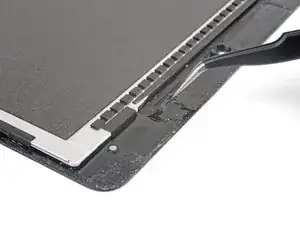
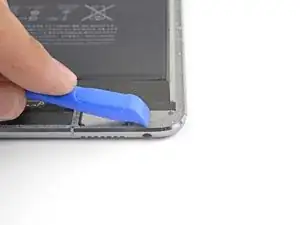
    • Antes de instalar adesivos novos, limpe e elimine completamente os restos no conjunto do display e na estrutura.

    • Use uma pinça para puxar segmentos de resto de fita.

    • Use uma ferramenta de abertura ou uma espátula para raspar resíduos. Você pode usar álcool isopropílico altamente concentrado (acima de 90%) para amolecer o adesivo.

    • Remova o resíduo esfregando em uma direção para evitar manchas.

    • Não use um instrumento metálico para raspar, senão você arranhará a superfície do conjunto do display.

    I followed these instructions and used 99.9% isopropyl alcohol to clean off the glue around the display - but the isopropyl leaked under the screen and ruined it! Replacement screen more than the iPad’s worth. Use tiny amounts and don’t allow for any seepage, or try to manage without and just carefully scape. My iPad’s now a write-off… :-(

    Alex Harness -

    Hi Alex!

    I’m really sorry to hear about your experience. Can you describe a little more how the alcohol ruined the screen? This info can help with future guides!

    Arthur Shi -

    Use goof off or xylene on cotton swab outdoors to remove adhesive. Do it outside so you don’t smell up the house. Better than rubbing alcohol.

    macman2 -

    Goof-off will unfortunately leave a residue that can eventually weaken the replacement adhesive. Be sure to fully clean off the surface with alcohol after you use Goof-off.

    Arthur Shi -

    I used a hair dryer to soften the adhesive.

    OK, you still leave a very small, microscopic, layer of adhesive after removing the black tape, but really, new tape will still stick to that. We’re not trying to make the iPad water proof - we’re simply trying to make the components secure and not fall apart. Shame Apple couldn’t have used screws instead!

    Billinski -

    Used CRC Brakleen PRO SERIES. Applied sparingly with a Q-tip 2 inches at a time. Softened the adhesive was easily squeezed off with a plastic spudger.

    dklj -

    I'd strongly suggest not cleaning the adhesive off the display with alcohol. Use a heat gun or hair dryer as Billinski suggested, even if you leave a little bit of adhesive behind. The same thing happened to me as to Alex in 2021: using IPA to clean the adhesive left around the frame, alcohol went between the glass and the screen. Display is quite cloudy but functions 100%.

    Someone (not me) posted a reddit thread in the /mobilerepair sub titled "Alcohol seeped under my IPad's screen" that describes the same issue, alcohol between screen/glass.

    ANITA YK -

  2. O5tW2VPUK2KSOGkQ
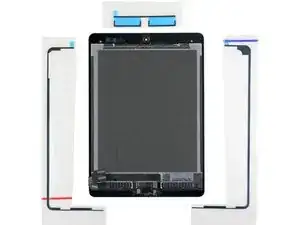
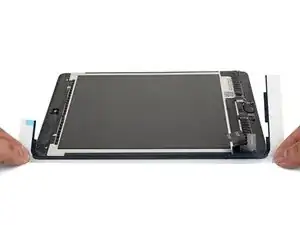
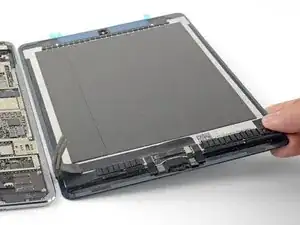
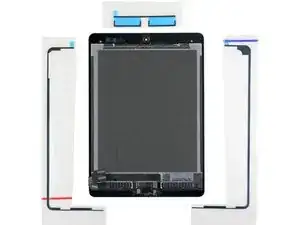
    • Disponha as tiras de adesivo substitutas em volta do conjunto do display, de forma que elas correspondam aos lados certos.

    Beim iPad Air müssen die Klebestreifen übrigens nicht auf das Gehäuse, sondern an das Front Panel geklebt werden.

    Veit Kunz -

    Danke. Sehr gut.

    Charles Farnsworth -

    Regarding which is the left side and which is the right side, do not rely on the color coding on the image in step 2. Instead, look for how the width of the adhesive strip varies. A thinner strip should correspond to the location of the screen side cables. I used the color coding on the image and got the sides reversed. However, even though there was too much adhesive near the side cables, it did not matter once I finished assembly. Another thing I did to make alignment easier is to cut the left and right sides in two close to the middle. It was easier to align the 4 strips working from corner to middle

    Rudy Chukran -

  3. JVLP6t5DCMJMYNSB
    JVLP6t5DCMJMYNSB
    vJWObkXTQ4aD4Rqg
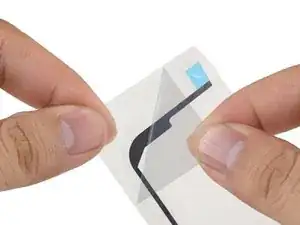
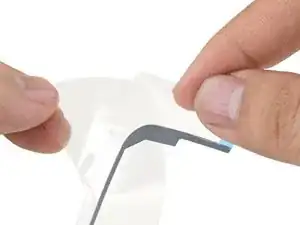
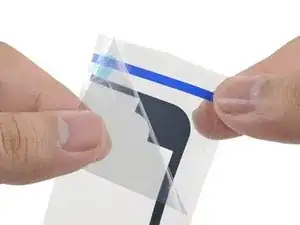
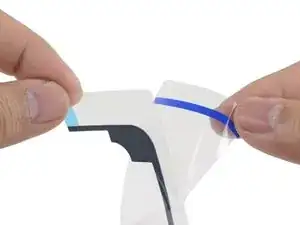
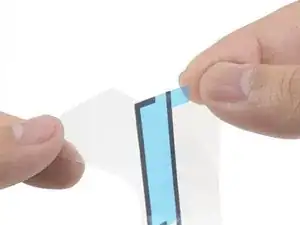
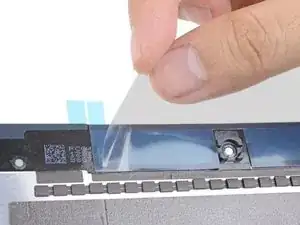
    • Cada tira adesiva está envolta por quatro camadas de plástico — três na parte superior e uma na parte inferior.

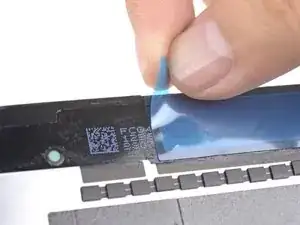
    • Descasque e remova a camada de plástico superior grudada da tira adesiva esquerda.

    • Descasque e remova a película protetora inferior de plástico da tira.

    • A parte de cima da tira adesiva ainda deve ficar coberta por uma camada plástica azul, bem como uma camada plástica de reforço.

    • A parte inferior da tira adesiva deve agora estar descoberta e colante.

  4. fknuTLn5DbVxprFL
    fknuTLn5DbVxprFL
    2fL2u2IepgkIdMND
    wPdeV3lWiUGdewcb
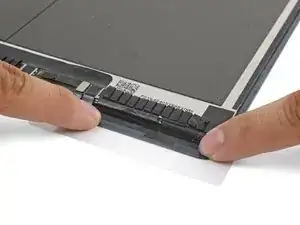
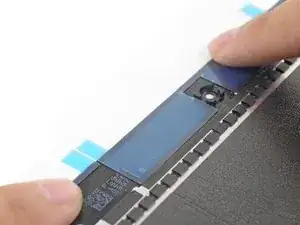
    • Alinhe a tira adesiva esquerda em relação ao canto esquerdo do conjunto do display.

    • Começando por um canto, cole a tira adesiva no conjunto de display e aperte a tira.

  5. P2PRVUDWLHvdNYgt
    P2PRVUDWLHvdNYgt
    2InOPZIiHaGd5Egr
    P2diYvrE5Wgmjf1f
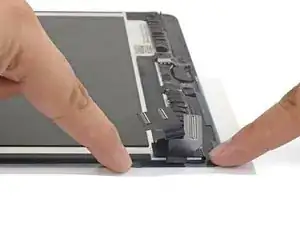
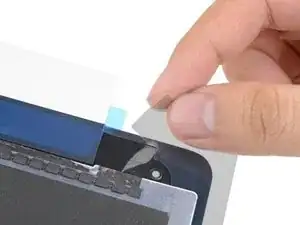
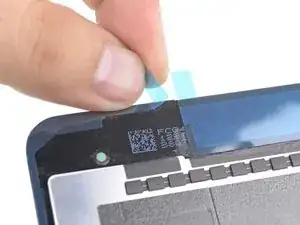
    • Repita o procedimento com a tira adesiva direita.

    • Descasque e remova a primeira camada grudada da tira.

    • Descasque e remova a película protetora inferior da tira.

    • Alinhe a tira adesiva em relação ao canto direito do conjunto de display.

    • Começando por um canto, cole a tira adesiva no conjunto de display e aperte.

  6. oNZSruCN3v4vEVFP
    oNZSruCN3v4vEVFP
    5PBOSyJXJeTZEhAG
    GlMwigcmDRopUw15
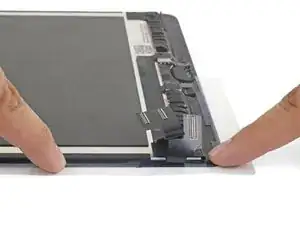
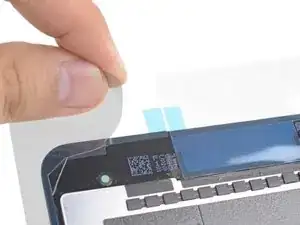
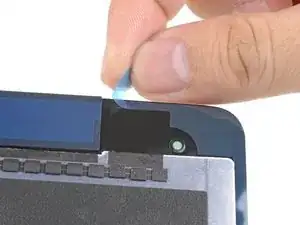
    • Repita o procedimento para a tira adesiva superior.

    • Descasque e remova a primeira camada grudada da tira.

    • Descasque e remova a película protetora inferior da tira.

    • Alinhe a tira em relação à parte de cima do conjunto de display, de tal forma que a linha reta do adesivo una as tiras esquerda e direita.

    • Aperte a tira.

  7. IMoNVPY1soIXpaUI
    IMoNVPY1soIXpaUI
    Lnup5G4KBHEXrWEK
    DrZTWgNvZ1fSynyY
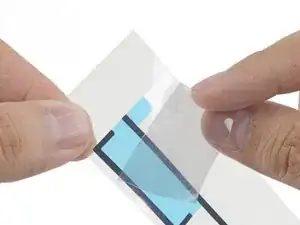
    • Descasque e remova a camada de reforço transparente de plástico de todos os três segmentos de tira adesiva.

    • As tiras adesivas ainda devem ficar cobertas por películas azuis de plástico.

  8. qgETQcQY1kBYtb4k
    • Continue com a remontagem até que você esteja pronto para vedar o dispositivo.

  9. yidPTCwhGJcRwkFX
    yidPTCwhGJcRwkFX
    YTegO2KmXhPwnGl6
    qPUuRqaPekIUGBRx
    • Descasque e remova as três películas protetoras de plástico para descobrir o adesivo.

    • Feche o dispositivo e empilhe alguns livros pesados sobre ele por trinta minutos para fazer o novo adesivo colar melhor.

    Very clear and easy to do :)

    Maris -

    Hallo Anleitung gut, aber die Bilder könnten bei einigen Details besser sein. Die separaten Bilder oben rechts kann man leider nicht vergrößern.

    Beim Zusammenbau fehlte mir der Zeitpunkt, wann man die Klebedichtungen einsetzt. Habe es zu früh gemacht, was das Schrauben des Displays behindert hat.

    Die Pinzette im ifixit ist nicht gut, konnte man trotz verbiegen kaum gebrauchen. Leider habe ich -wie andere user auch- ein Problem mit dem BILDSCHIRM. Es fehlt ein der Bereich rechts etwa 3 cm. Man kann hier nichts mehr per touch bewegen. Schade. Sonst ok.

    Habe allerdings die Schritte 54- 99 weggelassen. Bin der Meinung, dass das nicht notwendig ist und man viel zu viel kaputtmachen kann.

    Bis Schritt 103 - Logigboard hochklappen, dann kann man den Akku gut entfernen. Der iopener hat sich bei mir nicht als praktikal herausgestellt, da er zuwenig Fläche erwärmt und schnell erkaltet. Habe daher ein Heißluftgebläse mit einstellbarer Temparatur (100 Grad C) eingestellt und mit IR Thermometer kontrolliert. Ging gut.

    Karl-Peter Weis -

Conclusão

O reparo não correu como programado? Dê uma olhada na nossa comunidade de Respostas para o iPad Pro 9.7” para obter ajuda sobre solução de problemas.

Arthur Shi

Membro desde: 03/01/18

326105 Reputação

11 comentários

Thanks, I was able to fix my wife’s shattered digitizer screen on the iPad 6th gen with this guide!

Kevin Chatterton II -

I managed to get it done, but this was a personal nightmare for me and more difficult than replacing the battery in my ipad. There are too many instruction that say “remove plastic” and I have no idea which layer; there was nothing on the packaging to indicate which side was up or which side was the front and I ended up guessing the wrong direction because it “looked” right, but wasn’t. A simple sticker on the packaging indicating a direction would have removed all of the frustration. I only managed to figure it out by removing all of the plastic so that the sticky side of the adhesive was exposed and then I could finally see how it was supposed to fit and how I was supposed to press down with the other side of the plastic to push the adhesive side into the frame.

twizzlercraze72 -

Fixed a cracked iPad 4 mini screen; I agree with twizzlercraze72. Some kind of labeling would have saved so much peeling and re-sticking. I ended up with a gap next to my home button. An expensive lesson to learn.

CBrewington -

For me, actually replacing the battery wasn’t too bad, but I ended up using too much isopropyl to clean off the old glue, and it seeped under the display and ruined it. Wish Apple didn’t use so much glue. It massively impedes repairability, which is not very environmentally sound. My iPad was perfect apart from the battery - it’s now got a perfect battery but the iPad is ruined :-(

Alex Harness -

Same here :(. $50 repair just turned into $250!

Paul Manos -

I had the same thing happen. Lesson is not work so hard to remove the glue. :(

Charles Farnsworth -

I too thought it was the isopropanol that ruined the screen (even though I made sure it wouldn't go into the screen), but that stuff evaporates pretty quickly anyway. Your screen was most likely damaged just by opening the device with those picks (just like in my case) - a variety of people have reported the same thing. Turns out the instructions are just doing a really bad job at indicating how easy it is to damage the screen, and underestimate the force as well as time and heat required for the whole procedure. The German instructions are even worse. Even though the instructions give a warning, at one point they inexplicably also suggest it's "ok" to shove those picks into the display as far as the display bezel goes. If that's not going to ruin people screens, I don't know what is. And I personally think those "picks" are horrible choice for this repair. I never used them in any of my other repairs, but stupidly decided to work with them this time. This is by far one of the most difficult repairs.

Mac Stevenson -

would be WAY EASIER to align and install if designed to be applied on the FRAME instead of the SCREEN, the frame borders serve as guides, while the screen has none. Aside from a slight difficulty aligning the strips, it was simple to perform. Thanks!

nonyo -

Adhesive: Used CRC Brakleen PRO SERIES. Applied sparingly with a Q-tip 2 inches at a time. Softened the adhesive was easily squeezed off with a plastic spudger. Final cleaned with Isopropyl.

Application: Went as instructed including sick book method over night.

Result: Display is secure except on the upper left side ½” below the corner. This is the area where the adhesive narrows for about an inch. The narrowing is not necessary on an iPad Air 2. In hind site adding some Tesa 61395 Tape in the narrowed areas would have prevented reopening to redo the adhesive. At this point using B7000 adhesive may have been a better choice.

dklj -

AT LEAST THIS recognizes that taping the screen back in place is a non-trivial task. I have searched through multiple iPad ifixit repairs and they all say "Now that you have got it apart now just do the reverse with the good part".

FI's

Interesting the the tape is applied prior to reconnecting the digitizer

gerennichols -

Also there is no mention of the magnets in the top right and bottom right. Neither in this adhesive guide or in the original repair manual. The iPad I'm fixing is missing the bottom right piece of the screen and the magnet is gone as well...what can I do?

Zach Benson -