Introdução

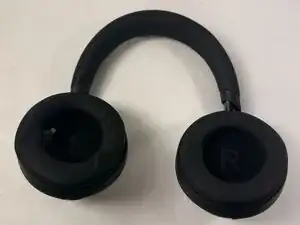
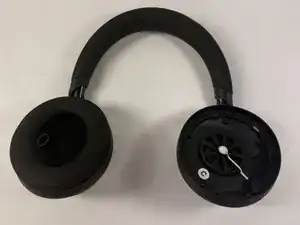
Are you experiencing muffled audio or connectivity issues? If so, follow this guide to change out the microphones in your Anker Soundcore Space One headphones.

A headphone microphone is a component of headphones that allows for hands-free communication. It usually consists of three main elements, which include the capsule, grille, and positioning of the microphones.

Before continuing with this guide, make sure to review the troubleshooting page about audio distortion. There could be countless other easy fixes that could be done to the device without replacing the microphones.

  1. NMjBphHbNWTxWiit
    • Flip over the device so the ear pads face up.

    • This replacement guide will only cover one of the ear pads. The same exact steps apply to both.

  2. srj2LC5TbbDb2KPj
    srj2LC5TbbDb2KPj
    XPy6pIscYkeJtOuU
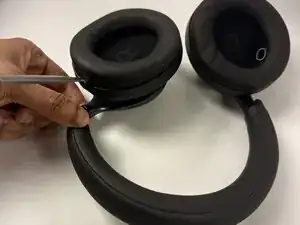
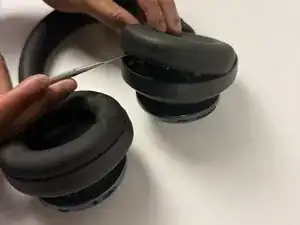
    • Insert a spudger (plastic or metal) between the ear pad and the driver housing (the driver housing is the outside plastic part of ear cup).

    • Using a metal spudger (like the one pictured) can cut you if not used correctly. Please be mindful of where you insert it if you choose to use one.

    • Pry around the ear pad in a circular path until it fully releases.

  3. VE2sADQpWNBfNYc6
    • Remove the ear pad from the driver housing.

    • The gray foam component shown is an additional protective component of the ear pad. You can remove it with your hands if needed, without any tools.

  4. QlbOjlSqVHJArroy
    QlbOjlSqVHJArroy
    tqtNfZyYKC5KC5fJ
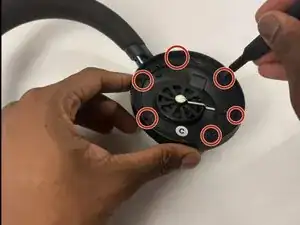
    • Position the inside of the driver housing facing up (without the ear pad).

    • Find the six 6.1 mm Philips #00 screws inside the ear cup's driver housing.

    • These six 6.1 mm Philips #00 screws are circled in red in the image of the ear cup's driver housing.

    • Unscrew the six 6.1 mm Phillips #00 screws from the driver housing.

  5. EY6IcYmEmnhWoDIE
    EY6IcYmEmnhWoDIE
    igCGLYnAm52PR6tR
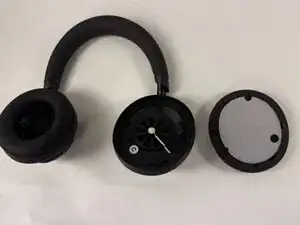
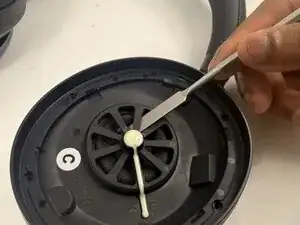
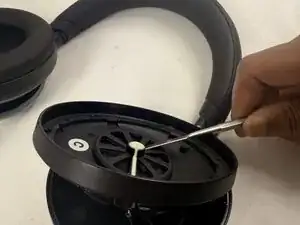
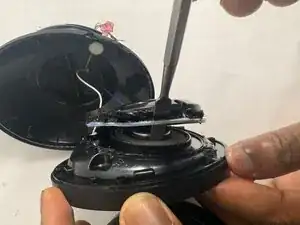
    • Pry around the interior plate of the driver housing with a spudger.

    • Carefully lift out the interior plate of the driver housing with a spudger to fully remove it.

    • This component has wires still connected to it, so don't be too aggressive when popping it off.

    I can't remove this part. I unscrewed all the screws.
    https://ibb.co/fGNkv7hp

    HarDcore -

  6. 6bJRTKI4ZBXOiEry
    6bJRTKI4ZBXOiEry
    FGKbJCCLHLkpIuKh
    • Flip the popped-off plate component away from the ear cup.

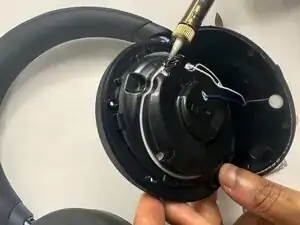
    • Use a soldering iron in a circular path along with the seam of the glue (white lining) to separate the two components that are glued together.

    • The soldering iron is extremely hot and could burn the user if used incorrectly. Please proceed with caution.

    • Pop off this component once it has detached from the glue (a spudger may be needed for this).

  7. QXuDXffXi6N6YwMK
    QXuDXffXi6N6YwMK
    4ZCeDjwv5DhE4fHF
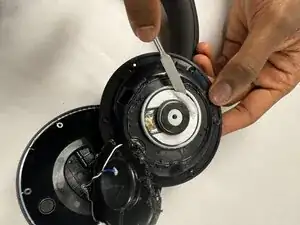
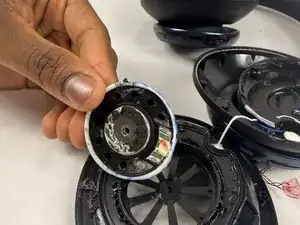
    • Pry the white adhesive layer around the driver component off with a spudger.

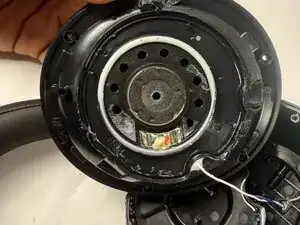
    • The actual driver is the metal disc in the center. The entire driver component includes everything inside the white lining (pictured in the second image).

  8. iYJnMwQVKjPsGlHG
    iYJnMwQVKjPsGlHG
    hYwJ1TDjNHhEn1d6
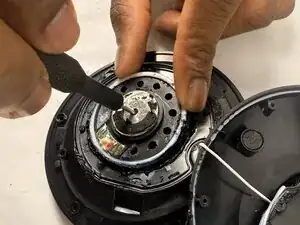
    • Insert a Phillips #00 screwdriver into the hole in the metal center of the actual driver.

    • Pop off the driver component.

    • You will have to replace the entire driver component pictured, since there's no given way to retrieve the actual driver. If you attempt to replace just the actual driver, it could risk damaging interior components.

  9. UbhDIZeAVCCmBBGh
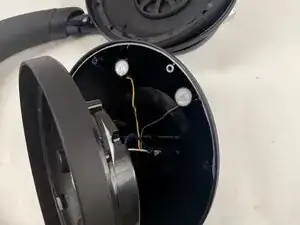
    • Locate the microphones by looking in the outside bowl area fit with wires and white spots.

    • This guide covers the microphones in the left ear cup. There's one other microphone in the right ear cup.

  10. 63UZrGGKJUNWIDGM
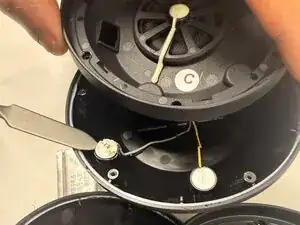
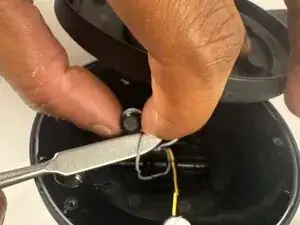
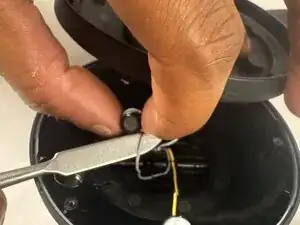
    • Remove the microphones from underneath the white coverings with a spudger.

  11. xCW6mWMMMYPkXX2F
    • Pop out the microphones from underneath their white coverings.

    • The same process is done to the other two microphones

Conclusão

To reassemble your device, follow the above steps in reverse order.
Take your e-waste to an R2 or e-Stewards certified recycler.
Repair didn’t go as planned? Try some basic troubleshooting or ask our Answers community for help.

Malcolm Hewlett

Membro desde: 21/03/25

433 Reputação

0 comentários