Introdução

If your Alienware AW610M isn't charging or connecting properly, your USB-C charging port might be damaged. Over time, the port can bend, loosen, or break with frequent use. This guide will show you how to effectively remove and replace a faulty port and restore proper function. If you are unsure about the charging port being the source of the problem, refer back to our troubleshooting Alienware AW610M Doesn’t Power On page before you continue.

  1. 2A6AZKyhweJFMhKZ
    2A6AZKyhweJFMhKZ
    HrOdJZZRB3SRJsd3
    FRFIQlQSEKsQ3sjI
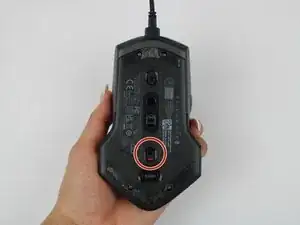
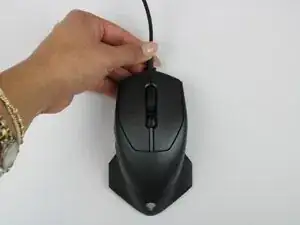
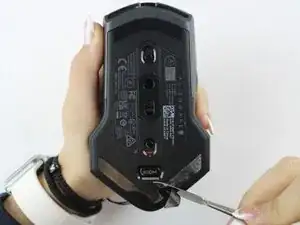
    • Power off the mouse and disconnect any wired connections.

  2. MSdEVxhKPqGNHNOx
    MSdEVxhKPqGNHNOx
    So4l3OlrgJpVMAUS
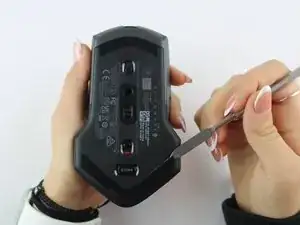
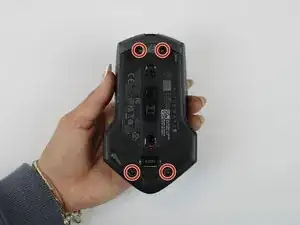
    • Use a spudger to gently lift and remove the old mouse feet.

    • If the feet are sticky, try lifting slowly from one corner to avoid tearing them.

    • Be careful not to scratch the mouse surface or damage the plastic housing.

  3. 5MNFYVBVWFUBdgRr
    5MNFYVBVWFUBdgRr
    mDIihvjrWnxO6Wab
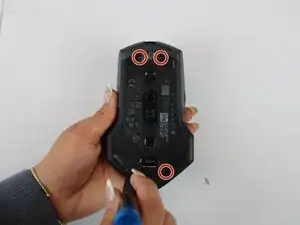
    • Remove the four 6.5 mm screws using a Y1 Tri-Point screwdriver.

  4. qyNLugjpvloc4Zyb
    qyNLugjpvloc4Zyb
    lBpmfpwlWptj5Vqr
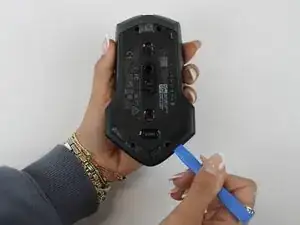
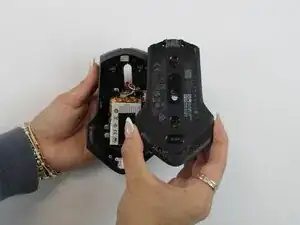
    • Using an opening tool, gently pry apart the two halves of the mouse case. Start at the seam and work your way around until the housing is separated.

    • Don't pull the halves completely apart, as internal wires still connect them.

  5. OfNhuX1PeYjBNvmb
    OfNhuX1PeYjBNvmb
    UyrFB1sMEBrVcWdA
    ZYSZPKxUN1RGgURj
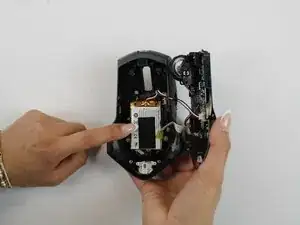
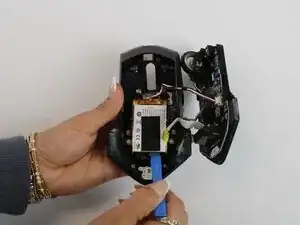
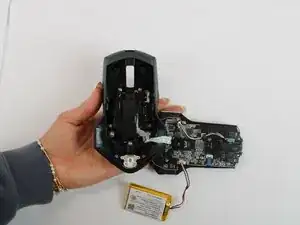
    • Remove the battery pack inside the mouse.

    • If you are having trouble, use a small flat tool to help ease it out.

    • The battery is lightly glued to the mouse, so ease it out gently to avoid breaking the battery or wiring

  6. mfGNbylKHLJZQLjJ
    mfGNbylKHLJZQLjJ
    LMDQ65HiA1UUtgfo
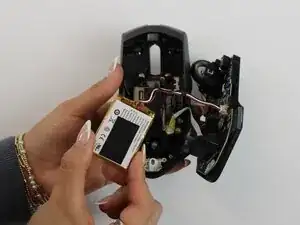
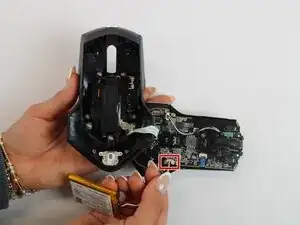
    • Remove the old battery from its spot. Lift the wire connector away from the mainboard to disconnect it.

    • Make sure all wires are inside the mouse before sealing it shut for easy reassembly.

  7. NkNJRAN4OJecXJEf
    NkNJRAN4OJecXJEf
    QaEIvXBOqqmACDQk
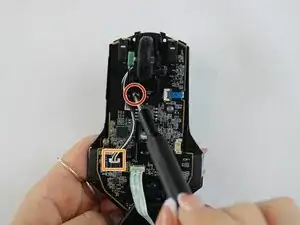
    • Remove the single 5.4 mm screw using a Phillips #1 screwdriver.

    • Detach the cable connector, and remove the scroll wheel.

    • Gently detach the last connector using your fingers.

    • Be careful when unplugging all connectors to prevent tearing them.

  8. q3MNjNcbfqcuNkxQ
    q3MNjNcbfqcuNkxQ
    IMiNflnvDCilPvji
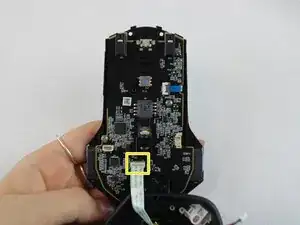
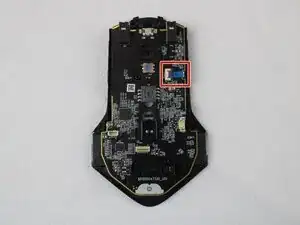
    • Detach the blue ribbon that connects the motherboard to the shell casing.

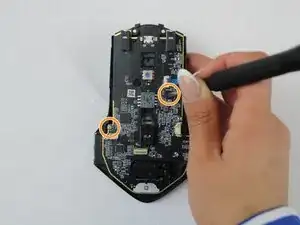
    • Using a Phillips #1 screw driver, remove two 5.4 mm screws to detach the motherboard from the base shell casing.

  9. UVGTLpJdZlVuhMhb
    UVGTLpJdZlVuhMhb
    vLjyESB1c52OBeKJ
    vEhiKXoTutJoYGrX
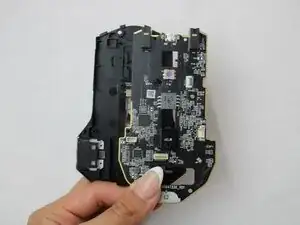
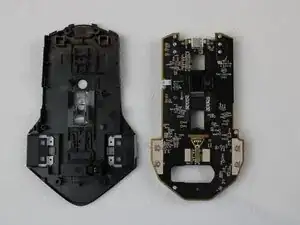
    • Gently detach the motherboard using your fingers.

  10. bu5WoX1RWlRewB6T
    bu5WoX1RWlRewB6T
    xPGBLAEGEEVRdINY
    b1b2SS6QcYYYIERP
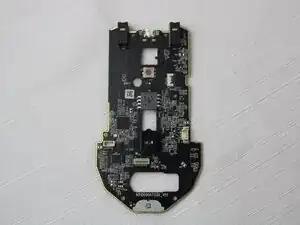
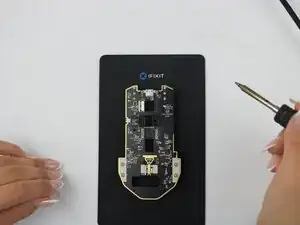
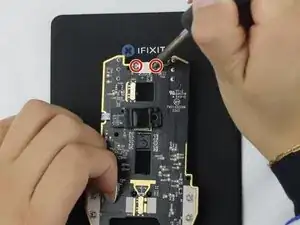
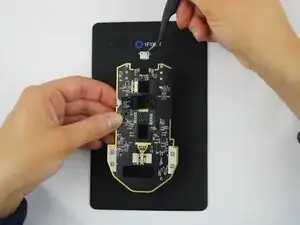
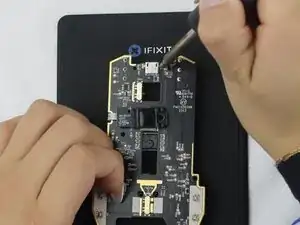
    • Turn the motherboard over to the back side. Using a soldering iron at 450 degrees Celsius, and a solder pad, desolder the two points where the USB-C port connects to the motherboard.

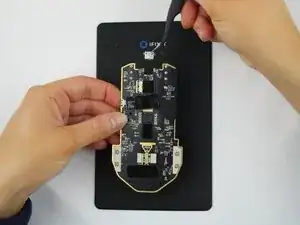
    • Remove the USB-C port with a pair of tweezers.

    • Be very cautious when desoldering, as the tool is at high heat and can burn you, as well as damage other parts of the motherboard.

  11. B1lIW2IosbajJiMT
    B1lIW2IosbajJiMT
    3eODaATsdcwhYLAo
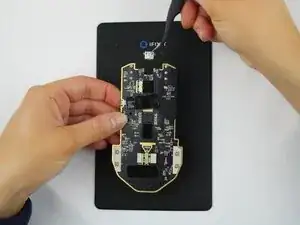
    • Align the replacement USB port with the motherboard using a pair of tweezers and proceed to solder the replacement onto the motherboard at 450 degrees Celsius.

    • Gently wiggle the replacement USB-C port to ensure that it is secure.

    • To avoid burning yourself, give the replacement USB-C port time to cool down when connected.

Conclusão

To reassemble your device, follow these instructions in reverse order.

Elizabeth Johnson

Membro desde: 24/09/25

85 Reputação

0 comentários