
Introdução
Use this guide to solve the Blue Screen of Death with an Alienware 15 R3.
The Blue Screen of Death may occur if the Alienware 15 R3 fails to read the drive containing system files when booting. Changing the boot option in BIOS would not help to solve this particular problem. Therefore, replacing the hard drive in the Alienware 15 R3 is the most effective solution.
It is recommended to backup important files from your hard drive before repairing.


Peças

-
-
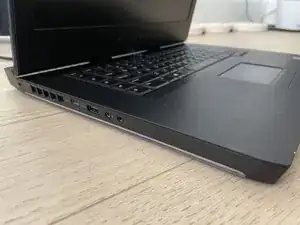
Find the Power option in the start menu and click Shut Down to turn off your Alienware 15 R3.
-
Wait a few seconds until all the computer's lights are off.
-
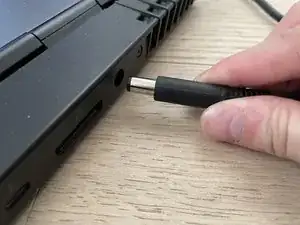
Unplug the power supply.
-
-
-
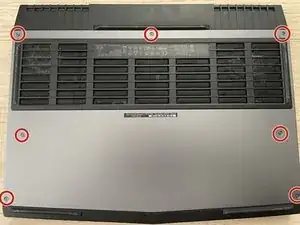
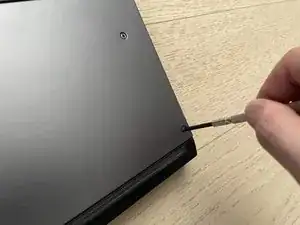
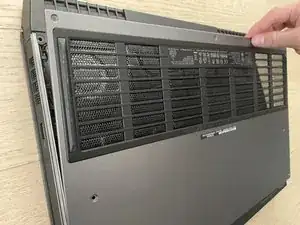
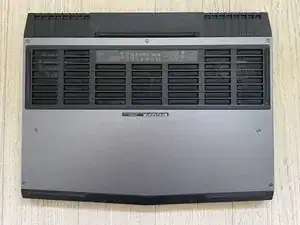
Remove the six M2.5x13 screws from along the side edge of the base cover.
-
Loosen the top middle captive screw on the base cover.
-
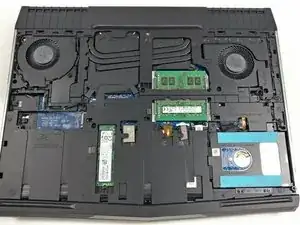
Remove the base cover carefully.
-
-
-
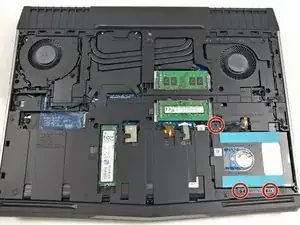
Remove the two M3x3 screws that are holding the bracket and the one M2.5x8 screw holding the hard drive assembly.
-
Remove the hard drive from the laptop.
-
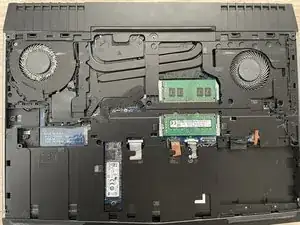
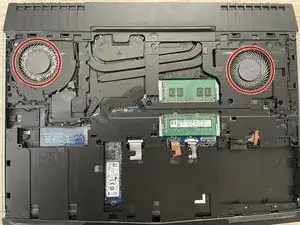
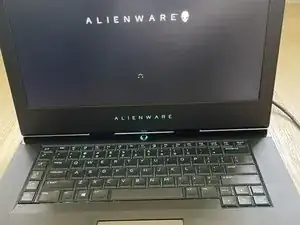
By removing the HDD, the Blue Screen of Death should not occur anymore when booting the laptop. Please note that the volume of storage on your computer may change.