Introdução
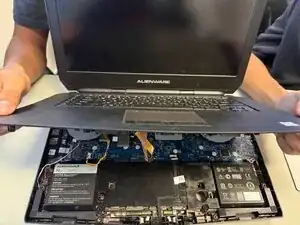
If your Alienware 15 R2 Keyboard is beginning to malfunction get stuck or double typing keys it may be an issue with the keyboard itself. Before deciding to remove the keyboard, check it is not a driver/software issue. Follow this troubleshooting guide. This guide will describe the way you would replace the Alienware 15 R2 keyboard for another keyboard. A keyboard is necessary to use this device. This introduction covers the main reasons why a display replacement might be necessary.


Peças
-
-
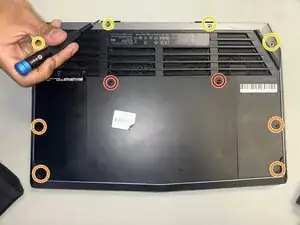
Place the laptop upside down and remove the two 9 mm screws with a Phillips #0 screwdriver on the top right and top left of the back panel.
-
Remove the four 18 mm screws with a Phillips #0 screwdriver.
-
Remove the four 10 mm screws with a Phillips #0 screwdriver.
-
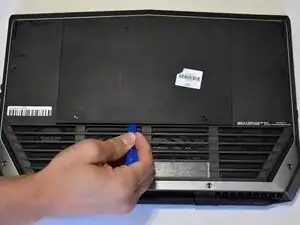
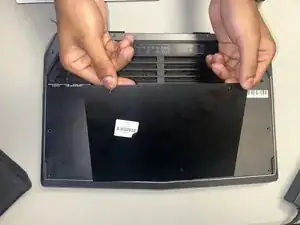
Remove the back cover by using the iFixit opening tool to separate it from the back of the laptop and pulling it off.
-
-
-
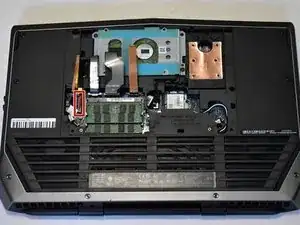
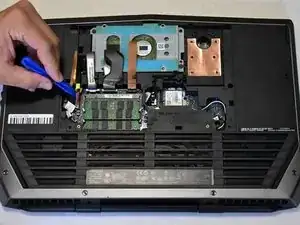
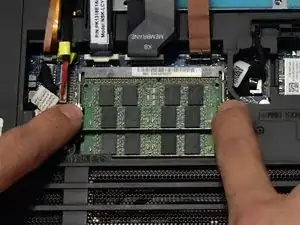
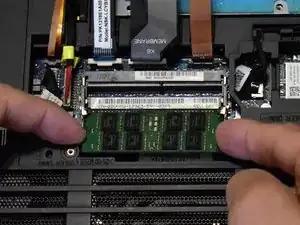
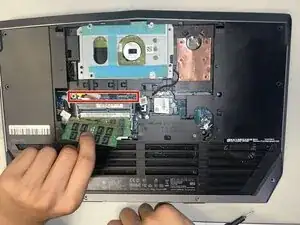
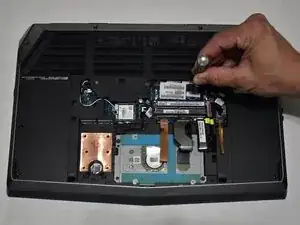
Two clips secure each RAM module in place, one on each side. Using your fingers, spread the clips away from the RAM module.
-
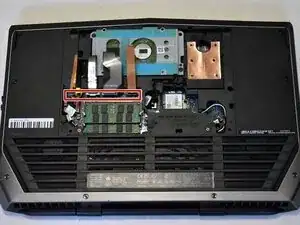
Repeat for the second RAM module.
-
-
-
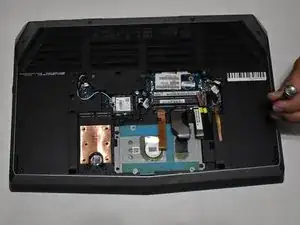
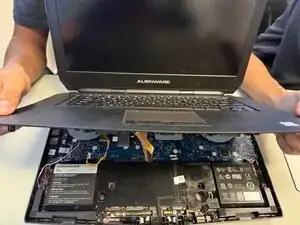
Remove the ribbon cables on the bottom of the laptop to gain more room in order to lift the keyboard up and out of the way.
-
-
-
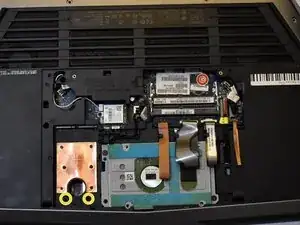
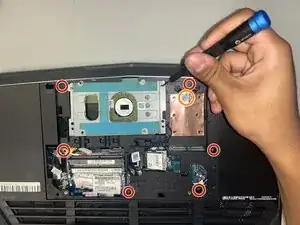
Use a Phillips #0 screwdriver to remove the 3 mm screw from where the RAM sticks used to be.
-
-
-
Use a Phillips #0 screwdriver to remove the six 6 mm screws from the back casing.
-
You can stick your finger in the hole next to the SSD slot for more space to separate the back casing from the keyboard.
-
To reassemble your device, follow these instructions in reverse order.