Introdução
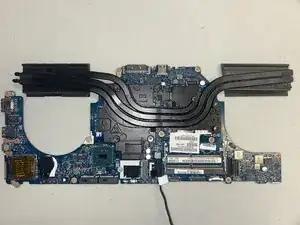
The heatsink in an Alienware 15 R2 is responsible for moving heat away from the CPU and GPU so the laptop can run safely. As the system gets older, dust buildup, worn-out thermal paste, or damaged heat pipes can cause the heatsink to stop working as effectively. When this happens, the laptop may overheat, run louder than usual, or slow down during normal use. In some cases, the cooling system can fail completely, making replacement the most practical solution. Replacing the heatsink helps restore proper cooling and prevents long-term damage to the internal parts. This introduction explains the main reasons why a heatsink replacement might be needed.
Ferramentas


-
-
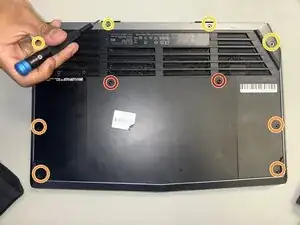
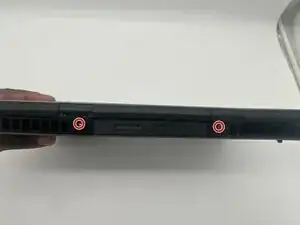
Place the laptop upside down and remove the two 9 mm screws with a Phillips #0 screwdriver on the top right and top left of the back panel.
-
Remove the four 18 mm screws with a Phillips #0 screwdriver.
-
Remove the four 10 mm screws with a Phillips #0 screwdriver.
-
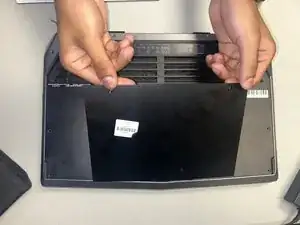
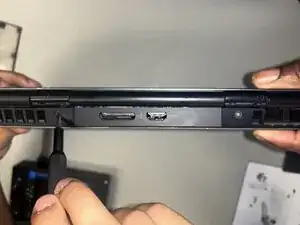
Remove the back cover by using the iFixit opening tool to separate it from the back of the laptop and pulling it off.
-
-
-
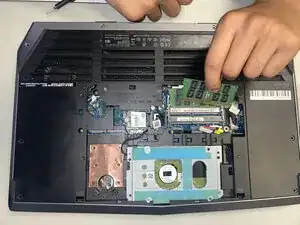
Two clips secure each RAM module in place, one on each side. Using your fingers, spread the clips away from the RAM module.
-
Repeat for the second RAM module.
-
-
-
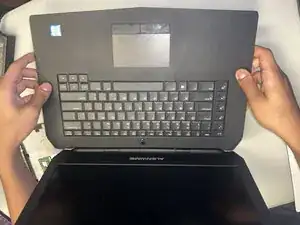
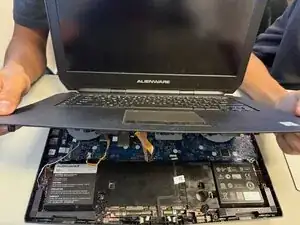
Flip laptop around to keyboard side, then gently pry and lift the keyboard removing the keyboard.
-
-
-
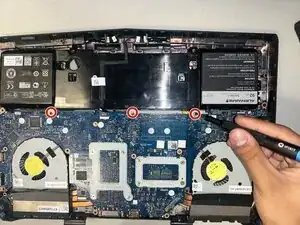
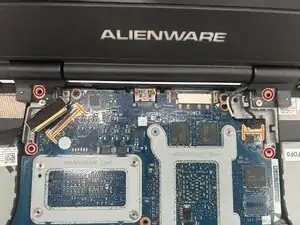
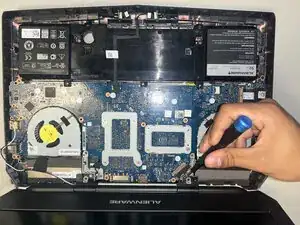
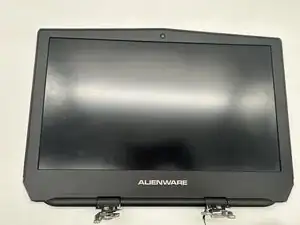
Using a Phillips #0 screwdriver, remove the small 3 mm screws holding the hinges in place.
-
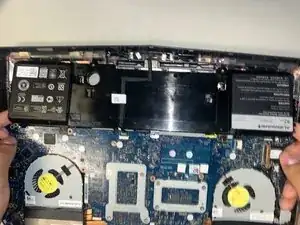
Gently unplug the cables connected to the display.
-
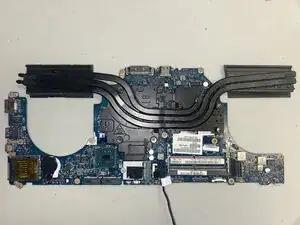
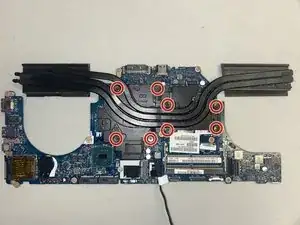
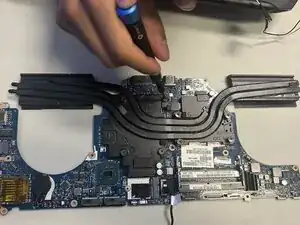
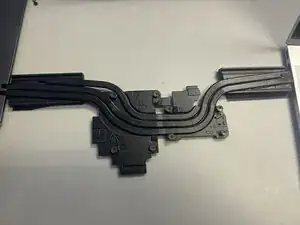
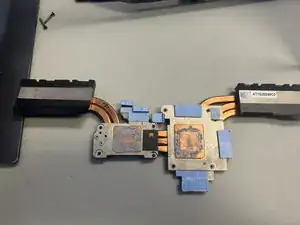
To reassemble your device, follow the above steps in reverse order.
Take your e-waste to an R2 or e-Stewards certified recycler.
Repair didn’t go as planned? Try some basic troubleshooting or ask our Answers community for help.