Introdução
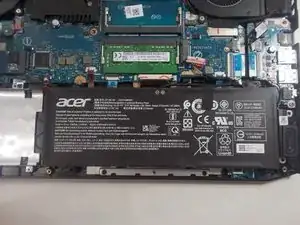
Laptop batteries often wear out the fastest of all laptop components, resulting in lower charge capacity and battery life, or even dying entirely. This guide will show you how to safely remove the back cover and replace the battery of your Acer Nitro 5 AN515-55-55M1.
Ferramentas


-
-
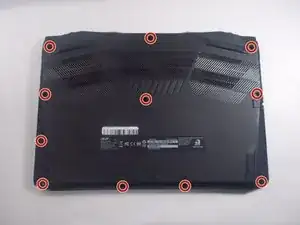
Flip the device so the bottom is facing up.
-
Use a Phillips #1 screwdriver to remove the eleven screws securing the bottom cover.
-
-
-
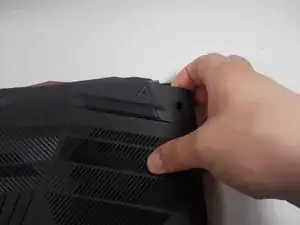
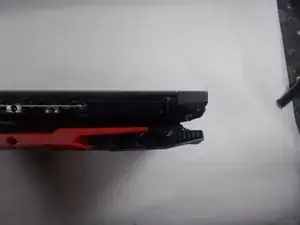
Insert an iFixit opening tool into a gap along one edge of the bottom cover and gently pry upward to release the plastic clips. Work your way around the edges until all clips have released.
-
Lift the bottom cover away from the laptop and set it aside. Lift the top left and right corners up and away from the device.
-
Remove the panel from the laptop.
-
-
-
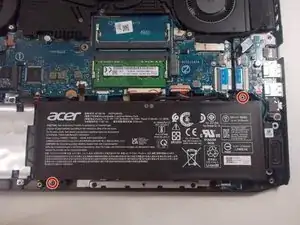
Remove the two screws from the battery with a Phillips #1 screwdriver.
-
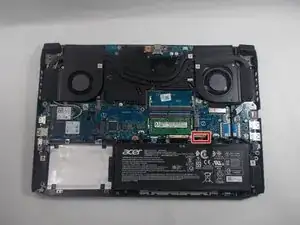
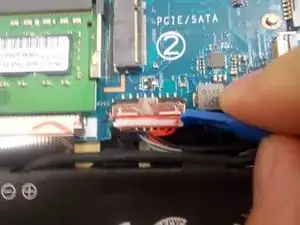
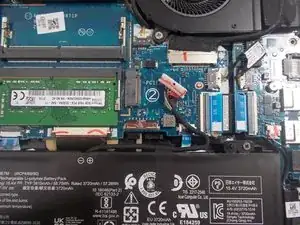
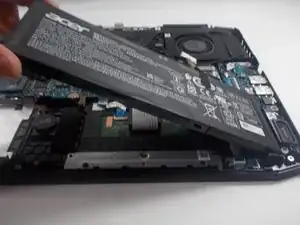
Remove the battery by pulling up and out from the left side.
-
Congratulations! You have successfully replaced the battery of your Acer Nitro 5 AN515-55-55M1!