Introdução
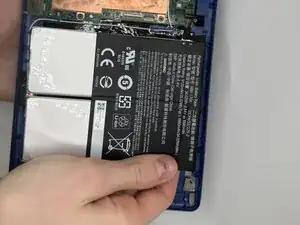
The battery provides power to all functions of the Acer Chromebook Tab 10 N18Q1.
If your tablet no longer holds a charge, drains unusually fast, or shuts down unexpectedly, check the troubleshooting pages first to confirm that the issue is caused by a failing battery.
In this guide, we’ll show you how to replace the battery in your Acer Chromebook Tab 10 N18Q1.
The battery is held in place with strong adhesive. Using iFixit’s adhesive remover or high concentration (over 90%) isopropyl alcohol will make the battery removal process significantly easier.
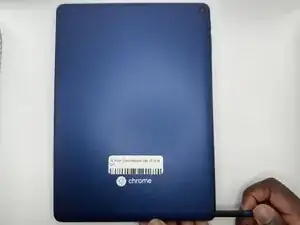
Before you begin, power off your tablet and disconnect the charger.


-
-
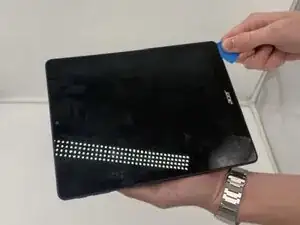
Insert an opening pick into the gap between the screen and the bottom case. Slide it around the edge to release the clips securing the two parts together.
-
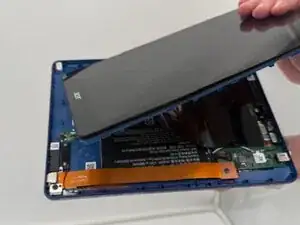
Gently separate the screen from the bottom casing.
-
-
-
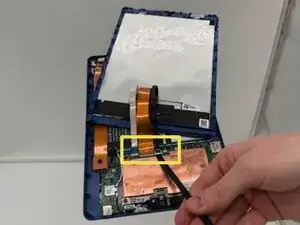
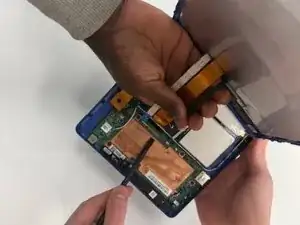
Use a spudger or a clean fingernail to flip up the locking flap—this is the unlocked position.
-
Use tweezers or your fingers to gently pull the cable out of its socket.
-
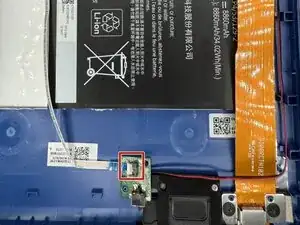
Remove the sensor board and cable.
-
-
-
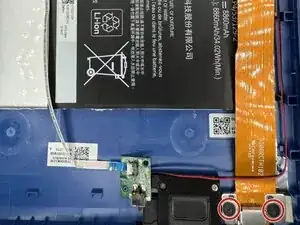
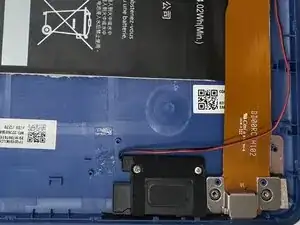
Use a Phillips #1 screwdriver to remove the 2 screws holding the USB-C port in place.
-
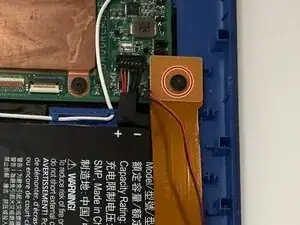
Remove the screw at the end of the orange ribbon cable and remove the USB-C cable.
-
-
-
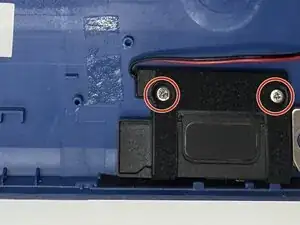
Use a Phillips #0 screwdriver to remove the 2 screws from the lower speaker.
-
Remove the lower loudspeaker.
-
-
-
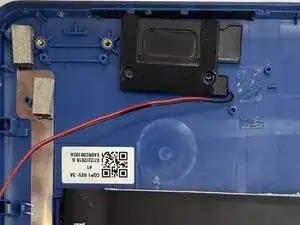
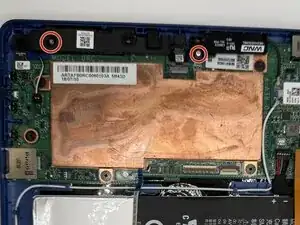
Remove the two Phillips screws from the upper speakers that secure them to the frame.
-
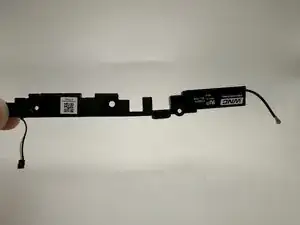
Remove the upper speakers.
-
-
-
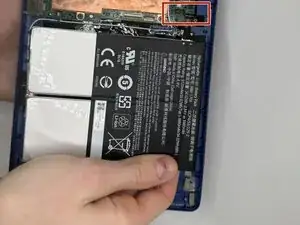
Use the flat end of a spudger to lift and unclip the outer edges of the battery connector.
-
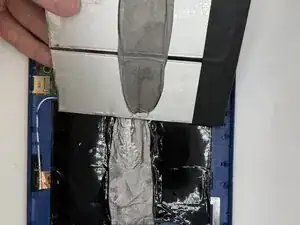
Remove the battery from the tablet.
-
To reassemble your device, follow these instructions in reverse order. Take your e-waste to an R2 or e-Stewards certified recycler.