Introdução
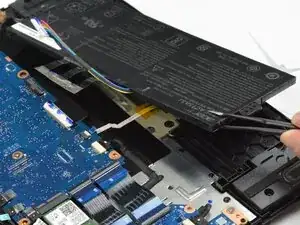
If you need to reinstall a new battery, access the battery pack with this guide. Since the battery is a necessity for operating this computer, you might need to replace the battery if you computer won't charge, or won't hold a charge.


-
-
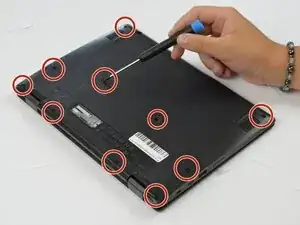
Using the Phillips #0 screwdriver, remove twelve 6.4 mm screws from the bottom of the laptop.
-
Set the screws aside in a safe place.
-
-
-
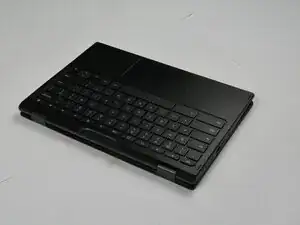
Flip the laptop over so that the keyboard is facing you.
-
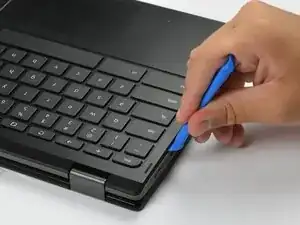
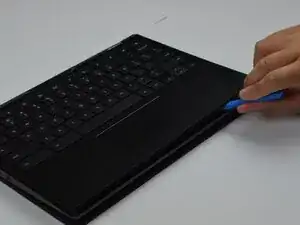
Use an opening tool to gently pry the front keyboard with palm rest from the Chromebook.
-
Slide the opening tool around the edge to release the connecting clips.
-
-
-
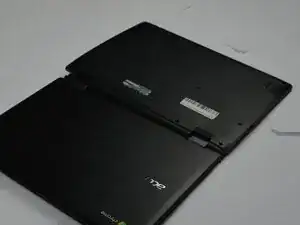
Flip the computer over again, so the back plate is facing up.
-
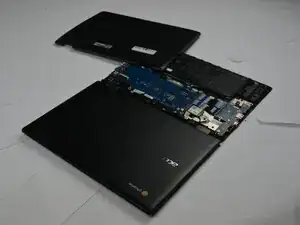
Remove the back plate completely.
-
-
-
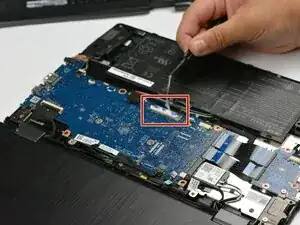
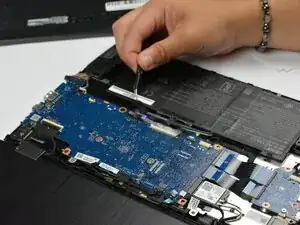
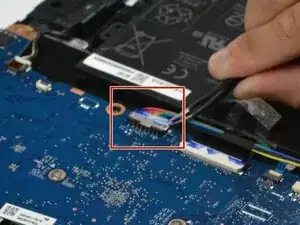
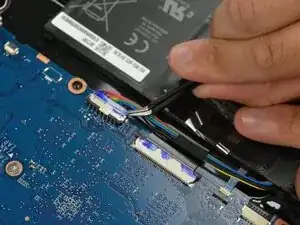
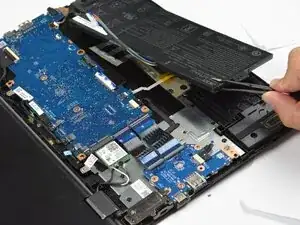
Use the point of a spudger to push on alternating sides of the battery connector to "walk" it out of its socket.
-
Disconnect the battery cable from the motherboard.
-
To reassemble your device, follow these instructions in reverse order. Take your e-waste to an R2 or e-Stewards certified recycler.