Introdução

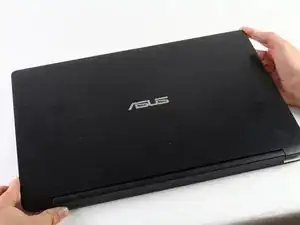
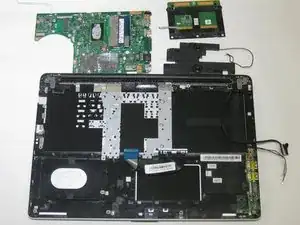
The motherboard of a ASUS Transformer Book Flip TP500LA allows all of the components of a computer, such as memory, storage, and the central processing unit (CPU) to communicate with each other. If your ASUS Transformer Book Flip TP500LA does not boot up, frequently freezes, randomly shuts down, or has a blue screen with text saying “critical error,” the motherboard might be faulty and in need of replacement.

Before replacing the motherboard, rule out other possible causes of these problems. This process requires opening up the device, so be cautious about any parts because some components are sensitive to accidental damage. Also, be cautious of encountering a swollen battery (which could be an alternative cause of the issues), because removal can be dangerous.

Before beginning this guide, power off the device and unplug any external cables.

  1. gCVivk3RZaBrGqIX
    gCVivk3RZaBrGqIX
    OXbuGZPGDNlKNZXb
    rPnGVilZJTrm5rCv
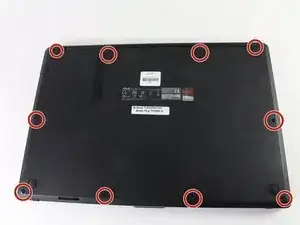
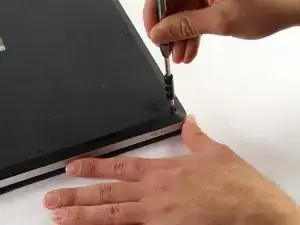
    • Remove the ten 10 mm Phillips #0 screws found on the computer's back case.

  2. StnXJO4TuiHGtpKB
    StnXJO4TuiHGtpKB
    ngqFmCqSSONDjfdI
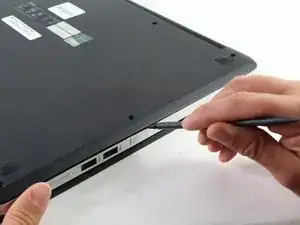
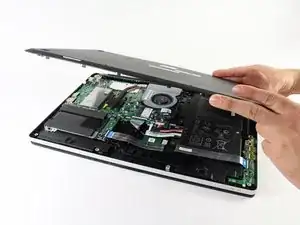
    • Slide a heavy-duty spudger between the back case and the computer.

    • Slowly work around the edges to undo the clips to fully separate the back case from the computer.

    • Gently lift off the back case.

  3. eHLKnsRjV2RjPRXD
    eHLKnsRjV2RjPRXD
    SAUNykTViYEkqXxX
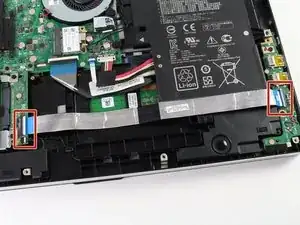
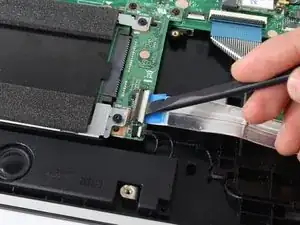
    • Slide a heavy-duty spudger into the ZIF connector and gently flip up the retaining flap to open the connector.

    • Pull the blue tab to remove the ribbon.

  4. 5BtWrdpDiLOvcUJK
    5BtWrdpDiLOvcUJK
    Ih6tSVaMGT5OaBNf
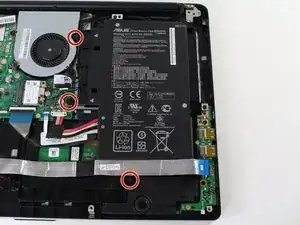
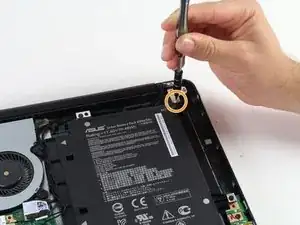
    • Remove the three 5 mm Phillips #0 screws.

    • Remove the single 6 mm Phillips #0 screw.

  5. dHT2IfSGtlPJWGxf
    dHT2IfSGtlPJWGxf
    nXCIx2kBMRXkyKSw
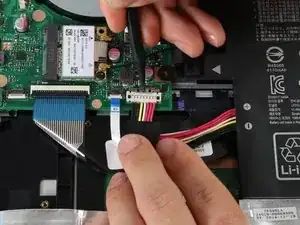
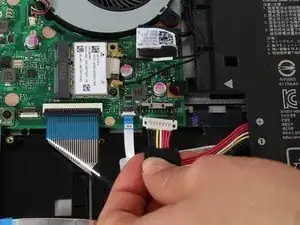
    • Use the heavy-duty spudger to pry the white 8-pin connector away from the motherboard.

    • Gently pull the connector away from the motherboard.

    • The black 8-pin connector on the motherboard is very fragile, so be careful when removing the white 8-pin connector.

    "The black 8-pin connector on the motherboard is very fragile, so be careful when removing the white 8-pin connector."

    Not an understatement, be VERY careful.

    Jean-Guy Rivard -

    Being the idiot, I did not see this before attempting removal of cable. I broke the connector away from the motherboard. Laptop works, just not on battery.

    BE VERY CAREFUL WHEN REMOVING CONNECTOR. I would suggest holding down the cable (white part), then lift metal up. Cable moves out when two black end stubs are cleared by the white connector. Anyone know how I can a replacement to solder back on?

    Dale Sparks -

    The metal peace actually slides back, so DO NOT PRY UP. just move the metal piece away from the white cable.

    Dale Sparks -

    The white connector lifts up off the black one when freed from the black tabs. Don’t try to pull it away horizontally.

    Joe Bronkema -

    Very helpful comments,

    Erika Frohmader -

  6. cnjOXHMrO2btcYha
    cnjOXHMrO2btcYha
    Jfgqj4sTXWCy1NZl
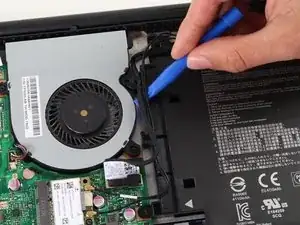
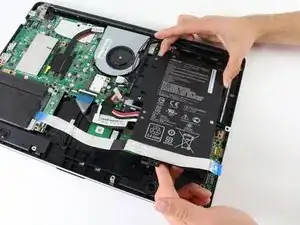
    • Use the blue plastic opening tool to loosen and remove the three black wires from the battery.

    • Slide the battery out from the computer to remove.

  7. dMu3NxPAOkVmSvfn
    dMu3NxPAOkVmSvfn
    4JhqYkGTiXG6FR1q
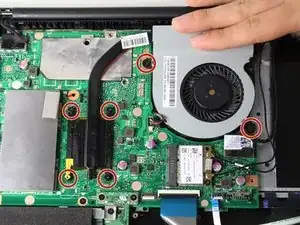
    • Unscrew the six 5 mm Phillips #0 screws.

  8. Ieg3PoD6vWGBvQQG
    Ieg3PoD6vWGBvQQG
    RwjhTTiaXerEZANF
    3uCIKB4Kj1DsPT5Z
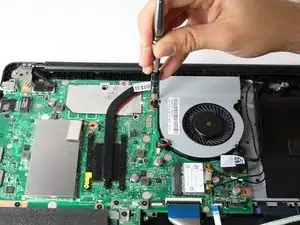
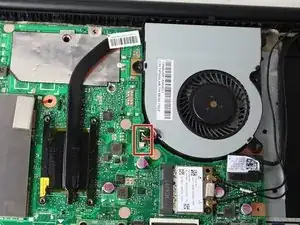
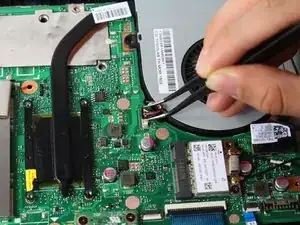
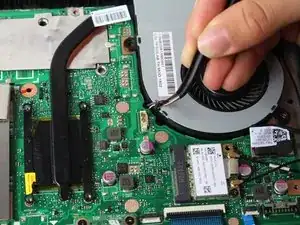
    • Grasp the top of the 3-pin connector with tweezers.

    • Wiggle the connector until it loosens itself from the motherboard.

    • Gently lift the connector from the motherboard attachment.

  9. L1N1XliNFZXDLQGK
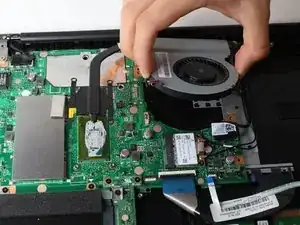
    • Carefully lift the fan off the motherboard.

    • Attached to the fan is thermal pasting that needs to be reapplied when attaching the fan back to the motherboard. Follow this guide to reapply thermal pasting correctly.

  10. 2chg2TWNPRNGXUKr
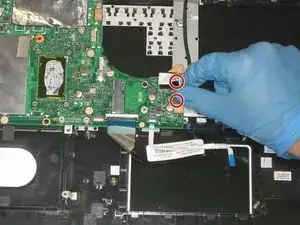
    • Disconnect the two display cables from the motherboard.

  11. tVwfnBtoahEXCsBa
    tVwfnBtoahEXCsBa
    NXMYi5YVeKOHBunV
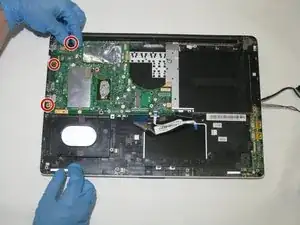
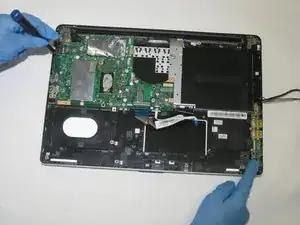
    • Using the Phillips #0 screwdriver, remove the three screws holding the motherboard to the rest of the device.

  12. ZDfGTEW6IJEYHMeK
    ZDfGTEW6IJEYHMeK
    3SFbuvWQYcPOpeNi
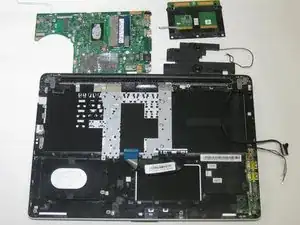
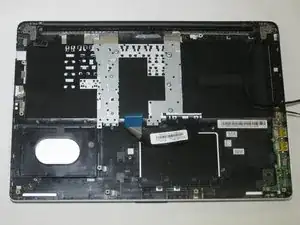
    • Remove the motherboard from the device.

Conclusão

To reassemble your device, follow these instructions in reverse order. Take your e-waste to an R2 or e-Stewards certified recycler.
Graham Haigood

Membro desde: 23/02/21

322 Reputação

0 comentários