Introdução
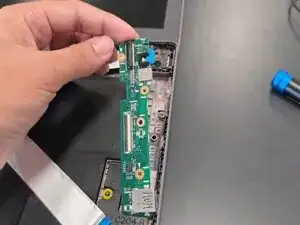
This guide is for when the ports on the right side of the Asus Chromebook C204MA doesn't register when anything is plugged in, and the cause of the issue is the physical I/O Board itself. The left side ports are connected to the main motherboard of the laptop and thus requires different steps completely.
The ports on the right side include a USB-C port and a USB-A port. A broken port means that whichever connector that is plugged into the device is not registered to the laptop.
Before using this guide, it is best to have the laptop completely shut off as it requires unplugging the battery.
Don't disconnect cords off of the motherboard to help with better cable management as well as a smoother reconstruction process.
Ferramentas


-
-
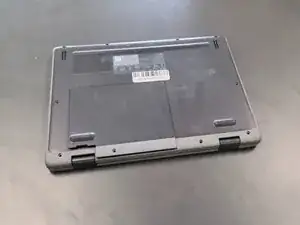
Close the lid and set the laptop with down the bottom facing up.
-
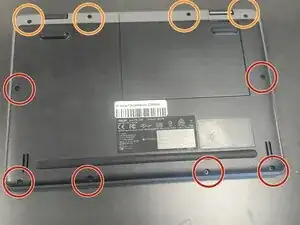
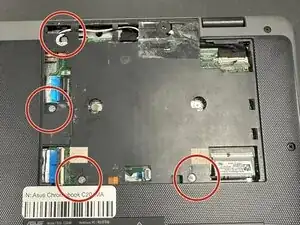
Use a Phillips #0 screwdriver to remove the following screws:
-
Six 6 mm-long
-
Four 8 mm-long
-
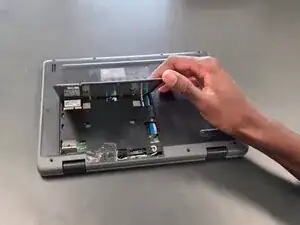
Lift and remove the panel.
-
-
-
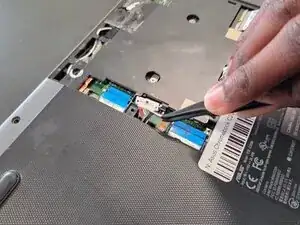
Lift up the silver hinge securing the battery connector and disconnect the battery connector.
-
-
-
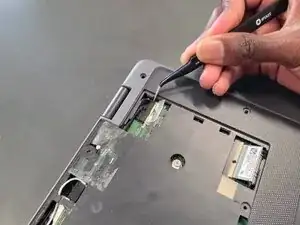
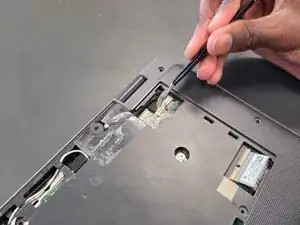
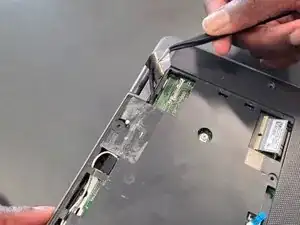
Lift up the tape covering the display cable.
-
Lift the locking bar securing the display cable.
-
Disconnect the display cable.
-
-
-
Flip over the laptop and open the lid to a full 180 degrees.
-
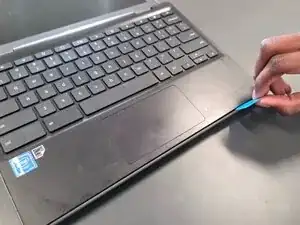
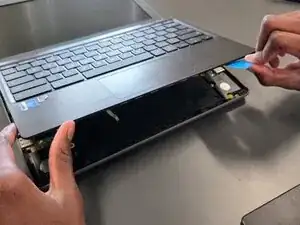
Insert an opening pick into the seam between the palm rest assembly and chassis.
-
Slide the opening pick around the perimeter until the palm rest assembly fully releases.
-
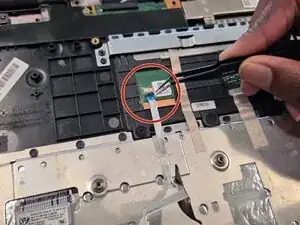
Flip up the locking flap securing the touchpad ribbon cable.
-
Disconnect the ribbon cable.
-
Remove the palm rest assembly.
-
-
-
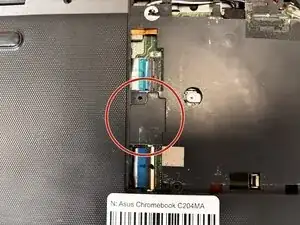
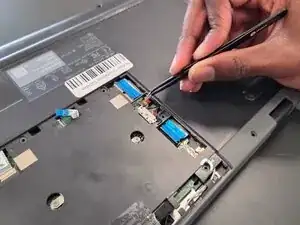
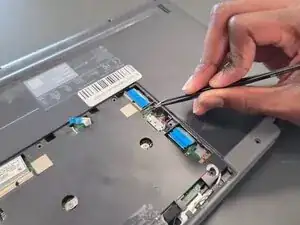
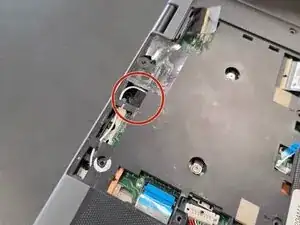
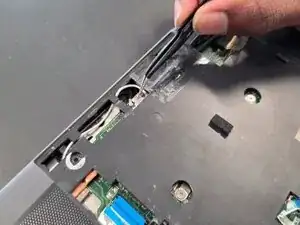
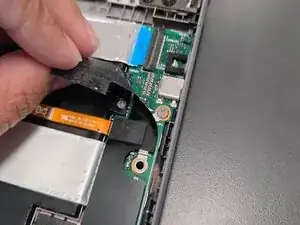
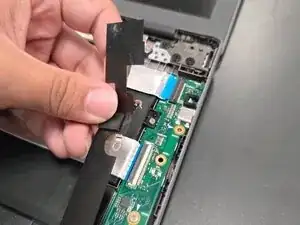
On the I/O board, lift the black mylar film and unscrew 4 mm-long Phillips #0 screw.
-
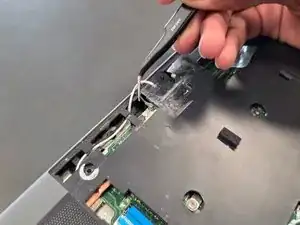
Lift off the orange cable and black mylar film.
-
-
-
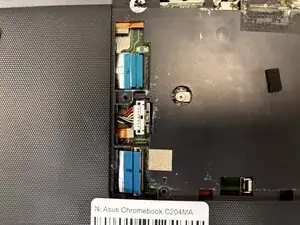
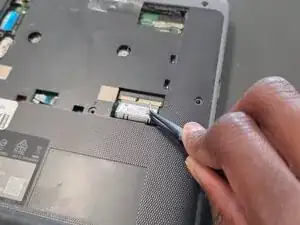
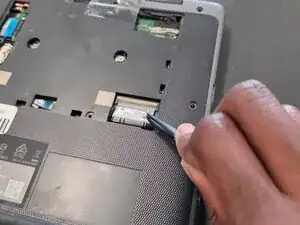
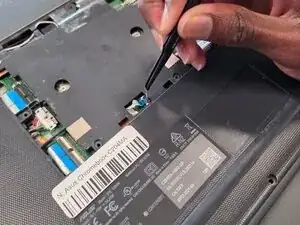
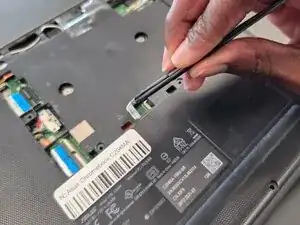
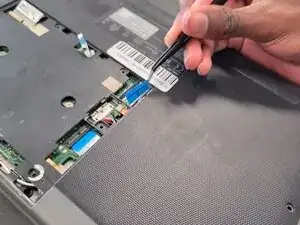
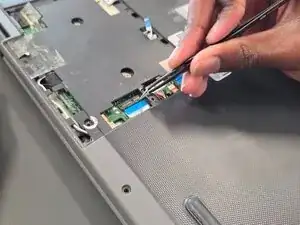
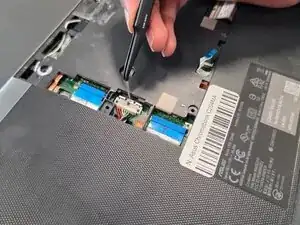
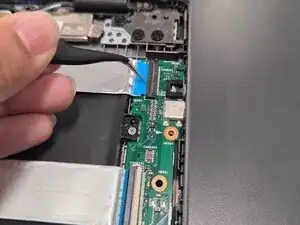
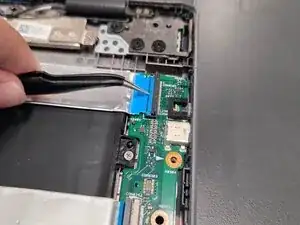
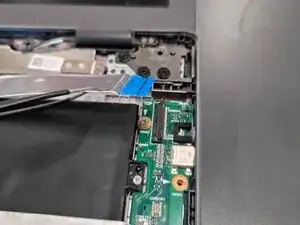
Flip up the locking flap securing the upper I/O board ribbon cable.
-
Disconnect the upper ribbon cable.
-
-
-
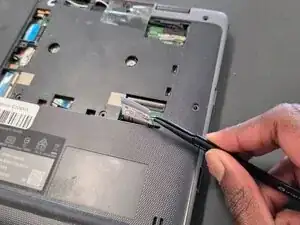
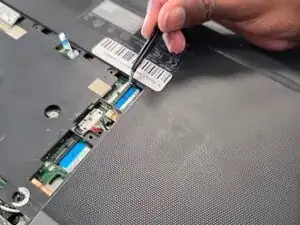
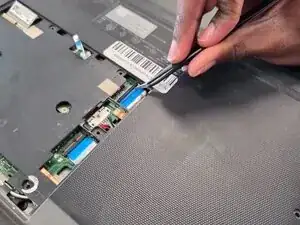
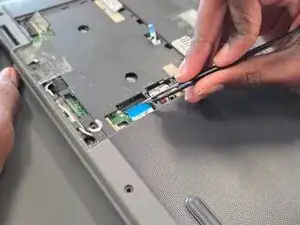
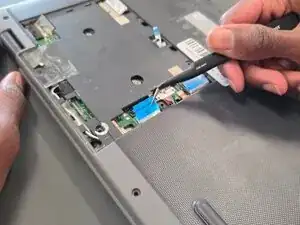
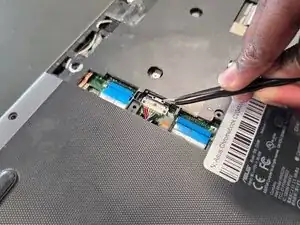
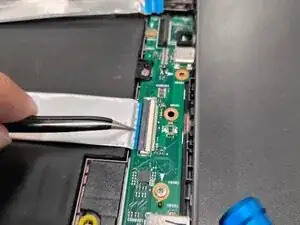
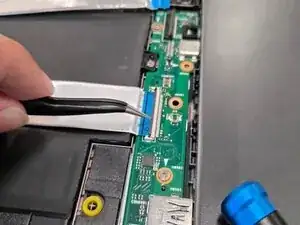
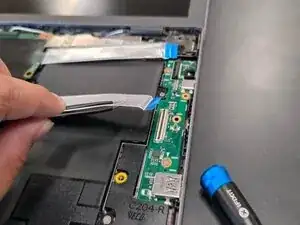
Flip up the locking flap securing the lower I/O board ribbon cable.
-
Disconnect the lower I/O board ribbon cable.
-
-
-
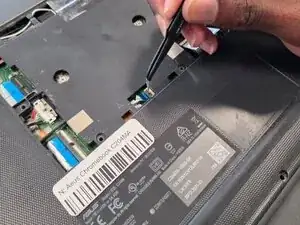
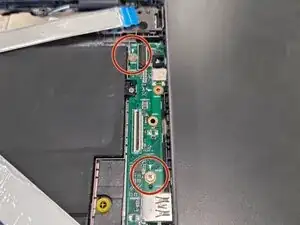
Use a Phillips screwdriver to remove the two 4 mm-long Phillips #0 screws securing the I/O board.
-
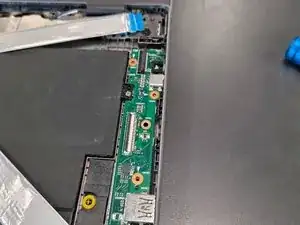
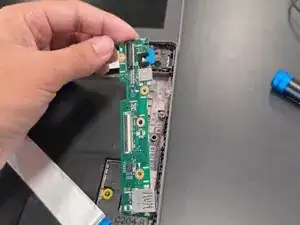
Remove the I/O board.
-
To reassemble your device, follow the above steps in reverse order.
Take your e-waste to an R2 or e-Stewards certified recycler.
Repair didn’t go as planned? Try some basic troubleshooting or ask our Answers community for help.