Introdução

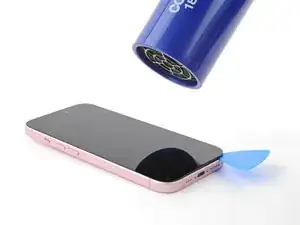
Use this guide to replace a broken or cracked screen in your iPhone 15.

Note: Since you can't disconnect the battery during this repair, be especially careful not to use metal prying tools or touch exposed contacts in your iPhone.

Note: Due to Apple's parts pairing restrictions, on iOS 17.6 and earlier, True Tone and auto brightness are disabled after a screen replacement, even when using an original Apple screen. On iOS 18 and newer, you can calibrate your new screen using Apple's Repair Assistant to restore functionality on genuine parts.

  1. lIUkreYGBUFeRMVi
    lIUkreYGBUFeRMVi
    mrhP4j3gku3xQTYu
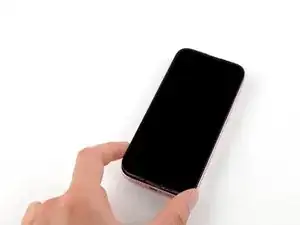
    • Allow your phone's battery to drain below 25%, as a charged lithium-ion battery is a potential safety hazard.

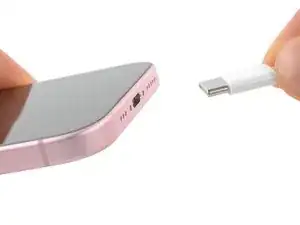
    • Unplug any cables from your phone.

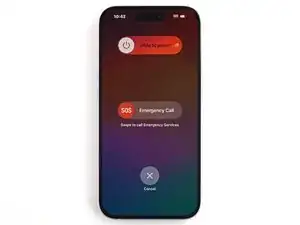
    • Hold the power and either volume buttons and slide to power off your phone.

  2. ChhMVWIceNdbvZQJ
    ChhMVWIceNdbvZQJ
    RYRPjo3rDShOAyHw
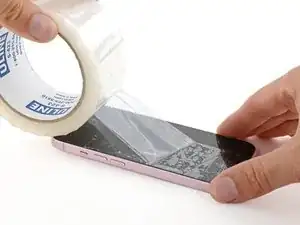
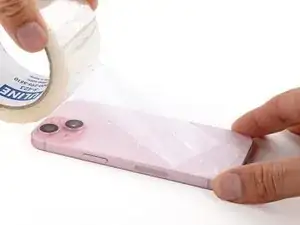
    • If your screen or back glass is badly cracked, lay overlapping strips of packing tape over the glass to protect yourself and make disassembly easier.

    • Make sure there's a smooth area near the bottom edge that's big enough for a suction cup to stick to.

  3. 6UPwoloGBO4tmVoS
    6UPwoloGBO4tmVoS
    BmSYPJmOy6dbHipF
    3EOdQPAGOmiuhoKU
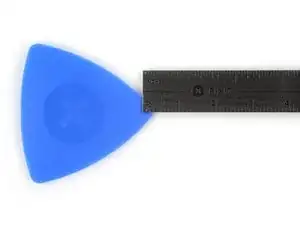
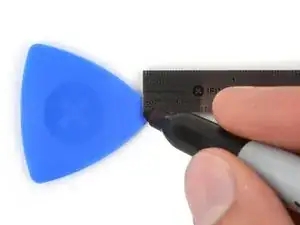
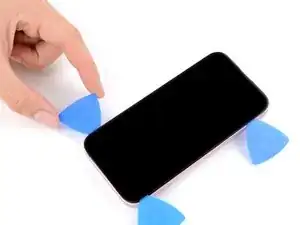
    • If inserted too far, an opening pick can damage your device. Follow this step to mark your pick and prevent damage.

    • Measure 3 mm from the tip and mark the opening pick with a permanent marker.

    • You can also mark the other corners of the pick with different measurements.

    • Alternatively, tape a coin to a pick 3 mm from the tip.

    • Apple sells an Adhesive Cutter tool for cutting the display adhesive safely in their Self Repair Store.

    Got to step 2 and realized the fix kit doesn't include an opening pick! Looks like a guitar pick, and I have those lying around. Is that expected? Looks like the pick is used in many steps below. There's a little blue crowbar that isn't mentioned in the instructions. Perhaps that replaces the opening pick?

    Sloan Looney -
    Hi! I can't see which guide you were using when writing this comment. Can you reply here with which guide and fix kit you used?

    Clay Eickemeyer -
    I see you posted this in Meta. I hope it's resolved soon! In the meantime, a guitar pick may work well enough for your repair.

    Clay Eickemeyer -

    what fix kit?

    Meow Purr -

    Super late reply to original post but my pick was with the replacement screen and not the tools kit.

    Nichol Augustus -

    My fix kit didn't include an opening pick either

    WILLIAM HARRIS -

    Make sure you check inside the black boxes after emptying them. My pick was stuck inside one of the boxes.

    AndyF -

    My AliExpress refurbished screen came with a pick that has a coin-like circle that pops out, so no modification was necessary

    Gijs Leegwater -

    the picture shows 3 cm but the description says 3 mm's. Which one is it?

    John Pena -

    That is a misunderstanding. It is a ruler with a scale for cm, it shows 0.3 cm, i.e. 3 mm.

    VauWeh -

    Oh, come ON!

    Big Ed -

    It will ALWAYS be millimeters on a phone, but this step is ridiculous, skip it!

    Leif DeWolf -

    @leifdewolf I wouldn't skip it for a first repair.

    Gabriel-Science -

    It's not an Ifixit KIT if it doesn't include everything. You'll need to order the opening pic separately. Or head to Walmart like myself and look for guitar pics. Hopefully, this will work just as well.

    Jaleeljb97@icloud.com -

    No pick in mine as well. It’s really not clear that you have to order this separately when ordering an IPhone SE 202/2022 screen repair kit. Is this the case?

    Jackson Castiglione -

    Frustrated, I ordered a compact package where everything was encapsulated. Useless suction tools could not separate the screen. If it is unable to decouple the screen, then why sucking suction tools you have provided.

    Shourob Datta -

    For my kit the triangle pick was stuck inside the box with the screen not with the other tools maybe it's also there for you

    Henry Scheibehenne -

    Y’all are getting far, FAR too detailed with some of this stuff…. Measuring and marking the pick that you won’t actually use to open the device?!? lol that’s kinda funny. Just heat it up, grab a spudger, and the back just pops right off! The iFixit tech need to stick to the KISS method more often, you know KEEP IT SIMPLE STUPID!!! Like l, for reals, I’ve been doing this stuff for YEARS and using iFixit guides regularly and this is just ridiculous at this point!

    Leif DeWolf -

    Will the phone still work if the sensor assembly on the back of the screen is damaged?

    Mutshidzi Rambau -

    I don't have a pick, but how much better are these picks than an old credit card for opening an iPhone 13 mini?

    mike eng -

    an old credit card will do that job, although you'll have to pull a little bit more if the credit card is thicker than the picks, just again, be careful and don't insert it that far

    Russ Torrez -

    The pick in my iFixIt kit was packed with the battery, not with the rest of the toolkit.

    Tony Houlihan -

    Many of these comments are PURE GOLD. Seriously y’all, if you’re not sure if it should be 3mm or 3cm or whether you could find and use an alternative pick, mending an IPhone really isn’t for you. Find a responsible adult and get back to doing something simpler…

    Alasdair Cameron -

    indeed!!!! I agreee!!!

    Lonnie -

    I bought the kit of five just in case. I used two and marking them at 3mm was definitely helpful.

    Megolina -

    Funktioniert super. Habe vorher sicherheitshalber den Akku abgesteckt.

    Lukas D -

  4. BWZ2RDFjMrvJeCc4
    BWZ2RDFjMrvJeCc4
    J3XYExNBDltjICCK
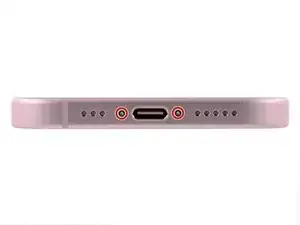
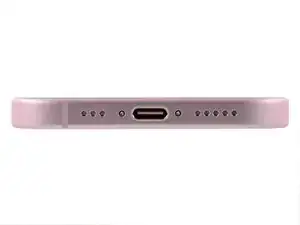
    • Use a P2 pentalobe driver to remove the two 7.7 mm-long screws on either side of the charging port.

    ネジが取れないときはもう終わりですかね??😭

    shinba916 -

  5. 6QNsWTPguIrtbVpi
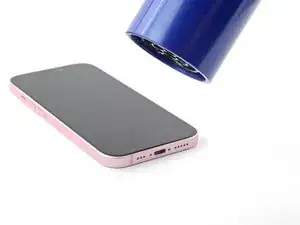
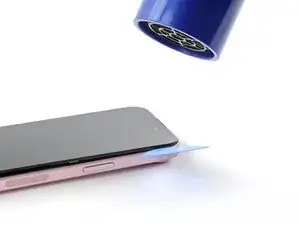
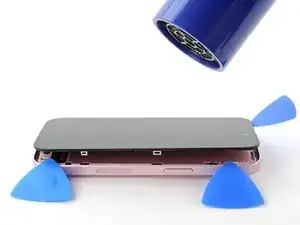
    • Use a hair dryer or heat gun to heat the bottom edge of the screen until it's hot to the touch.

    • Be careful not to heat the phone hotter than this—the battery is susceptible to heat damage.

  6. wQkUOVDHjpOrx5iT
    wQkUOVDHjpOrx5iT
    yYPVRXyGG1BxFeIh
    XWDu1e1fCGKuFQwo
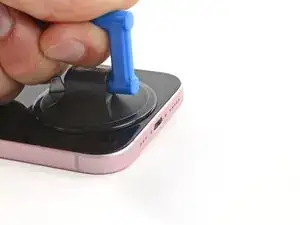
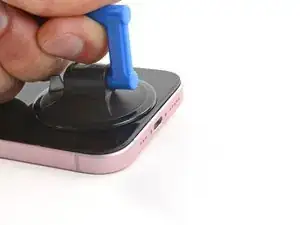
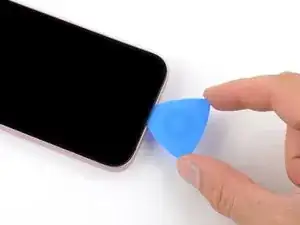
    • Apply a suction handle to the bottom edge of the screen.

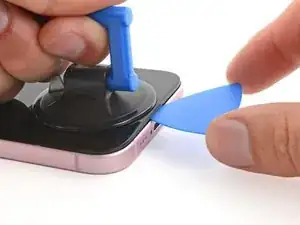
    • Pull up on the handle with a strong, steady force to create a gap between the screen and the frame.

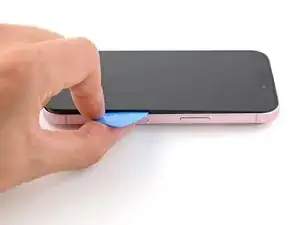
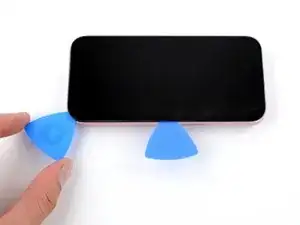
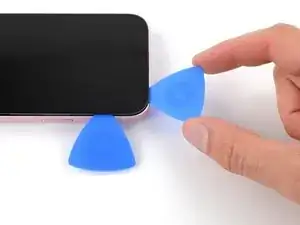
    • Insert the tip of an opening pick into the gap.

  7. 3R1nAGxHEU6DeKCO
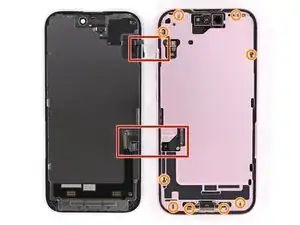
    • As you slice the adhesive securing the screen in the next steps, be careful of the following areas:

    • There are two delicate cables connecting the screen to the phone, one just above the mute switch, and the other about halfway between the volume down button and the bottom of the phone.

    • There are multiple spring contacts around the perimeter of the phone. Be extra careful not to insert your pick deeper than suggested in these locations to avoid bending the contacts.

  8. IUvJQbXCYOeLZFF1
    IUvJQbXCYOeLZFF1
    kgLSZEhfOBJnMKGX
    MDsDDFr3RLcNJ3Ji
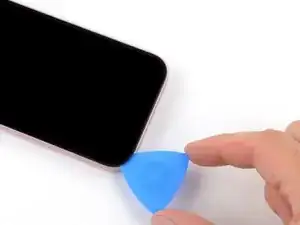
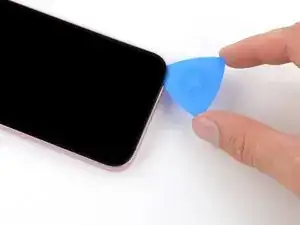
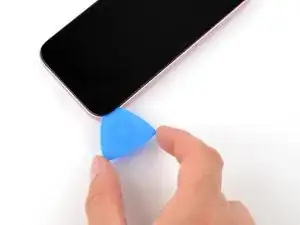
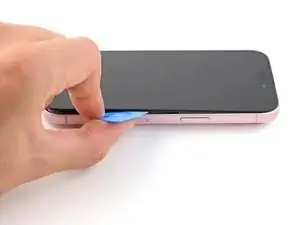
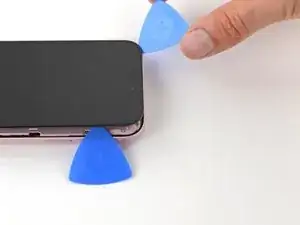
    • Don't insert your opening pick deeper than 3 mm along the bottom edge.

    • Slide your pick back and forth along the bottom edge to separate the adhesive.

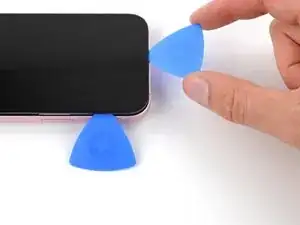
    • Leave your pick inserted in the bottom right corner to prevent the adhesive from re-sealing.

  9. LXytYWG2sAGTgjAX
    • Heat the right edge of the screen until it's hot to the touch.

  10. 6X4sVdORbuJlBF3Q
    6X4sVdORbuJlBF3Q
    GWDhIsZQekyD6Dqv
    YEZhncmODYSnBhCZ
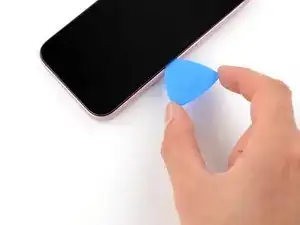
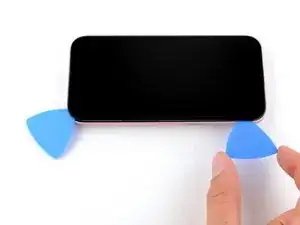
    • Don't insert your pick deeper than 5 mm along the right edge.

    • Slide your pick around the bottom right corner of the screen and toward the power button until you feel a hard stop at a clip securing the screen.

    • Rotate your pick so the flat edge is under the screen.

  11. vWktvSneYlKqZ1fO
    vWktvSneYlKqZ1fO
    2r6hyN1ukZFo5tJb
    krAepYyLAZabCMLY
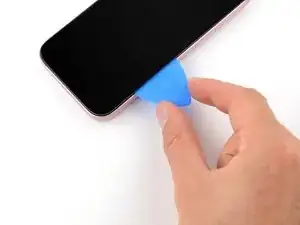
    • Hold the pick with one hand and twist it to increase the gap between the screen and the frame and release the right clip.

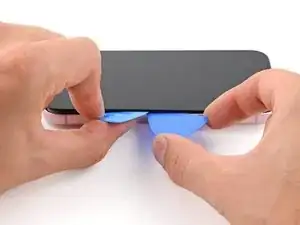
    • Insert a second opening pick to the right of the first one.

  12. kTdCtZZeiBEmlVqj
    kTdCtZZeiBEmlVqj
    BIp2BnpRxjIqXsQm
    f3eHFOvIqNMoIfrn
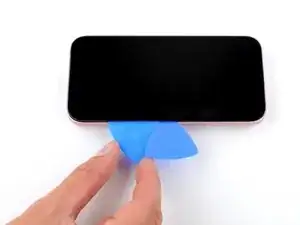
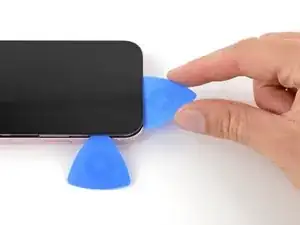
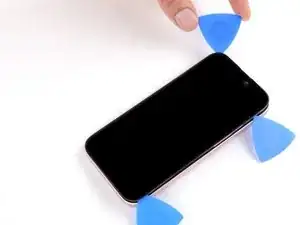
    • Slide the first pick back to the bottom right corner of the screen.

    • Slide the second pick to the top right corner of the screen to separate the adhesive.

    • Leave these picks inserted to prevent the adhesive from resealing.

  13. KNcGGjulTrQGoDmi
    • Heat the top edge of the screen until it's hot to the touch.

  14. ZaIfAkMUbHpQhE4l
    ZaIfAkMUbHpQhE4l
    RLMwMPVovqXsx1CW
    vVv1miweak2cAXQj
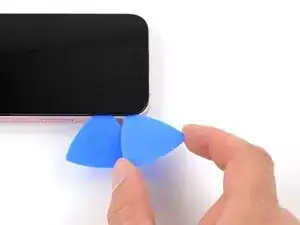
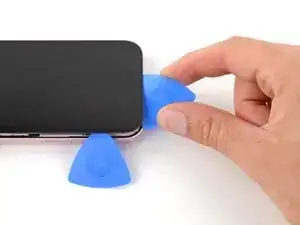
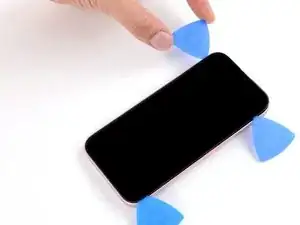
    • Don't insert your pick deeper than 3 mm along the top edge.

    • Insert a third opening pick in the top right corner, just above the previous pick.

    • Slide your pick around the top right corner and along the top edge until you feel it stop against the top left screen clip.

  15. vDIxn4aUOUolKSLf
    vDIxn4aUOUolKSLf
    XMrAG4TZyGjTEKW2
    2KArVDcTT6Rp2ARX
    • Rotate your pick so its flat edge is under the screen.

    • Twist your pick to release the top left screen clip.

    • Slide your pick to the top left corner.

  16. cudQJjTaou2RgrVw
    • Heat the left edge of the screen until it's hot to the touch.

  17. AIJQWeV6ayQegikH
    AIJQWeV6ayQegikH
    dsdHTG3QnWWSbgiB
    ma3eSbJf4Dj2u1UN
    • Don't insert your pick deeper than 3 mm along the left edge to avoid the two cables connecting the screen to the phone.

    • Slide your pick around the top left corner of the screen and along the left edge to release the clips and separate the adhesive securing it.

  18. McNaIOdCotv4a1Ko
    McNaIOdCotv4a1Ko
    rYjuIGoitpwTbnHL
    HQkgXDPVF1s6DXJB
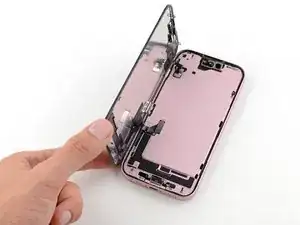
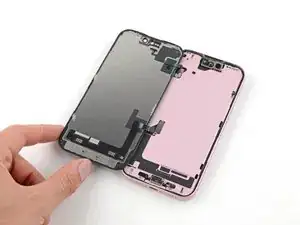
    • Gently swing open the screen over the left edge of the phone.

    • If the screen feels stuck, go back around the perimeter to check for missed sections of adhesive or stuck clips.

  19. K2SUVBtTMPgOXWXR
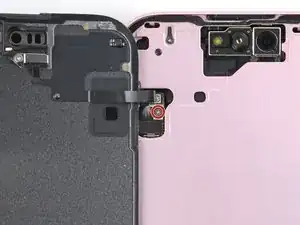
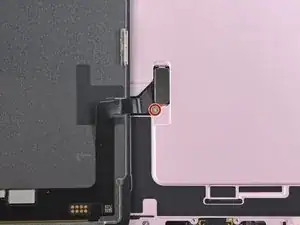
    • Use a tri-point Y000 driver to remove the 0.9 mm-long screw securing the front sensor connector cover.

  20. wX4QZEGJFJBKlaBO
    wX4QZEGJFJBKlaBO
    TVxFWGXWEmaPEqvJ
    DRXIDBlZseLPxVuy
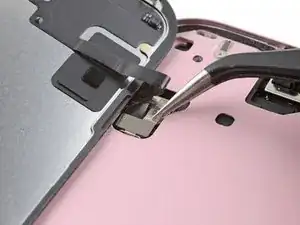
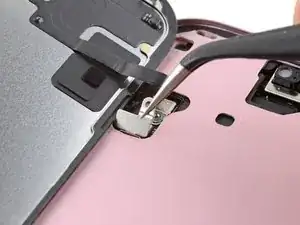
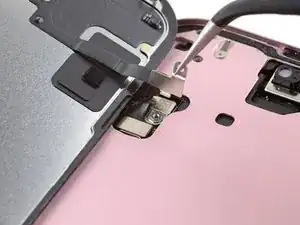
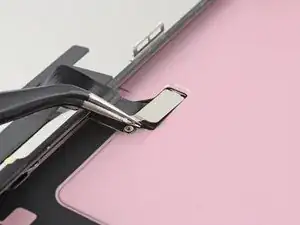
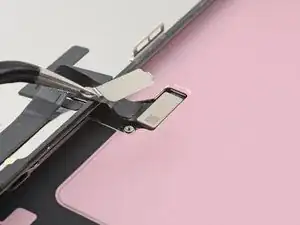
    • Use tweezers to lift the cover to a 90-degree angle.

    • Unhook the cover from its slot in the logic board.

    • Remove the cover.

  21. dXaatEvhpxZGqb2S
    dXaatEvhpxZGqb2S
    ruTW4pEhagC6cyOU
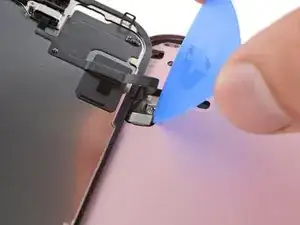
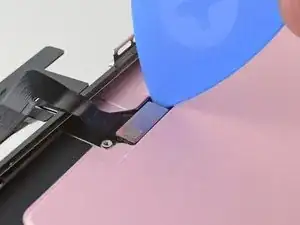
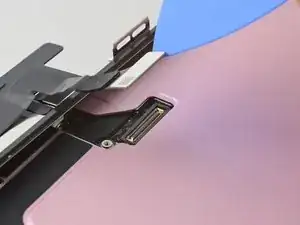
    • Use the tip of an opening pick to pry up and disconnect the front sensor press connector.

  22. 6dQFGQKjq6rM2ktp
    • Use your tri-point Y000 driver to remove the 0.9 mm‑long screw securing the screen connector cover.

  23. ZGlvRHxFAhuqZIvJ
    ZGlvRHxFAhuqZIvJ
    WZyw6KJNooxVRLbh
    • Use tweezers to lift the cover and unlatch it from its hook on the logic board.

    • Remove the cover.

  24. dMWhtWjQOSEkJlHa
    dMWhtWjQOSEkJlHa
    iDG1KS5wq2ynUCtU
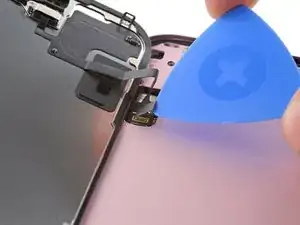
    • Use the tip of an opening pick to pry up and disconnect the screen press connector.

  25. 4fGQavboHuDp2Pcu
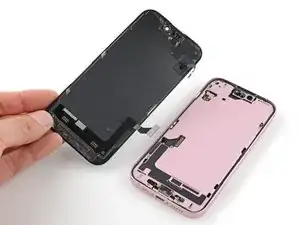
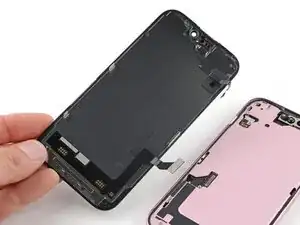
    • Remove the screen.

Conclusão

To reassemble your phone, follow this guide to reapply adhesive and install your screen.

After your repair, depending on the replacement part, you may be able to calibrate it using Apple's Repair Assistant, available as of iOS 18. Update your device, navigate to Settings General About Parts & Service History, tap Restart & Finish Repair, and follow the onscreen prompts.

Take your e-waste to an R2 or e-Stewards certified recycler.

Repair didn’t go as planned? Try some basic troubleshooting, or ask our Answers community for help.

Clay Eickemeyer

Membro desde: 19/09/22

99651 Reputação

0 comentários