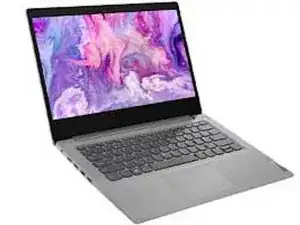
Background
- The Lenovo IdeaPad 3-14ARE05 is a 14-inch laptop introduced in 2020 as part of Lenovo’s affordable IdeaPad 3 series. It was designed for students, professionals, and remote workers who need reliable everyday performance at a low cost. The system runs on AMD Ryzen 3, 5, or 7 processors with integrated Radeon Graphics and ships with Windows 10 Home, which can be upgraded to Windows 11.
- The chassis is made of durable plastic and offered in several colors, including Abyss Blue, Platinum Gray, and Cherry Red. The IdeaPad 3-14ARE05 is valued for its quiet operation, solid-state drive options, and easy serviceability. Common problems reported by users include battery wear, loose hinges, and keyboard malfunctions. Expanding this device page helps users identify their laptop and complete safe, step-by-step repairs instead of replacing the device.
Identification
- You can identify the Lenovo IdeaPad 3-14ARE05 by checking the sticker or engraved label on the underside of the laptop. The printed model number typically appears near the ventilation slots and reads “IdeaPad 3-14ARE05.”
- This model has a 14-inch display with slim side bezels, a centered Lenovo logo below the screen, and a compact keyboard layout without a numeric keypad. The left side holds the power connector, HDMI port, and two USB ports, while the right side includes a headphone jack and SD card reader.
- If your device has an Intel processor or a slightly different port layout, you may have the Lenovo IdeaPad 3-14IML05 or the IdeaPad 3 Chromebook 11IGL05 instead.
Technical Specifications
- Display: 14-inch Full HD (1920 × 1080) TN or IPS panel
Processor Options: AMD Ryzen 3 3250U / Ryzen 5 3500U / Ryzen 7 3700U
Graphics: Integrated AMD Radeon Graphics
Memory: 4 GB to 12 GB DDR4 RAM (1 soldered + 1 slot)
Storage: Up to 512 GB SSD or 1 TB HDD
Battery: 35 Wh Lithium-Ion, rated for up to 8 hours
Operating System: Windows 10 Home, upgradeable to Windows 11
Ports: HDMI, USB-C, 2 × USB-A, headphone jack, SD card reader
Weight: 1.6 kg (3.5 lb)
Dimensions: 12.9 × 9 × 0.8 in (W × D × H)
Additional Information
- Lenovo Official Support Page — IdeaPad 3-14ARE05
- The Lenovo IdeaPad 3-14ARE05 remains a dependable entry-level laptop that balances performance and portability. Creating detailed repair guides for battery replacement, keyboard service, and hinge repair will extend the lifespan of this device and support iFixit’s goal of making repair information accessible to everyone.
Troubleshooting
This section addresses common issues that Lenovo IdeaPad 3-14ARE05 users may experience. Each subsection outlines the symptoms, the most likely causes, and recommended solutions to help diagnose and correct the problem.
Laptop Will Not Power On
Possible Causes:
- Drained or failing battery
- Faulty AC adapter or charging port
- Internal power delivery failure
- Loose or damaged internal connectors
Solutions:
- Connect the laptop to a reliable wall outlet and confirm that the charging indicator light turns on. Try another AC adapter if available.
- Perform a power reset by holding the power button for 15 seconds.
- Check the charging port for dust, bent pins, or looseness.
- If the system still does not respond, the internal battery or power board may require replacement.
Laptop Overheating or Running Loud
Possible Causes:
- Dust buildup in the cooling system
- Failing or obstructed cooling fan
- Dried thermal paste on the CPU
- High resource usage from software or background tasks
Solutions:
- Inspect the bottom vents and fan exhaust for dust and clean gently with compressed air.
- Check Task Manager for apps that drive CPU usage and close any unnecessary programs.
- Ensure proper ventilation by placing the laptop on a hard, flat surface.
- If overheating continues, the cooling fan or thermal paste may need servicing.
Keyboard Keys Not Responding or Typing Incorrectly
Possible Causes:
- Loose keyboard ribbon cable
- Debris under the keys
- Damaged keyboard membrane
- Software or driver issue
Solutions:
- Restart the laptop and check if the issue persists in the BIOS menu to rule out software problems.
- Gently clean around the affected keys with compressed air.
- Update or reinstall keyboard drivers through Device Manager.
- If the keys remain unresponsive, the keyboard assembly may need replacement.
Screen Flickering, Dim Display, or No Image
Possible Causes:
- Loose or damaged display cable
- Backlight or LCD panel failure
- Outdated graphics drivers
- Incorrect power or display settings
Solutions:
- Connect an external monitor to confirm whether the GPU is functioning.
- Adjust brightness and disable auto-brightness settings.
- Update graphics drivers through Windows Update or Lenovo Vantage.
- If flickering continues, the display cable or screen itself may require replacement.
Slow Performance or Frequent Freezing
Possible Causes:
- Insufficient RAM
- Nearly full storage drive
- Background programs consuming system resources
- Malware or corrupted system files
Solutions:
- Restart the laptop to clear temporary memory load.
- Review startup programs and disable unnecessary ones.
- Run Windows Defender or another trusted antivirus program.
- Consider upgrading to an SSD (if equipped with HDD) or increasing RAM if available.
Wi-Fi Not Connecting or Frequently Disconnecting
Possible Causes:
- Outdated wireless drivers
- Weak signal or router issues
- Power-saving settings disabling the wireless card
- Faulty Wi-Fi card
Solutions:
- Restart the router and reconnect to the network.
- Update Wi-Fi drivers through Lenovo Vantage.
- In Device Manager, disable any power-saving options for the wireless adapter.
- If connections drop even near the router, the Wi-Fi card may need replacement.
Audio Not Working or Speakers Sound Distorted
Possible Causes:
- Incorrect audio output device
- Damaged speakers
- Outdated audio drivers
- Settings misconfiguration
Solutions:
- Check the selected output device in Windows sound settings.
- Update or reinstall audio drivers.
- Test audio using headphones to determine whether the issue is with the speakers.
- If distortion persists, the speaker module may require replacement.